


If you are using Google Forms, you definitely want to be using the summary of responses that is automatically generated from your data.
Administer a Google Form
In order to summarize the responses, you need responses. If you already have a Google Form go open up the spreadsheet that contains the data. If you did not connect your Google Form to a spreadsheet you can view the summary of responses from the Form’s edit screen.
Form Menu
In the Google spreadsheet there is a menu option “Form” to the left of the “Help” menu. Under this menu option is the choice to “Show Summary of Responses”
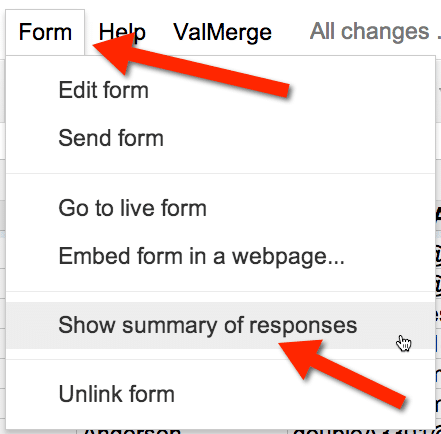
Automagically
With zero effort your data is graphically displayed. This is great for formative assessment to shape your instruction immediately in class. 





10 thoughts on “Google Forms: Show Summary of Responses”
The creation of a Google Form is flexible and straight-forward. Generation and updating of the accompanying spreadsheet is automatic and very helpful. Production of the “Summary of Responses” in its graphical form is terrific and eye catching, however …
I have found that if you modify the spreadsheet, e.g., delete a row because it is a duplicate or whatever reason, the Summary of Responses is NOT modified accordingly. In fact it remains as it was before the spreadsheet adjustment.
It is my understanding that Google is aware of this problem and a fix (?) may be forthcoming. Have you had this experience?
Thanks.
Summary of response is linked to the Form results NOT the spreadsheet. Summary of responses will reflect the complete history of the Google Form’s use.
So how can you delete duplicated results from the graphical results?
You need to make a copy of the spreadsheet and form and start over. You can not edit the summary of responses.
This is not a bug, because if it was it would have been fixed by now. See post from 2008! http://googlesystem.blogspot.ca/2008/08/response-summary-for-google-forms.html
Also, if you look at the official explanation, it says that individual responses can not be deleted, last sentence (https://support.google.com/docs/answer/2923993?hl=en)
So…. This is frustrating for many users especially when you test your form and forget to erase test entries or when duplicates show up. I wouldn’t hold my breath on this one.
This is true, the summary of responses is not the best solution when you are reusing a Form or tested your Form. In that case I create my own charts.
Is there anyway to exclude data from appearing in the summary of responses?
Sorry, no
Hi, I’m wondering if there is a way to see which students have not responded to a form?
use a vlookup formula to match against your roster.