


场景辐照度原理来自下面的网址
漫反射辐照度
首先,选一张hdr的CubeMap。

目标就是为它生成一份辐射照度图。
一. 场景准备
在原点放一个cube,size为1。在原点同时放一个camera,它的Field of View设置为90,同时把原本天空盒的绘制关掉。
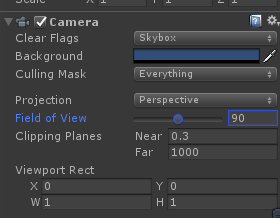
我们的计算就是通过camera照射这个立方体的六个面,生成六张辐照度的积分图。
二. 代码框架
然后新建一个monobehaviour。加入如下的代码
using System.Collections;
using System.Collections.Generic;
using UnityEngine;

public class MakeIrradiance : MonoBehaviour
{
    Camera camera;
    // 每一个面生成的贴图的大小
    int singleWidth = 512;

    // 六个面的rt.
    public RenderTexture[] rt = new RenderTexture[6];

    public enum Dir
    {
        left = 0,
        right,
        front,
        back,
        top,
        bottom,
    }

    // 六个面的朝向
    private Vector3[] forwards = new Vector3[6]
    {
        new Vector3(-1, 0, 0),
        new Vector3(1, 0, 0),
        new Vector3(0, 0, 1),
        new Vector3(0, 0, -1),
        new Vector3(0, 1, 0),
        new Vector3(0, -1, 0)
    };

    // hdr的环境图
    public Cubemap cube;

    // 计算辐照度积分的shader
    public Shader irradiance;

    void Start ()
    {
        camera = GetComponent<Camera>();
        CaptureIrradiance();
    }
    void CaptureIrradiance()
    {
        camera.transform.position = Vector3.zero;
        camera.transform.up = Vector3.up;
        for (int i = 0; i < 6; ++i)
        {
            rt[i] = new RenderTexture(singleWidth, singleWidth, 0, RenderTextureFormat.ARGBFloat);
            camera.targetTexture = rt[i];
            camera.transform.forward = forwards[i];
            Shader.SetGlobalTexture("_CubeTex", cube);
            camera.RenderWithShader(irradiance, "");
            camera.targetTexture = null;
        }
    }
}
代码比较简单,在一开始就把镜头依次指向立方体的六个面。每个面用irradiance这个shader跑一遍,生成的结果放在rt的数组里面,每张rt大小为512*512。
最重要的计算主在shader中实现。
Shader "Unlit/MakeIrrad"
{
    SubShader
    {
        Tags{ "RenderType" = "Opaque" }
        LOD 100

        Pass
        {
            Cull Off
            CGPROGRAM
    #pragma vertex vert
    #pragma fragment frag

    #include "UnityCG.cginc"

            struct appdata
            {
                float4 vertex : POSITION;
            };

            struct v2f
            {
                float3 worldPos :TEXCOORD1;
                float4 vertex : SV_POSITION;
            };

            samplerCUBE _CubeTex;

            v2f vert(appdata v)
            {
                v2f o;
                o.vertex = UnityObjectToClipPos(v.vertex);
                o.worldPos = mul(unity_ObjectToWorld, v.vertex);
                return o;
            }


            fixed4 frag(v2f i) : SV_Target
            {
                // The world vector acts as the normal of a tangent surface
                // from the origin, aligned to WorldPos. Given this normal, calculate all
                // incoming radiance of the environment. The result of this radiance
                // is the radiance of light coming from -Normal direction, which is what
                // we use in the PBR shader to sample irradiance.

                float3 N = normalize(i.worldPos);

                float3 irradiance = float3(0, 0, 0);

                // tangent space calculation from origin point
                float3 up = float3(0.0f, 1.0f, 0.0f);
                float3 right = cross(up, N);
                up = cross(N, right);

                float3 sampV = float3(0, 0, 0);
                float sampleDelta = 0.025;
                float nrSamples = 0.0;

                float PI = 3.14159265359;
                for (float phi = 0.0; phi < 2.0 * PI; phi += sampleDelta)
                {
                    for (float theta = 0.0; theta < 0.5 * PI; theta += sampleDelta)
                    {
                        // spherical to cartesian (in tangent space)
                        float3 tangentSample = float3(sin(theta) * cos(phi),  sin(theta) * sin(phi), cos(theta));
                        // tangent space to world
                        float3 sampleVec = tangentSample.x * right + tangentSample.y * up + tangentSample.z * N;

                        irradiance += texCUBE(_CubeTex, sampleVec).rgb * cos(theta) * sin(theta);
                        nrSamples++;
                    }

                }
                irradiance = PI * irradiance * (1.0 / float(nrSamples)); // 这个PI的来历下面解释

                float4 FragColor = float4(irradiance, 1.0);

                return FragColor;
            }
            ENDCG
        }
    }
}
这里的代码比较简单,最复杂的半球积分,是直接抄的LearnOpenGL上的代码。
这里需要解释一下最后一个PI是哪来的,根据LearnOpenGL的离散化公式,

最后求各号后面还跟了两个微分号,
在计算的时候,需要把这个化为积分上下限距离再相乘,就是
2
π
∗
π
/
2
=
π
2
2\pi * \pi/2 = \pi^2
2π∗π/2=π2
再除以公式最前面的PI,就只剩下乘以一个PI了。
注意需要加上Cull Off关键字,不然从立方体内部看,面会被Cull掉。
此时我们把shader也设置给camera上的脚本。点击Play,可以在Camera的属性中看到生成的六面纹理

现在需要想办法把这六面保存到一个贴图中。
因此加入SaveIrradiance函数
 void SaveIrradiance()
    {
        Texture2D rgbTex;
        Texture2D rgbTexFinal;
        // 拼成一张大的cubemap
        rgbTexFinal = new Texture2D(singleWidth * 4, singleWidth * 3, TextureFormat.RGBAFloat, false);

        RenderTexture.active = rt[(int)Dir.left];
        rgbTex = new Texture2D(singleWidth, singleWidth, TextureFormat.RGBAFloat, false);
        rgbTex.ReadPixels(new Rect(0, 0, singleWidth, singleWidth), 0, 0);
        rgbTex.Apply();
        RenderTexture.active = null;
        Color[] rawRgbData = rgbTex.GetPixels();
        rgbTexFinal.SetPixels(0, singleWidth, singleWidth, singleWidth, rawRgbData);

        RenderTexture.active = rt[(int)Dir.front];
        rgbTex.ReadPixels(new Rect(0, 0, singleWidth, singleWidth), 0, 0);
        rgbTex.Apply();
        RenderTexture.active = null;
        rawRgbData = rgbTex.GetPixels();
        rgbTexFinal.SetPixels(singleWidth * 1, singleWidth, singleWidth, singleWidth, rawRgbData);

        RenderTexture.active = rt[(int)Dir.right];
        rgbTex.ReadPixels(new Rect(0, 0, singleWidth, singleWidth), 0, 0);
        rgbTex.Apply();
        RenderTexture.active = null;
        rawRgbData = rgbTex.GetPixels();
        rgbTexFinal.SetPixels(singleWidth * 2, singleWidth, singleWidth, singleWidth, rawRgbData);

        RenderTexture.active = rt[(int)Dir.back];
        rgbTex.ReadPixels(new Rect(0, 0, singleWidth, singleWidth), 0, 0);
        rgbTex.Apply();
        RenderTexture.active = null;
        rawRgbData = rgbTex.GetPixels();
        rgbTexFinal.SetPixels(singleWidth * 3, singleWidth, singleWidth, singleWidth, rawRgbData);


        RenderTexture.active = rt[(int)Dir.top];
        rgbTex.ReadPixels(new Rect(0, 0, singleWidth, singleWidth), 0, 0);
        rgbTex.Apply();
        RenderTexture.active = null;
        rawRgbData = rgbTex.GetPixels();
        rgbTexFinal.SetPixels(singleWidth, singleWidth * 2, singleWidth, singleWidth, rawRgbData);

        RenderTexture.active = rt[(int)Dir.bottom];
        rgbTex.ReadPixels(new Rect(0, 0, singleWidth, singleWidth), 0, 0);
        rgbTex.Apply();
        RenderTexture.active = null;
        rawRgbData = rgbTex.GetPixels();
        rgbTexFinal.SetPixels(singleWidth, 0, singleWidth, singleWidth, rawRgbData);

        rgbTexFinal.Apply();

        byte[] _bytes = rgbTexFinal.EncodeToPNG();
        System.IO.File.WriteAllBytes(Application.dataPath + "/myirr.png", _bytes);
    }
再次点击运行,此时会生成辐照度图

看起来像那么回事,但是比我们在Inspector中观察到的rt要暗。还需要做一次gammar校正。因此在fragment的最后一句加上LinearToGammaSpace
                //float4 FragColor = float4(irradiance, 1.0);
                float4 FragColor = float4(LinearToGammaSpace(irradiance), 1.0);

                return FragColor;
最终效果如下:





 扫一扫
扫一扫


 924
924

 被折叠的 条评论
为什么被折叠?
被折叠的 条评论
为什么被折叠?
 到【灌水乐园】发言





