Loading Scenes in Unity:
A Complete Beginner-Friendly Guide
When developing a game in Unity, one of the core tasks you’ll encounter is loading and switching between scenes. Whether it’s moving from the Main Menu to your first level, transitioning to a Game Over screen, or loading an overlay UI, understanding how scenes work is essential for structuring your game.
In this guide, we’ll cover what scenes are, why they’re important, and how to manage them effectively with Unity’s SceneManager.
What is a Scene in Unity?
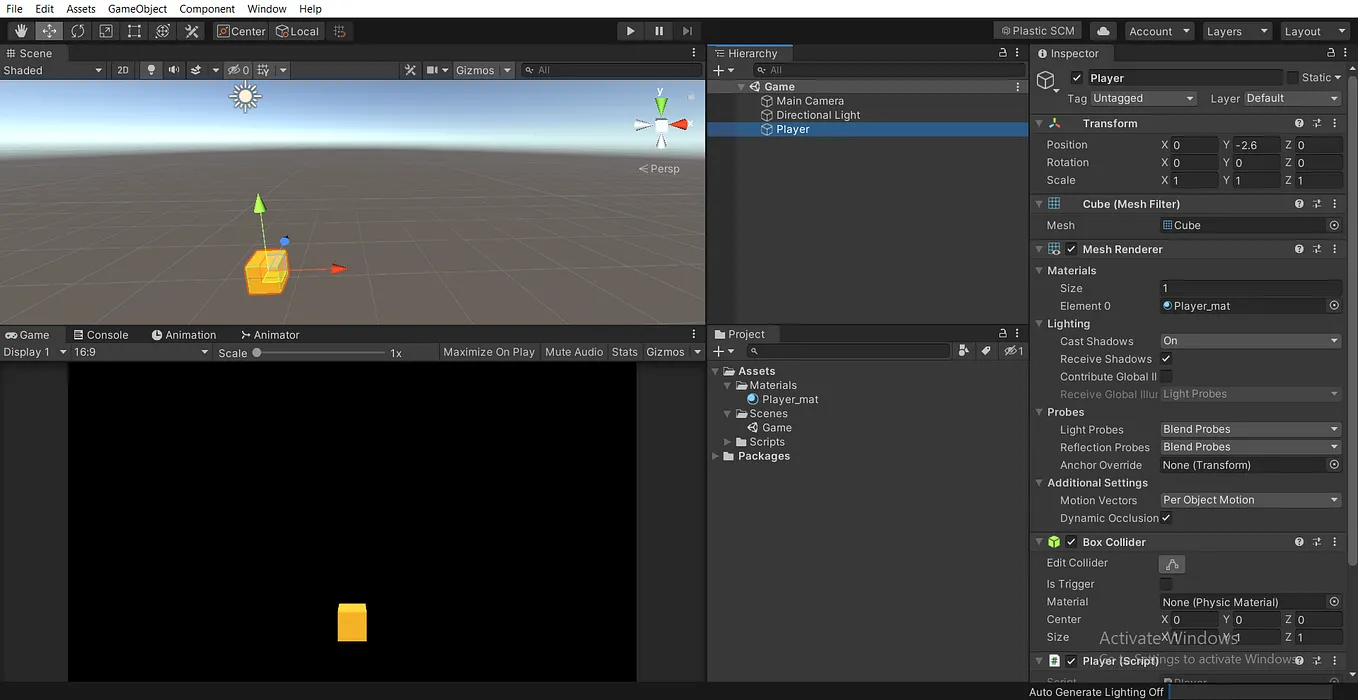
In Unity, a scene is a fundamental building block that represents a distinct level, environment, or state within a game or application. A scene is essentially an asset that contains all the elements needed for that part of the experience, such as environments, characters, obstacles, decorations, lighting, cameras, and UI components.
Scenes allow developers to organize and structure their projects effectively. For example:
- A Main Menu Scene for navigation.
- A Gameplay Scene for action.
- A Game Over Scene for handling loss conditions.
Switching between these scenes defines the flow of your game.
Get JUMAMUROD ARALOV’s stories in your inbox
Join Medium for free to get updates from this writer.
In Unity, scenes serve as containers for different gameplay elements, including objects, environments, and scripts. When loading a scene, you are essentially unloading the current scene from memory and loading a new one. This makes it possible to create dynamic and varied game experiences without overloading memory.
Managing Scenes with SceneManager
Unity provides the SceneManager class, which contains methods for loading, unloading, and managing scenes. This is part of the UnityEngine.SceneManagement namespace, so you’ll need to include it at the top of your script:
using UnityEngine.SceneManagement;The most commonly used methods include:
LoadScene()
Loads a specified scene by name or index.
SceneManager.LoadScene("Game");    //By name
SceneManager.LoadScene(1);         //By index
By default, this replaces the current scene.
UnloadScene()
Unloads a scene from memory. This is useful when working with additive scenes, where multiple scenes can be loaded at once. By unloading scenes, you free up memory and optimize performance.
SceneManager.UnloadScene("Game");
SceneManager.UnloadScene(1);
Example: Switching Scenes in a Galaxy Shooter Game
In our Galaxy Shooter game, we used UI Buttons to switch between scenes. For example, we created a New Game button inside the Main Menu scene. Then, in the main menu script, we simply loaded the gameplay scene using its index:

Here, the number 1 refers to the scene’s index in Build Settings.
Remember:
- You must add all your scenes to File→Build Settings→Scenes in Build.
- Unity assigns indices based on the order in which scenes are listed.
- Using the scene name (“Game”) can sometimes be safer than relying on indices, since names don’t change when you reorder scenes.

This way, a simple button click can switch from the Main Menu to the actual game scene.


Conclusion
Scenes are the backbone of any Unity project, serving as containers for everything from menus to levels and gameplay environments. By mastering the SceneManager class, you gain full control over how your game flows — whether it’s starting a new level, showing a game over screen, or loading UI overlays.
In our Galaxy Shooter example, we saw how simple it is to switch between scenes using UI buttons and LoadScene(). With more advanced techniques like asynchronous loading and additive scenes, you can take things further by building smooth transitions, streaming environments, and optimizing memory usage.
Ultimately, scene management isn’t just about moving from one screen to another — it’s about shaping a seamless player experience. If you plan and organize your scenes carefully, your game will not only perform better but also feel more polished and professional.