How to Complete Interactive Brokers PassKey Authentication to Access Remote IB Gateway/ TWS [On-going editing]

This article assumes readers have basic understanding about PassKey and how modern multi-factor authentication (MFA) works.
Interactive Brokers recently offers PassKey as one of the login authentication methods. In some regions, PassKey is even the only MFA method to do IBKR login authentication. PassKey is more secure. However, it creates a challenge when authenticating access in remote server.
PassKey Methods:
IBKR provides 2 ways to complete PassKey authentication:
- Use iPhone/ tablet to access the platform
- Physical Security Key (e.g. Yubico Yubikey)
PassKey Minimum System Requirements:
Method 1: Use IPhone/ tablet to access the platform
IBKR provides the guide in: https://ibkrguides.com/securelogin/sls/activating-passkey.htm
For this method 1, users need to ensure:
- Both IPhone/ Tablet has BlueTooth ON.
- End device (the machine where you install TWS/ IBGW) also has BlueTooth ON.
If any one of the devices does not have BlueTooth, this authentication method cannot be used. For most remote servers or cloud service providers, it is very likelihood that they don’t offer BlueTooth service. VMware is probably the only cloud service provider I know that provides BlueTooth.
Alternative Solution: Virtual Smart Card/ Password Managers
IBKR provides some Password Managers examples in: https://ibkrguides.com/securelogin/sls/activating-passkey.htm
Users can save the passkey into the software. As a result, there is no need to interact with physical devices (e.g. IPhone). And unlike method 1, you can complete end-to-end authentication in just one single device, and the end device does not need to have BlueTooth (some solutions may require your user local machine to have BlueTooth ON and enable WebAuthn).
However, this method requires users to do additional system setup & testing and product research because:
- Some solution providers may not fulfill some use cases (e.g. Linux/Unix supported? Distributed Access supported?)
- Password Managers software may have version compatibility issues.
- Takes time to test whether the solution is compatible with your existing workflow (especially if your IBGW is headless, dockerized…, etc)
Method 2: Physical Security Key
IBKR also provides some Physical Security Key examples in the above same URL: https://ibkrguides.com/securelogin/sls/activating-passkey.htm
To use Physical Security Key, users need to purchase a Physical Security Key (in later remote IBGW access demo, we will use Yubico YuibiKey).
Also, please enable WebAuthn in local machine(where you will insert the Physical Security Key).
After purchase, client needs to setup a PIN Password for the Physical Security Key. This step always comes out when you first activate the Physical Security Key.
Register your Physical Security Key for your IB account:
IBKR provides Physical Passkey registration guide in: https://ibkrguides.com/securelogin/sls/activating-passkey.htm
If I don’t have a Physical Security Key, can I use normal USB flash?
Technically, you can, but strongly not recommended. This article explains the reason why: https://www.makeuseof.com/use-any-usb-drive-as-a-security-key/ and how to do it briefly.
Unlike the method 1 alternative solution, I personally think Physical Security Key is a better choice:
- Physical Security Key only helps you to handle authentication part. You have ownership in authentication workflow.
- Low switching cost. You are not tied to any Password Managers software.
However, this also has some disadvantages:
- Physical Security Key Loss. Therefore, it is strongly recommended to activate one or more passkey.
- Does not directly support inserting the Physical Security Key into local Computer A to 100% automatically & simultaneously authenticate IBGW(s) access from different VMs . In other words, it does not directly support full auto Distributed Access. Developers need to design a workflow that the Physical Computer A can receive VMs IBGW(s) authentication requests and send the messages back. USB over IP is the direction to solve the challenge. However, some USB over IP solution providers do not support multiple devices accessing same USB (e.g. USB Network Gate: If multiple computers can access same shared USB device simultaneously : Electronic Team, Inc) . Hence, it takes time to do product research.
If your IBGWs are just few and are only installed in few VMs and only few users can access, here is the quick & temporary solution:
- (1) Manually insert the physical security key into the physical computer to finish IBGW authentication and
- (2) plug out if it is done and
- (3) insert they key into another physical computer again when other IBGWs in other VMs need authentication.
Demos: Use Password Managers to access remote IBGW
Use case 1: Access Remote WindowsOS VM using Windows Hello
Step 1: Open Windows Remote Desktop Connection and Enter your remote VM logon settings.
Get Unknown’s stories in your inbox
Join Medium for free to get updates from this writer.
Step 2: Enable WebAuthn , and Smart cards or Windows Hello for Business

Use case 2: Access Remote WindowsOS VM using 1Password
Demos: Use Physical Security Key to access remote IBGW
In the following demos, we use YubiKey 5C NFC: https://www.yubico.com/hk/product/yubikey-5-series/yubikey-5c-nfc/
Use case 1: Access a remote Windows OS VM using Windows Remote Desktop Connection with WebAuthn enabled to authorise official IBGW login authentication in single remote VM.
Step 1: Open Windows Remote Desktop Connection and Enter your remote VM logon settings.
Step 2: Enable WebAuthn [“Smart cards or Windows Hello for Business” is not needed for Physical Security Key Authentication]
Step 3: Connect to the remote VM and Open and log in to the IBGW in remote VM.
Step 4: Insert the Physical Security Key into your local machine (your local machine can receive the Passkey authentication requests from the remote IBGW and send the mssages back to the remote IBGW) and Complete the PassKey authentication steps.


Noticeably, please remember to enable the Firwall setting in VM. Otherwise, you may receive a message box below:

Use case 2: Access Remote WindowsOS VM using Windows Remote Desktop Connection with WebAuthn enabled to authorise IBC login authentication in single remote VM.
The open-source project IBC is another popular choice to automate the login workflow and some developers use it to build headless IBGW.
IBC: https://github.com/IbcAlpha/IBC
Here is a guide of how to use PassKey to authenticate the remote IBC login. From Step 1~ 9, all are referred to IBC/userguide.md at master · IbcAlpha/IBC and ‘C:\IBC\userguide.pdf’. If you are already using IBC, please ignore Step 1 ~ 9.
Step 1: Go to IB website and Install the IBC supported official offline TWS/IBGW version. In IBC 3.24.2, the supported offline TWS/IBGW version is 10.45 .
Step 2: Open the official offline TWS/IBGW and change the language to “English”.
Step 3: Download IBC in https://github.com/IbcAlpha/IBC/releases/tag/3.24.2
Step 4: Unzip the downloaded IBC zipped folder and save the unzipped folder in C:\
Step 5: Open ‘C:\IBC\config.ini’ in Notepad.
Step 6: Modify your credentials in “IbLoginId”, “IbPassword”.

Step 7: Set the TradingMode

Step 8: Create a “ibc” folder in ‘C:\Users\User\Documents’.
Step 9: Copy the modified ‘C:\IBC\config.ini’ and paste it in ‘C:\Users\User\Documents\ibc’ . If this step is not completed and you do Step 10, an error will be prompted.

Step 10: Run “C:\IBC\StartGateway.bat”.

Step 11: IBGW will be automatically opened and login credentials are pre-entered. You will receive Passkey Authentication. Insert the Physical Security Key into your local machine and Complete the Passkey Authentication.


Use case 3: Access Remote WindowsOS VM using Windows Remote Desktop Connection with WebAuthn enabled to authorize IBGW login authentication in virtual containers.
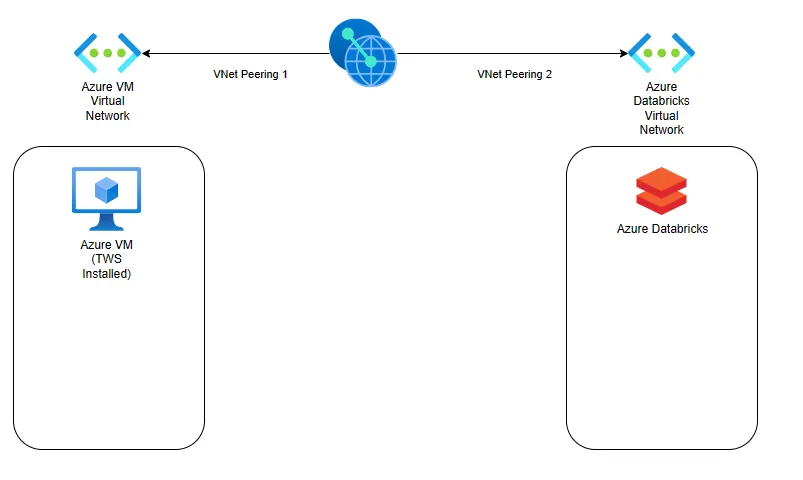
In this demo, we use Azure Container Instances Service.