Read Word Documents with Python: Extract Data from Word


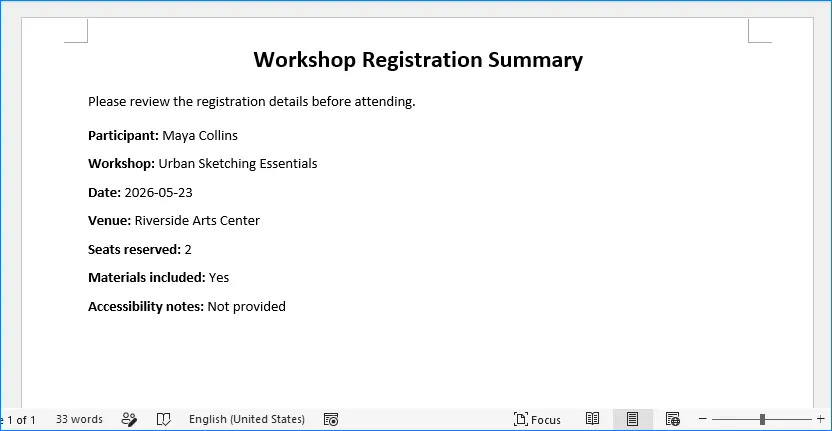
Extracting specific data, such as text, tables, images, or metadata, from Word documents programmatically for further analysis or integration into other systems can be useful for automating document processing tasks.
In this post, I’ll guide you through the process of reading or extracting different types of data from a Word document using Python and the Spire.Doc for Python library.
- Extract Text from a Specific Paragraph in Python
- Extract Text from an Entire Word Document in Python
- Extract Tables from a Word Document in Python
- Extract Images from a Word Document in Python
- Extract Metadata of a Word Document in Python
Python Library for Reading Word Documents
Spire.Doc is a Python library that simplifies working with Microsoft Office Word documents. It allows you to read, write, and manipulate Word documents programmatically, making it easier to automate document-related tasks.
Get Alexander Stock’s stories in your inbox
Join Medium for free to get updates from this writer.
You can install the library from PyPI using the following command.
pip install Spire.DocExtract Text from a Specific Paragraph in Python
Spire.Doc makes it easy to work with specific parts of a Word document. You can access a section using Document.Sections[index], then a paragraph within that section using Section.Paragraphs[index]. Finally, you can get the text of the paragraph using Paragraph.Text.
from spire.doc import *
from spire.doc.common import *

# Create a Document object
doc = Document()

# Load a Word document
doc.LoadFromFile("C:\\Users\\Administrator\\Desktop\\input.docx")

# Get a specific section
section = doc.Sections[0]

# Get a specific paragraph
paragraph = section.Paragraphs[3]

# Get text of the paragraph
str = paragraph.Text

# Print result
print(str)
Extract Text from an Entire Word Document in Python
To get text of an entire Word document, you can simply use the Document.GetText() method.
from spire.doc import *
from spire.doc.common import *

# Create a Document object
doc = Document()

# Load a Word file
doc.LoadFromFile("C:\\Users\\Administrator\\Desktop\\input.docx")

# Get text from the entire document
text = doc.GetText()

# Print result
print(text)
Extract Tables from a Word Document in Python
With Spire.Doc, you can access the tables in a section using Section.Tables. You can then get a specific table and retrieve the cells. The text content of each cell is available through TableCell.Paragraphs.get_Item().Text.
from spire.doc import *
from spire.doc.common import *

# Create a Document object
doc = Document()

# Load a Word document
doc.LoadFromFile("C:\\Users\\Administrator\\Desktop\\input.docx")

# Iterate through the sections
for i in range(doc.Sections.Count):

    # Get a specific section
    section = doc.Sections.get_Item(i)

    # Get tables from the section
    tables = section.Tables

    # Iterate through the tables
    for j in range(0, tables.Count):

        # Get a certain table
        table = tables.get_Item(j)

        # Declare a variable to store the table data
        tableData = ""

        # Iterate through the rows of the table
        for m in range(0, table.Rows.Count):

            # Iterate through the cells of the row
            for n in range(0, table.Rows.get_Item(m).Cells.Count):

                # Get a cell
                cell = table.Rows.get_Item(m).Cells.get_Item(n)

                # Get the text in the cell
                cellText = ""
                for para in range(cell.Paragraphs.Count):
                    paragraphText = cell.Paragraphs.get_Item(para).Text
                    cellText += (paragraphText + "     ")

                # Add the text to the string
                tableData += cellText

            # Add a new line
            tableData += "\n"

        # Save the table data to a text file
        with open(f"output/WordTable_{i+1}_{j+1}.txt", "w", encoding="utf-8") as f:
            f.write(tableData)
Extract Images from a Word Document in Python
To extract image from a Word document, you need first to iterate through the child objects in the document. Then, determine if a child object is a DocPicture. If yes, you can access the image data using DocPicture.ImageBytes and save it as an image file.
import queue
from spire.doc import *
from spire.doc.common import *

# Create a Document object
doc = Document()

# Load a Word file
doc.LoadFromFile("C:\\Users\\Administrator\\Desktop\\input2.docx")

# Create a Queue object
nodes = queue.Queue()
nodes.put(doc)

# Create a list
images = []

while nodes.qsize() > 0:
    node = nodes.get()

    # Loop through the child objects in the doucment
    for i in range(node.ChildObjects.Count):
        child = node.ChildObjects.get_Item(i)

        # Detect if a child object is a picture
        if child.DocumentObjectType == DocumentObjectType.Picture:
            picture = child if isinstance(child, DocPicture) else None
            dataBytes = picture.ImageBytes

            # Add the image data to the list
            images.append(dataBytes)

        elif isinstance(child, ICompositeObject):
            nodes.put(child if isinstance(child, ICompositeObject) else None)

# Loop through the images in the list
for i, item in enumerate(images):
    fileName = "Image-{}.png".format(i)
    with open("ExtractedImages/"+fileName,'wb') as imageFile:

        # Write the image to a specified path
        imageFile.write(item)
Extract Metadata of a Word Document in Python
With Spire.Doc, you can access the built-in document properties of a Word document using the Document.BuiltinDocumentProperties property. This provides access to standard properties like Author, Company, Title, and Subject.
from spire.doc import *
from spire.doc.common import *

# Create a Document object
doc = Document()

# Load a Word document
doc.LoadFromFile("C:\\Users\\Administrator\\Desktop\\input.docx")

# Get the built-in properties of the document
builtinProperties = doc.BuiltinDocumentProperties

# Get the value of the built-in properties
properties = [
    "Author: " + builtinProperties.Author,
    "Company: " + builtinProperties.Company,
    "Title: " + builtinProperties.Title,
    "Subject: " + builtinProperties.Subject,
    "Keywords: " + builtinProperties.Keywords,
    "Category: " + builtinProperties.Category,
    "Manager: " + builtinProperties.Manager,
    "Comments: " + builtinProperties.Comments,
    "Hyperlink Base: " + builtinProperties.HyperLinkBase,
    "Word Count: " + str(builtinProperties.WordCount),
    "Page Count: " + str(builtinProperties.PageCount),
]

# Print result
for i in range(0, len(properties)):
    print(properties[i])
Conclusion
In this blog post, we’ve explored how to extract text from specific paragraphs or the entire document, access the tables within the document, retrieve embedded images, and read standard document properties like the author, title, and subject, using Python. Hopefully, you can find this post informative and helpful.
See Also
Create a Word Document with Python