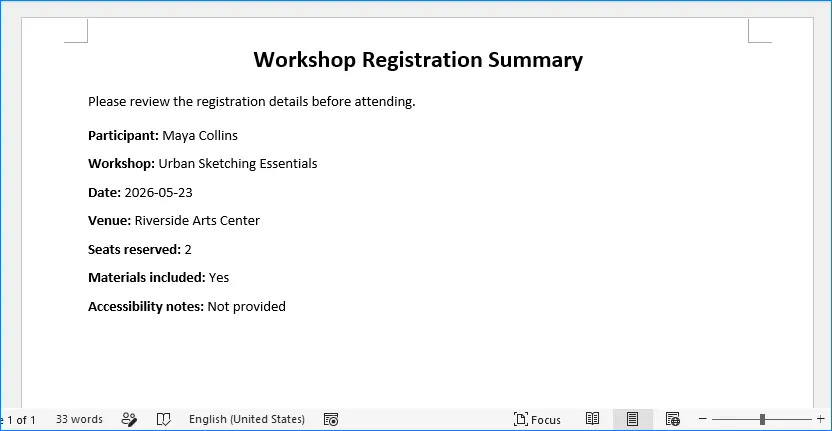
Python Tutorial: Convert DOCX to TXT and TXT to DOCX Easily


Converting between DOCX (Word documents) and TXT (plain text files) is a common task in document processing, data extraction, and automation workflows. In this blog post, we’ll explore how to convert DOCX to TXT and TXT to DOCX using Free Spire.Doc for Python library.
- Why Convert Between DOCX and TXT?
- Prerequisites
- Convert DOCX to TXT in Python
- Convert TXT to DOCX in Python
- Wrap Up
Why Convert Between DOCX and TXT?
DOCX files are rich in formatting and support various features like images, styles, and hyperlinks. However, they can be cumbersome when you only need plain text for quick edits or data extraction. On the other hand, TXT files are lightweight and universally compatible but lack all formatting.
Converting between these formats provides flexibility in document handling, allowing you to:
- Extract clean text from formatted documents
- Convert plain text into professionally formatted documents
- Simplify document processing pipelines
Prerequisites
Before diving into the code, ensure you have the following:
1. Python installed on your machine.
2. The Free Spire.Doc library for Python. You can install it using pip:
pip install spire.doc.free3. A text editor or IDE for writing Python code.
4. Sample DOCX and TXT files for testing.
Convert DOCX to TXT in Python
The following code reads a Word document (Sample.docx) and saves its content as a plain text file (DocxToTxt.txt).
from spire.doc import *
from spire.doc.common import *

# Create a Document object
document = Document()

# Load a docx file
document.LoadFromFile("C:/Users/Administrator/Desktop/Sample.docx")

# Save the docx file in txt format
document.SaveToFile("DocxToTxt.txt", FileFormat.Txt)
document.Close()
In this code:
- A Document object is instantiated to work with.
- The LoadFromFile method is used to load the DOCX file from the specified path.
- The document is saved in TXT format using the SaveToFile method.

Convert TXT to DOCX in Python
Depending on whether you’d like to apply formatting programmatically, you can convert a TXT file to a DOCX file using one of the following two methods:
Get Alexander Stock’s stories in your inbox
Join Medium for free to get updates from this writer.
Method 1: Simple Solution (No Formatting)
This basic approach creates a Word document with the TXT content but without any special formatting.
from spire.doc import *
from spire.doc.common import *

# Create a Document object
document = Document()

# Load a txt file
document.LoadFromFile("C:/Users/Administrator/Desktop/Sample.txt")

# Save the txt file as a docx file
document.SaveToFile("TxtToDocx.docx", FileFormat.Docx2016)
document.Close()
In this code:
- A Document object is created.
- The TXT file is loaded using the LoadFromFile method.
- The document is then saved in DOCX format.

Method 2: Advanced Solution (With Formatting)
For more professional results, you can apply formatting during conversion:
from spire.doc import*

# Function to format textRange
def format_textRange(textRange, font_name, font_size, color):
    # Set the font properties
    textRange.CharacterFormat.FontName = font_name
    textRange.CharacterFormat.FontSize = font_size
    textRange.CharacterFormat.TextColor = color

# Read the TXT file and split into paragraphs
with open("C:/Users/Administrator/Desktop/Sample.txt", "r") as file:
    content = file.read()

# Split content into paragraphs using blank lines
paragraphs = content.split('\n\n')

# Create a new Document object
document = Document()
section = document.AddSection()
section.PageSetup.Margins.All = 40

# Process each paragraph and add it to the document
for idx, para in enumerate(paragraphs):
    # Trim whitespace and skip empty paragraphs
    para = para.strip()
    if not para:
        continue

    # Create a new paragraph in the document
    new_paragraph = section.AddParagraph()
    text_range = new_paragraph.AppendText(para)

    # Apply different formatting based on the paragraph index
    if idx % 2 == 0:  # Example: Even paragraphs
        format_textRange(text_range, font_name="Times New Roman", font_size=18, color=Color.get_Red())
    else:  # Odd paragraphs
        format_textRange(text_range, font_name="Times New Roman", font_size=13, color=Color.get_Blue())

    # Add a blank paragraph after each formatted paragraph
    section.AddParagraph()

# Save the document as DOCX
document.SaveToFile("TxtToFormattedDocx.docx", FileFormat.Docx2016)
document.Dispose()
In this code:
- A format_textRange function is defined to apply specific font properties (font name, size, and color) to a TextRange object.
- The TXT file is opened and its content is read, then split into paragraphs based on blank lines.
- A Document object is created, and a section is added with specified margins.
- Each paragraph is processed, formatted, and added to the document. Even-indexed paragraphs are styled in red and larger size, while odd-indexed ones are styled in blue and smaller size.
- An empty paragraph is created after each formatted paragraph to improve readability.
- Finally, the document is saved as a DOCX file.

Wrap Up
In this blog post, we demonstrated how to convert DOCX to TXT to extract plain text content, making it easy to work with textual data without formatting distractions.
Additionally, we showed how to convert TXT to DOCX, offering both basic and advanced formatting options to improve the overall presentation of your text.
Before you go…
If you found this guide helpful, give it a clap 👏 to show your support! Your feedback means a lot. Thank you! 💙