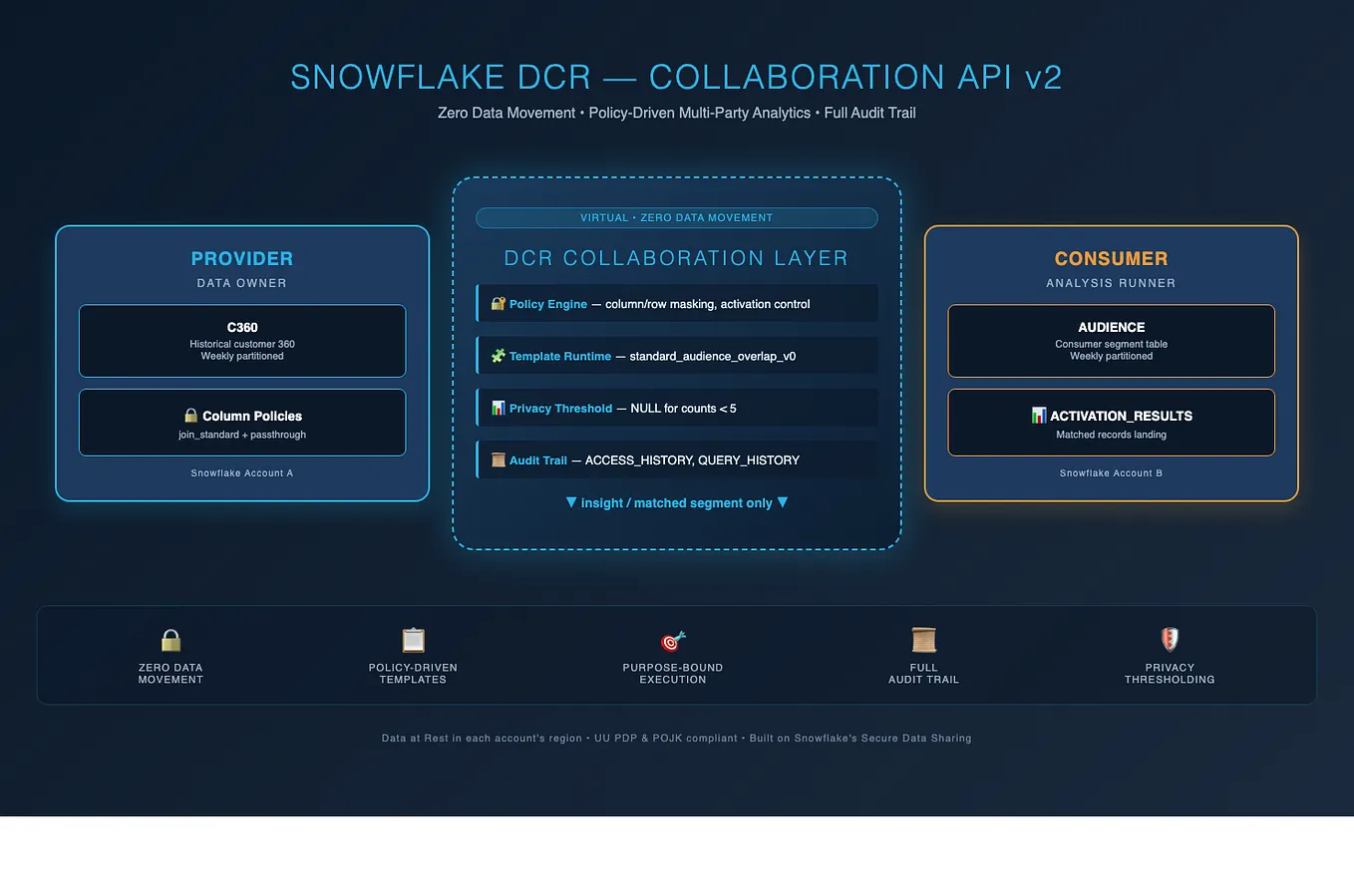
Data Clean Rooms on Snowflake, Part 3: The Console Snowflake Ships

Snowsight now has a Data Clean Rooms UI. It is genuinely good at the half of the
job nobody enjoys — and there are exactly two steps it cannot do at all. Part three of four.
This is part 3 of four.
Part 1 — What a data clean room is, and how Snowflake implements one
Part 2 — Audience overlap and activation, in SQL
Part 3 — The same workflow in the Snowsight Data Clean Rooms UI
Part 4 — Putting a safe UI in front of the API
===============================================================
Repository: **https://github.com/arzamuhammad/dcr-collaboration-api-tutorial**
Part 2 ran a complete audience overlap by calling the Collaboration API directly. Register an offering, initialise a collaboration, join it, link both sides’ data, run the template, activate the segment, import the result. Every step a stored procedure call, every argument a block of YAML.
That is the correct interface for the person who owns the pipeline. It is the wrong interface for almost everyone else, and for a long time the answer to “can I do this without SQL” was no. It is now partly yes. Snowsight has a **Data Clean Rooms UI** — Data sharing » Data clean rooms — in open preview. It creates collaborations, sends and reviews invitations, handles joins, shares templates and offerings through an approval flow, and tears everything down again. It reads and writes the same objects as the API, so adopting it costs nothing and you can move between the two freely.
This part walks the same scenario as Part 2 through that console, and is specific about where it stops. Because it does stop, in one place that is genuinely easy to mistake for a bug.

WHAT THE CONSOLE ACTUALLY IS
Three top-level tabs:
**Collaborations** — the collaborations you own or have been invited to.
**Templates** — the analysis and activation templates registered in your account.
**Data Offerings** — the data offerings registered in your account.
The separation matters more than it looks. Templates and Data Offerings are **registry-scoped and collaboration-independent**. Registering something puts it in a registry; it does not put it in a collaboration. Getting it into a collaboration is a separate, deliberate act with its own approval step.
Almost every first-timer registers an offering, opens the collaboration, and wonders why the other side cannot see it. Nothing is broken. You did one of two required steps.
Three things to check before promising a demo:
**Environment version 14.6 or later.** Older DCR installs do not get the UI.
**Your role.** The role selected in the Snowsight profile menu decides which collaborations you can see. An empty list is nearly always a role problem, not an install problem. And you must **join with the same role you reviewed with** — that is enforced.
**Cortex Code.** This is a hard dependency, not a nice-to-have. `New Offering` and `New Template` are **Create with CoCo** only. There is no hand-written YAML editor in the console. If Cortex Code is not enabled for the account, those buttons do not render at all and registration goes back to the API.
THE PROVIDER SIDE, CLICK BY CLICK
Everything the wizard offers you must already exist in a registry, so the provider’s prerequisites are unchanged from Part 2: the grants, the standard templates, and the data offering. `REGISTER_STANDARD_DCR_TEMPLATES` has no UI path at all. Then **Create Collaboration**, four steps.
**Step 1 — Collaboration information.** Name and description. A `Suggest` button will draft both.
**Step 2 — Collaborator details.** Your account is added automatically as owner. For each collaborator you set an **alias** — the name used everywhere in the spec from here on — an **account identifier** in `ORG.ACCOUNT` form, and the **collaboration roles**: Data Provider, Analysis Runner, or both. You can attach initial offering and template IDs here too.
**Step 3 — Resource mapping.** The step everyone gets stuck on. Next section.
**Step 4 — Final review.** Read-only tabs, ending in **Raw Spec**. `Validate` hands the spec to Cortex Code before you submit. There is also an **Auto Join Collaboration** toggle.
Leave auto-join off. It creates a Snowflake task, which consumes credits and needs the account-level `EXECUTE TASK` privilege for any role that is not `SAMOOHA_APP_ROLE`. Worse, it runs `JOIN` inside a procedure, which can trip the `SYSTEM$ACCEPT_LEGAL_TERMS` restriction and strand the collaboration at `INSTALLATION_FAILED`. Joining manually from the Invited tab takes ten seconds and always works.
THE STEP EVERYONE GETS STUCK ON
Step 3 presents three cards of checkboxes — Data Offerings Access Matrix, Templates Access Matrix, Activation Destinations — with no explanation of what they are for. They look like a permissions system of their own. They are not. **All three are a visual editor for the `analysis_runners` block of the collaboration YAML.** That is the whole story.

Read every matrix the same way: *the runner in this column may use the resource in this row.*
Data Offerings Access Matrix
rows data providers, expandable to their individual offerings
columns analysis runners
emits analysis_runners.<runner>.data_providers.<provider>.data_offerings[]
Templates Access Matrix
rows templates, grouped by the collaborator contributing them
columns analysis runners
emits analysis_runners.<runner>.templates[]
Activation Destinations
rows analysis runners
columns collaborators, as destinations
emits analysis_runners.<runner>.activation_destinations.snowflake_collaborators[]
Note the deliberate axis flip on the third card. Rows are *who activates*, columns are *where the results land*. Leaving the provider column unchecked means the consumer may activate results into its own account but may not push them back to the provider — which is usually exactly what you want, and is easy to get backwards.
Tick the obvious boxes — consumer may use the provider’s offering, consumer may run both standard templates, consumer may activate to itself — and the wizard produces this:
analysis_runners:
consumer:
data_providers:
provider:
data_offerings:
- id: telco_subscribers_v1
templates:
- id: standard_audience_overlap_activation_v0
- id: standard_audience_overlap_v0
activation_destinations:
snowflake_collaborators:
- consumer

If that is the same YAML you hand-wrote in Part 2, it is because it is the same YAML you hand-wrote in Part 2.
Which suggests the fastest way to teach this step. Do not explain the matrices.
Open the **Raw Spec** tab and toggle one checkbox. Watching a single line of YAML appear and disappear does the job in about four seconds.
THE BANNER THAT SENDS YOU THE WRONG WAY
Get Muhammad Ardiyan’s stories in your inbox
Join Medium for free to get updates from this writer.
Step 2 carries a notice:
“Assign roles and add initial data and templates. Collaborators can contribute additional resources after joining the collaboration. Anyone who can add data must be designated as a Data Provider.”
Read that as a consumer who wants to contribute a table to the match, and the conclusion is obvious: tick **Data Provider** for the consumer.
That conclusion is wrong, and it is the most expensive wrong turn in the console, because it looks like the fix and quietly is not.
Two different API calls are in play, and they are not variants of each other:
LINK_DATA_OFFERING a data provider shares an offering OUTWARD to analysis runners. UI: “Share Data Offering”
LINK_LOCAL_DATA_OFFERING an analysis runner attaches ITS OWN table for use as my_tables. UI: none
The banner is about the first. What the consumer needs is the second. Granting the Data Provider role enables sharing data outward — a different operation, with different privacy consequences — and the overlap still will not run.
This is worth being concrete about rather than asserting, so: in a working two-account test the consumer was declared **only** as `analysis_runners.CONSUMER`, with no `data_providers` entry anywhere in the spec, and `LINK_LOCAL_DATA_OFFERING` succeeded and the overlap returned the correct count. The local link needs no Data Provider role and no mention in the collaboration spec at all. It is purely a runner-side, local action — and it is SQL-only.
THE CONSUMER SIDE, AND WHERE IT STOPS
The console is at its best here, right up until it isn’t. Invitations arrive on the **Invited** tab, split into **Ready to Review** and **Pending Join**. `Start Review` opens the collaboration for inspection — collaborators, roles, templates, offerings, raw spec — with `Explain` and `Help Decide` if you want Cortex Code’s reading of it. Joining is two steps, and you get to set your own **local** collaboration name, which can differ from the owner’s.
After joining, the details page has a **Shared with you** tab, and it is genuinely useful: click the provider’s offering and you get its view name, its join columns, and its allowed columns. That is `VIEW_DATA_OFFERINGS` rendered legibly, and it is where you find the `PROVIDER.<offering>_<version>.<alias>` string the analysis spec needs.
So far, no SQL.
Then you look for how to attach your own table, and there is nothing. No button, no menu item, nothing on any tab. The only data action anywhere in the console is **Share Data Offering**, on the **Shared by you** tab, and the documentation gates it plainly:
“If you are a data provider in the collaboration, you can share registered data offerings from your account to make them available to analysis runners.”
That is `LINK_DATA_OFFERING` again. There is no runner-side counterpart in the UI.
This is the moment people conclude the preview is broken. It is not broken. The operation simply has no interface, and the only way through is a worksheet:
CALL SAMOOHA_BY_SNOWFLAKE_LOCAL_DB.REGISTRY.REGISTER_DATA_OFFERING($$ … $$);
CALL SAMOOHA_BY_SNOWFLAKE_LOCAL_DB.COLLABORATION.LINK_LOCAL_DATA_OFFERING(‘<collaboration_name>’, ‘<my_offering_id>’);
Locally linked offerings come back from `VIEW_DATA_OFFERINGS` with `SHARED_WITH = [“LOCAL”]` and a `CONSUMER.` prefix on the template view name — not `LOCAL.`, which is a small thing that costs an afternoon if you assume otherwise.
WHAT “RUN” ACTUALLY DOES
There is a `Run` button, on the collaboration card and in the template drawer. It opens a **Run Analysis** dialog listing your analysis and activation templates. Pick one and you get exactly two choices.
**Open in Workspaces** generates a `CALL …COLLABORATION.RUN(…)` statement and opens it in a worksheet for you to complete and execute.
**Run** opens Cortex Code with the collaboration and template already in context, and it drafts the spec conversationally, explains the parameters, and runs it once you confirm.
Both leave the console. There is no parameter form. The console is a **launcher**, not a runner — and that is a reasonable design choice, but it should be stated before a demo rather than discovered during one.
It is also worth knowing what the generated statement looks like, because “pre-configured” oversells it.

You get the collaboration name, the template id, and a commented list of every parameter with `<enter_column_name>` where each value belongs. It will not guess your join clause, which is fair enough.
**There is no `local_view_mappings` block.** The scaffold emits only `view_mappings.source_tables`. Your own table — the entire point of the local link you just went to a worksheet for — has nowhere to go. You add it yourself:
local_view_mappings:
my_tables:
- “CONSUMER.<my_offering>_<version>.<alias>”
**`source_table` and `my_table` are emitted under `arguments`**, which is not theworking shape. The tables belong in `view_mappings` and `local_view_mappings`; `arguments` carries `join_clauses`, `count_column`, the group-bys and the where-clauses.
Treat the scaffold as a reminder of parameter names, not as code. Activation behaves the same way, with an added `activation:` block carrying the destination alias and segment name.
And when the activation completes, the receiving side imports it with `VIEW_ACTIVATIONS()` and `PROCESS_ACTIVATION()`. No console path for that either.
Snowflake also ships an **Audience Overlap & Activation app** — private preview, deployed onto Snowpark Container Services with `snow app deploy`, running with owner’s rights as `SAMOOHA_APP_ROLE`. Business users get a URL and never see a role.
It is the execution surface the console lacks: pick a collaboration, build match keys with real waterfall logic (`OR` for fallback, `AND` to require all), add segmentation and per-side filters, run, and read the result as metric cards, a match-rate donut, a per-key waterfall and a sortable segment table. Select rows, name a segment, pick columns, activate. There is a history tab. There is a CSV export. For a marketer, this is the product.
There is also a **DCR Agent** — the same workflow conversationally, through Snowflake CoWork, enabled by an admin rather than deployed. Text summaries instead of charts. Pick whichever your users prefer; the app links across to it anyway.
WHERE THIS GOES NEXT
If the console covers your workflow, stop here — you are done, and Part 4 is optional reading.
If it does not — if you need an interface that spans the whole flow including the two steps the console skips, or one shaped like your business rather than like the API — then you are building something. Part 4 does that: a façade over the Collaboration API, thirty whitelisted operations, owner’s rights, and the same workflow built twice, in Streamlit and in React, so the trade-off is measured rather than guessed.
The one design decision that makes such an app safe to hand to a marketer is the subject of that part, and it is not the framework.