Step-by-step Guide to Git and GitHub

Table of Contents
- What are Git and GitHub?
- Why should you learn Git and GitHub?
- Differences between Git and GitHub
- How to start using Git and GitHub
- Resources to learn Git and GitHub
Introduction to Git and GitHub
Git is the most popular version control system, which is a Developer’s tool used to handle source code changes in software project of all sizes. It is a free and open-source version control system that allows multiple developers to work together on the same project.
Features of Git
- Free and open- source
- Create Backups
- Track history
- Distributed Development
In the world of coding, it has become mandatory to know how to use Git, and it’s the most preferred skill acquired by developers.
The most common misconception about Git and GitHub is that they are the same, but the answer is no. Git is a version control system that helps to keep track of computer programs and file and the changes made over time.

GitHub , on the other hand, is a website that host a Git server program to store the code. The developer can manage and store code, and at the same time, they can control code changes.
Git can be used without GitHub, but GitHub can’t be used without Git.
Differences between Git and GitHub
Git is a version control system that manages and keep track of your code. GitHub, on the other hand, is a service that let you host, share, and manage your code file on the internet.
GitHub uses Git underneath, and lets you manage your Git repositories or folders easily on its platform.
So Git is the actual version control system and GitHub is the platform where you host your code.
If you want to learn more about the difference between these two tools, you can read this tutorial.
Step 1 -Install Git
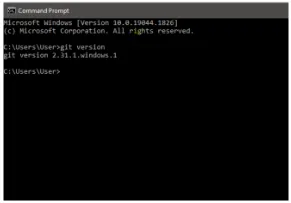
Git comes preinstalled in some Macs and Linux-based system, but you can always check if you have Git installed in your machine by typing git version in your terminal. You can use the Command Prompt to do this
You can download Git here and then select your operating system to download.

Follow the necessary installer guide until installation is complete. Open the command prompt and type git version to verify that Git was successfully installed.
Step-2 Create a GitHub Account.
To create an account on GitHub, you will be asked some personal information like name, confirm your email, set a username and password, and your account should be set up in minutes.
Create an account on GitHub.com
Step-3 Connect your GitHub account to your Git account.
You’ll do this from your terminal.
To set your Git username, type this in your terminal:
git config — — global user.name “yourname”
To confirm that you have set your Git username correctly, type this:
git config — — global user.name
You should have “yourname” as the output.
Get Emmanuel Victor Arthur’s stories in your inbox
Join Medium for free to get updates from this writer.
To set your Git email, type this in your terminal:
git config — — global user.email “your@gmail.com”
To confirm that your have set your Git email correctly, type this:
git config — — global user.email
You should have “youremail@gmail.com” as the output
You will be asked to authenticate your GitHub account, so just sign in with the same email to confirm.
Step-4 Create a repository on GitHub
Click the + sign at the top right corner to create a new repository.
Repositories are like your folders online.

Name your repository and give it a description (this is optional).
Step-5 Push your local code to GitHub
You can use the code editor builtin terminal to use Git to push your code to GitHub. Click ctrl+shift+` to open the terminal in VScode.
Input the command below one after the other in your terminal. Press the Enter key to proceed after every input.
git init
git add .
git commit “first commit”
git branch -M main
remote add origin
https://github.com/yourname/sample.code.git
git push -u origin main
Common Git Commands to know
They are many Git command you can use in the terminal, and that can get overwhelming. So i’d suggest focusing on some of the most popular ones first.
Here they are:
git init lets you initialize Git in your folder.
git add . lets you add all files in the present folder.
git commit stores the added files. use -m for message followed by the actual message.
git branch create a new branch which is a version of the repository as it appears when added. and -M to move the name to main
git remote add origin finally connects the local folder to the repository on GitHub. It is followed by the repository’s link.
git push -u origin main pushes the code to GitHub. The -u flag create a tracking reference for the branch, and origin main puts the code in the main branch
Those are some of the main commands you’ll use all the time. This is a beginner and non-technical guide to help you get started using Git and GitHub, so we won’t go into too much more detail here.
The more you continue using GitHub, the more comfortable you’ll get using these commands. The key is to start small and maintain your momentum.
It will eventually get easier as you build small project and host them on GitHub using Git.
If you find it hard to use the terminal to navigate between folders, spend some time to practice with it. Again, it get easier with time and use.
Resources to learn Git and GitHub
Here are some helpful courses and articles you can go through if you want to learn Git and GitHub in more detail:
- Git and GitHub Tutorial-version control for Beginners
- Basic Git Commands-How to use Git in real project
- Git and GitHub for Beginners crash course
- An introduction to Git: what it is, and how to use
- About GitHub
Conclusion
If you have finished reading this, you might be feeling overwhelmed about Git and GitHub. Yes it’s another big thing you need to learn in tech, but do not fret.
Remember that whenever you start learning something new, at first it can seem like you won’t get the hang of it. But after some time and hard work you’ll become more comfortable.
Thanks for reading this article. If you enjoyed it,consider sharing it to help other developers.