React Native

Before going deeper into react native, lets understand how it is different from React Js in general.
React Js vs React Native
React Js
A Javascript library to build user interfaces.
But, if we go one level deeper, we would see, that to paint the user interfaces using React, there are actually two pieces working together.
- React Js, which provides the components and apis to designing and developing the UI application
- React DOM which would use the above as input and would help in rendering the UI on the browser.
So, React itself is platform agnostic!
React Native
It supports all the Reacts Js features plus some additional features and components which are specifically only for the mobile devices.
Now, instead of using the React DOM, the React JS is compiled to native UI elements and these native elements are actually used to render the UI on the devices.
How does React native work under the hood ?
const App = props => {return (
<View>    <Text> Hello World! </Text></View>);
};
In the above code, <View> and <Text> are react native components. When React Native compiles the code it would only compile the View and the Text JSX and would not compile other common javascript logic.
If we are building the androipd app then it would compile to to respective android component.
View -> android.view
Text -> EditText
For iOS,
View -> UIView
Text -> UITextField
So, React native maps and compiles the components to their respective platform equivalents.
What about the Javascript logic ?
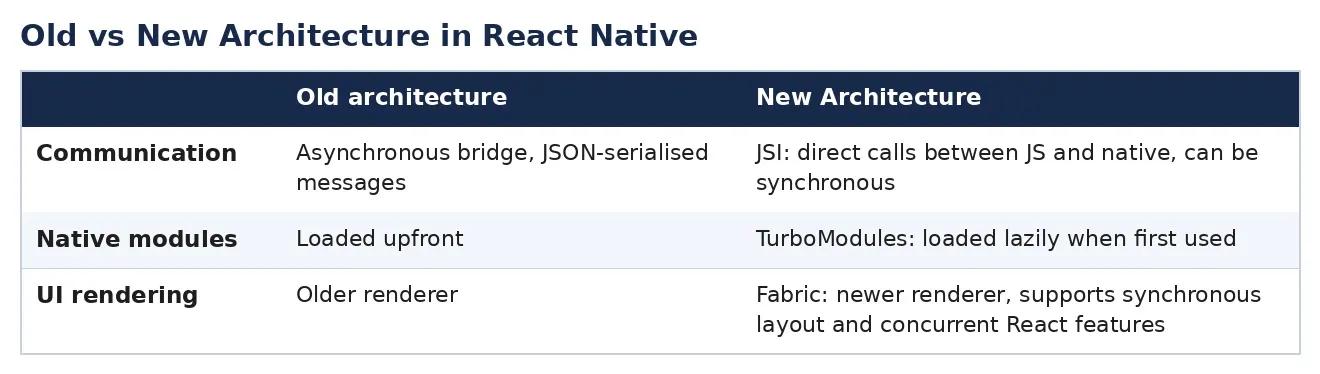
The Javascript logic is not compiled by the React Native instead, it hosts a javascript thread in the native app which would execute the javascript logic.
Get AverageTechie’s stories in your inbox
Join Medium for free to get updates from this writer.
So, the javascript code would run as is but would communicate to the underlying native components using some kind of bridge(not fully sure) which is created by React native for interaction.
React Native Basic Setup using Expo
First install expo
npm install -g expo-clicheck if its installed

Create a new project using expo
We can go to the directory where we want the basic project to get created and run following command.
expo init react-native-basic-tutorialHere, react-native-basic-tutorial is name of the project folder
It would ask us to choose a template for setting up the project. I am choosing the blank one as of now.

This is how it would look like after successful installation.

Basic workspace folder structure
Lets open the newly created folder in VSCode and try and understand the folder structure.
This is how it looks like:

.expo-shared — We can ignore this folder. Its is probably used internally and we would not touch this file anytime.
assets — This is used to store the static files like images.
node_modules — This contains all the third party packages which are installed for the application.
package.json — This contains the list of all the third party apis/library dependencies. All these dependencies are installed in node_modules. So, of we are adding or removing any dependencies then this file has to be updated and then we run the appropriate yarn or npm command to install/uninstall those dependencies.
babel.config.js — This tells how the code is transpiled under the hood. We would not be touching this file either.
app.json — This is an important file where we can configure many settings which would impact our application’s behavior. We can set app’s name, color, version and many more things.
App.js — This is kind of the main file where we would write our code to start with. This is kind of index file which would be referred for loading our application.
Lets run our first application on a mobile device
Open your android/iPhone device. I am using android. Now, go to the App Store/ Play Store and search for Expo. Install the application.
Now, go to your Vscode terminal and run the following command:
cd react-native-basic-tutorial
npm start
This command would start the expo development server, which watches and builds our code.
We can open the expo developer tools at this url: http://localhost:19002/
This is how it looks like:

If you scroll further down, you can see a QR code. Open the expo app and scan this QR code.
As soon as you scan, you would see that the browser detects this and starts building the app in the device.
This is how our first app would look like:

As you can see I have updated the text in App.js file.