New options for easier working with styles in our help authoring tool

In HelpSmith, the help authoring tool that we develop, you can write content of help topics by using a full-featured word processor.
For example, the HelpSmith’s word processor allows you to easily change text style (Bold, Italic, Underline, etc.) or paragraph alignment (Left, Center, Right) by clicking the appropriate buttons in the Ribbon, which is similar to editing a document in Microsoft Word or in any other text editor that you might be using before.

What are the benefits of using styles?
In fact, the HelpSmith’s word processor stores the topic’s content (text, images, etc.) and the text formatting settings (font name, size, color, alignment, etc.) separately, which gives a technical writer a number of advantages including the possibility to:
- Setup formatting settings for the entire help project (or for a set of help projects) only once.
- Update formatting in the entire help project (without the need to edit every topic manually).
- Use different formatting for the same style (e.g. Hyperlink) in different output formats. For example, you can display the style used for hyperlinks as normal text in printed documentation, etc.
- Re-use styles that were created for other help projects.
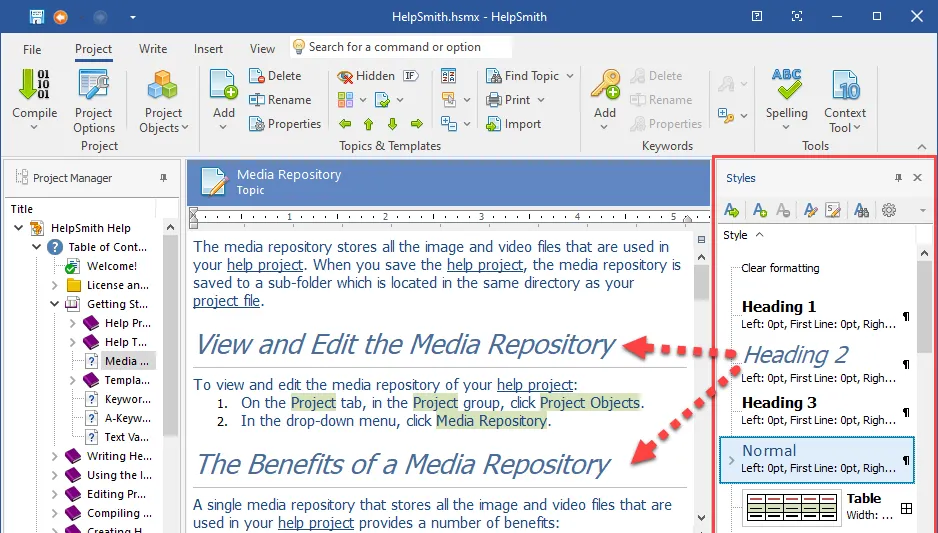
Thus, the help authoring tool allows you to change text formatting not only by clicking the commands on the Write tab, but also by using the styles directly that you can create and edit on the Styles pane (which you can access by clicking the View tab|Styles command).

In the recent update of our help authoring tool, we have implemented a number of new options which make working with styles easier.
Importing styles from other projects
If you need to setup a set of styles in a series of help projects, or if you simply need to import individual styles from an existing help project, you can now use the Import Styles feature (by clicking the File|Merge|Import Styles command).
- Click the File tab, then click Merge|Import Styles, and open the help project from which you want to import styles.
- In the Project Merge window, select (check) the styles that you want to import.
- Specify how to process already existing styles.
- Click OK.

The Import Styles feature allows you to select and import styles from an existing help project into your current help project easily.
Get John on Help Authoring’s stories in your inbox
Join Medium for free to get updates from this writer.
In case your current help project already has styles with the same names (e.g. Normal), the Import Styles feature allows you to specify how to process such styles. For example, you may need to ignore existing styles, or replace them by using the styles from the source project.
Importing content with styles
In HelpSmith, you can also import content from an existing help project (by using the File|Merge|Import Topics command), which can be useful for working on a help project collaboratively or for translating a help project into different languages.
While the help authoring tool allows you to automatically import the styles which are used by the imported content, in HelpSmith version 9.1, you can now control how to import such styles, so you can easily format the imported content according to the styles of your current help project, or retain the styles of the source help project.
For example, you can import topics and simply link their content to the existing styles in the destination help project. In this case, the content associated with the styles like Heading 1, Heading 2, Normal, and also with user-defined styles will be linked to the same styles in your current help project.
Since in different help projects the same styles may use different formatting settings, this option allows you to format the imported content according to the styles of the destination help project and eliminate the need to edit each topic manually.

Of course, if you need to import content and use the original formatting settings of the source help project, you can also do so by setting the appropriate options available during the import process.
Finding and replacing styles in topics
On a large help project, it is important to have the possibility to find where a specific style is used and, if necessary, to replace the style with another style in all the topics.
For example, when you paste text from Microsoft Word or from another editor into HelpSmith, you may need to change the styles used by the inserted content, so it will use the actual styles and formatting settings of your help project.
In such a case, you can use the “Replace Style” function which allows you to find the content (e.g. text, paragraphs, lists, etc.) associated with a specific style and then link it with another style.
How to replace a style with another style
- On the Styles pane (View tab|Styles), select the style that you want to replace.
- On the toolbar (at the top of the Styles pane), click Replace Style.
- In the Replace Style dialog, select the style (e.g. Bold Text) by which you want to replace the first style (e.g. Highlight).
- Specify if you want to replace the style in the current topic only, or in the entire help project.
- Click Replace Style.

Learn more
HelpSmith is an XML-based help authoring tool that allows you to produce documentation in various help formats (e.g. CHM, HTML, PDF, Word, etc.) and provides many useful features to simplify the documentation creation process, such as the built-in Image Tool to capture screenshots and annotate images, the ability to generate topic drafts for creating UI documentation, compatibility with modern version control systems (including Git/GitHub, Subversion, etc.), which makes it easy for a team to work on a help project collaboratively, and so on.
You can learn more about HelpSmith and download a free evaluation copy here.