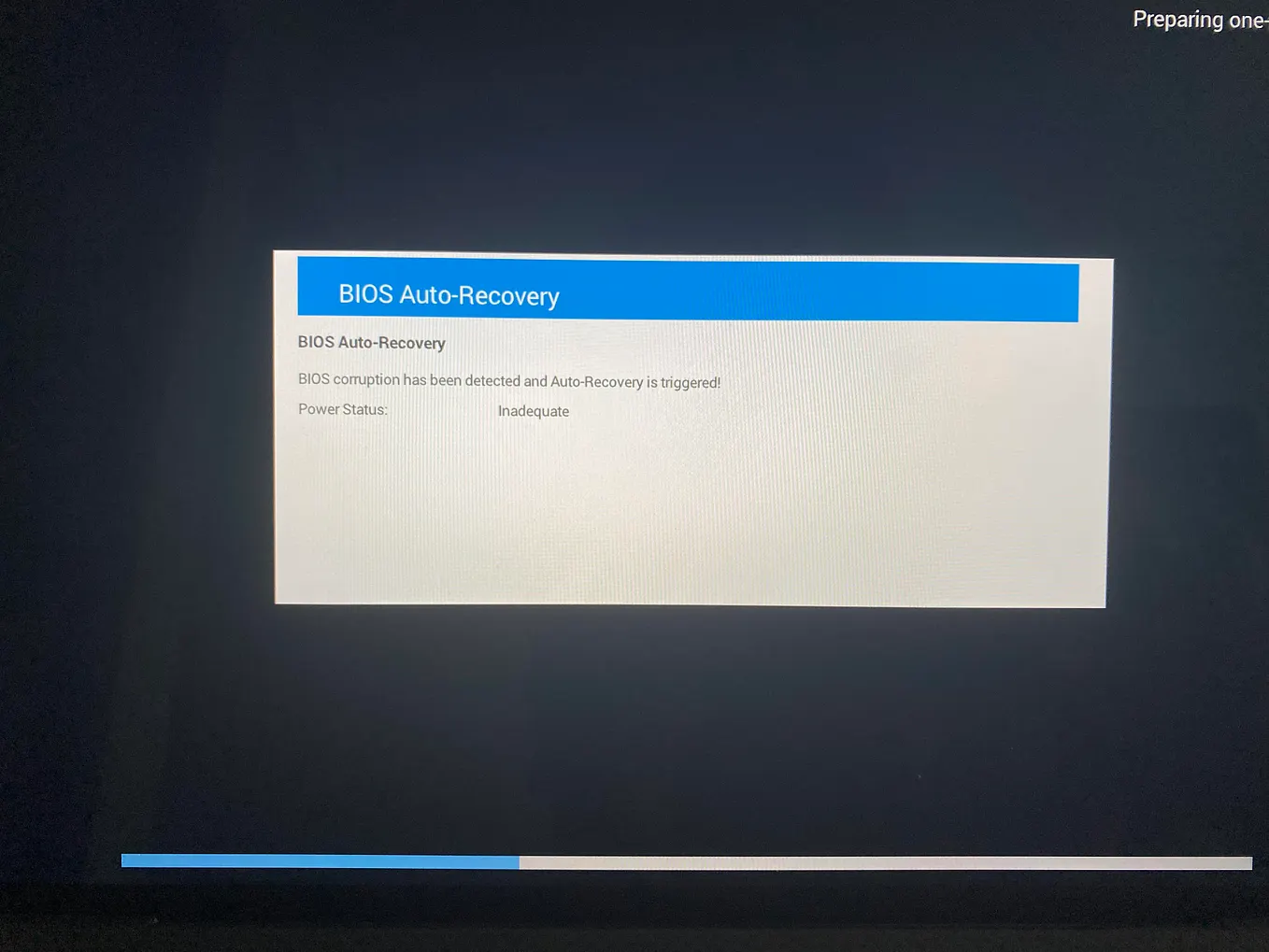
Fixing the July 19th, 2024 CrowdStrike Issue: A Comprehensive Guide
If you’re facing the CrowdStrike issue on July 19th, 2024, you can resolve it by following these detailed steps. This guide provides three methods to fix the issue, even on BitLocker-encrypted systems.
Method 1: Using Safe Mode with File Explorer
- Boot into Safe Mode:
- Restart your computer.
- As it boots up, press
F8(orShift+Restartfrom Windows on login screen). - Navigate to Advanced Settings -> Startup Settings -> Restart.
- Press
F5to enter Safe Mode.
2. Navigate to the Directory:
- Open File Explorer and go to
C:\Windows\System32\drivers\CrowdStrike.
3. Delete the Problematic File:
- Use the search bar in File Explorer to search for
C-00000291*.sys. - Locate the file, which will look something like
C-0000291–00000000–00000039.sys, and delete it.
4. Reboot:
- Restart your computer normally.
Method 2: Using Safe Mode with Command Prompt
- Boot into Safe Mode with Command Prompt:
- Restart your computer.
- As it boots up, press
F8(orShift+Restartfrom Windows on login screen). - Navigate to Advanced Settings -> Startup Settings -> Restart.
- Press
F6to enter Safe Mode with Command Prompt.
2. Delete the Problematic File:
del C:\Windows\System32\drivers\CrowdStrike\C-00000291*.sys
3. Reboot:
- Restart your computer normally.
Method 3: Renaming the csagent.sys File Using Safe Mode with File Explorer
This method involves booting into Safe Mode and using File Explorer to rename the problematic csagent.sys file. Follow these steps to resolve the CrowdStrike issue.
- Boot into Safe Mode:
- Restart your computer.
- As it boots up, press
F8(orShift+Restartfrom Windows on login screen). - Navigate to Advanced Settings -> Startup Settings -> Restart.
- Press
F5to enter Safe Mode.
2. Navigate to the Directory:
- Open File Explorer.
- Go to
C:\Windows\System32\drivers\CrowdStrike.
3. Rename the csagent.sys File:
- In the
CrowdStrikefolder, locate the file namedcsagent.sys. - Right-click on
csagent.sysand select Rename. - Rename the file to
csagent_old.sys.
4. Reboot:
- Close File Explorer.
- Restart your computer normally.
Conclusion
These methods should help you resolve the CrowdStrike issue quickly and efficiently. By following these steps, you can ensure minimal downtime and a smooth resolution process. If you found this guide helpful, please share it to help others avoid unnecessary work and errors.
Get Techie-stronaut’s stories in your inbox
Join Medium for free to get updates from this writer.