Deploying Static Files for Website Hosting in SafeLine

How to Host a Website Using Static Files
In SafeLine version 6.6.0 and above, you can easily host websites using static files. This guide will walk you through the steps to set up a site using static resources and provide solutions for common issues you might encounter.
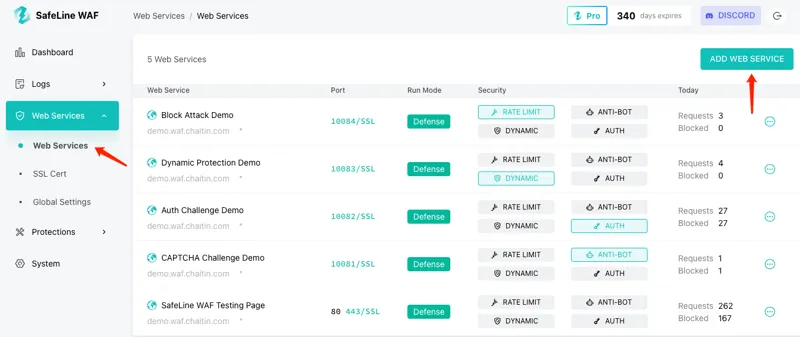
Step 1: Select Static File Hosting
When adding a new site in SafeLine, choose the Static Files option for site creation.

Step 2: Verify Success
After setting up the site, try visiting the site’s URL. If you see the default page, it means the static hosting setup was successful.

Step 3: Upload Your Static Files
Once the default page is visible, you can go to the Site Details section and upload your custom static files.

FAQ
What if the uploaded files exceed the size limit?
If your static files exceed the upload limit, you can manually upload them to the appropriate directory on the WAF server.
- Directory path:
installation_directory/resources/nginx/static/static_${SITE_ID}
You can find the SITE_ID by looking at the site details URL. For example, if the URL is https://xxxx:9443/sites/detail?id=12, the site ID is 12.
Get Lulu’s stories in your inbox
Join Medium for free to get updates from this writer.
By following these steps, you’ll be able to quickly host static websites using SafeLine and manage your site with ease!
GitHub:https://github.com/chaitin/SafeLine
Website:https://waf.chaitin.com