Getting Started with Cartlytics: The Complete Guide to Shopify Cart Analytics

Set up real-time cart tracking, recover abandoned carts, and boost your Shopify sales in minutes

NEW UPDATE, 10 Jan.
Welcome to Cartlytics! This guide will walk you through everything you need to know to start tracking cart activity and boosting your Shopify sales. Setup takes just a few minutes, and you’ll immediately gain valuable insights into your customers’ shopping behavior.
Why Merchants Love Cartlytics
- Real-time cart tracking
- Understand customer behavior
- Recover abandoned carts
- Identify top-performing products
- Automated daily & weekly reports
- Easy setup, no code required
Step 1: Installation
Getting Cartlytics installed on your Shopify store is quick and easy:
- Visit the Cartlytics page on the Shopify App Store (https://apps.shopify.com/cartlytics)
- Click “Add app” and authorize the installation
- Once installed, Cartlytics automatically starts tracking cart activity
Tip: Cartlytics works out of the box with zero configuration. As soon as you install, we begin capturing cart data from your store.
Step 2: Dashboard Overview
After installation, you’ll land on your Cartlytics dashboard. Here’s what you’ll find:
- Hero Stats — Key metrics at a glance: total carts, converted carts, conversion rate, and cart value\
- Activity Chart — Visual timeline of cart activity over your selected date range
- Recent Carts — Live feed of the latest shopping carts on your store
- Top Products — Your best-performing items by cart additions
Use the date range picker at the top to filter data by Today, Last 7 Days, Last 30 Days, or a custom range.
Step 3: Cart Activity Tracking
The Activity page is where you’ll spend most of your time. It shows every cart event in real-time:
- Cart Created — When a customer adds their first item
- Product Added — Each item added to a cartProduc
- t Removed — Items customers decided against
- Cart Converted — Successful checkout completions
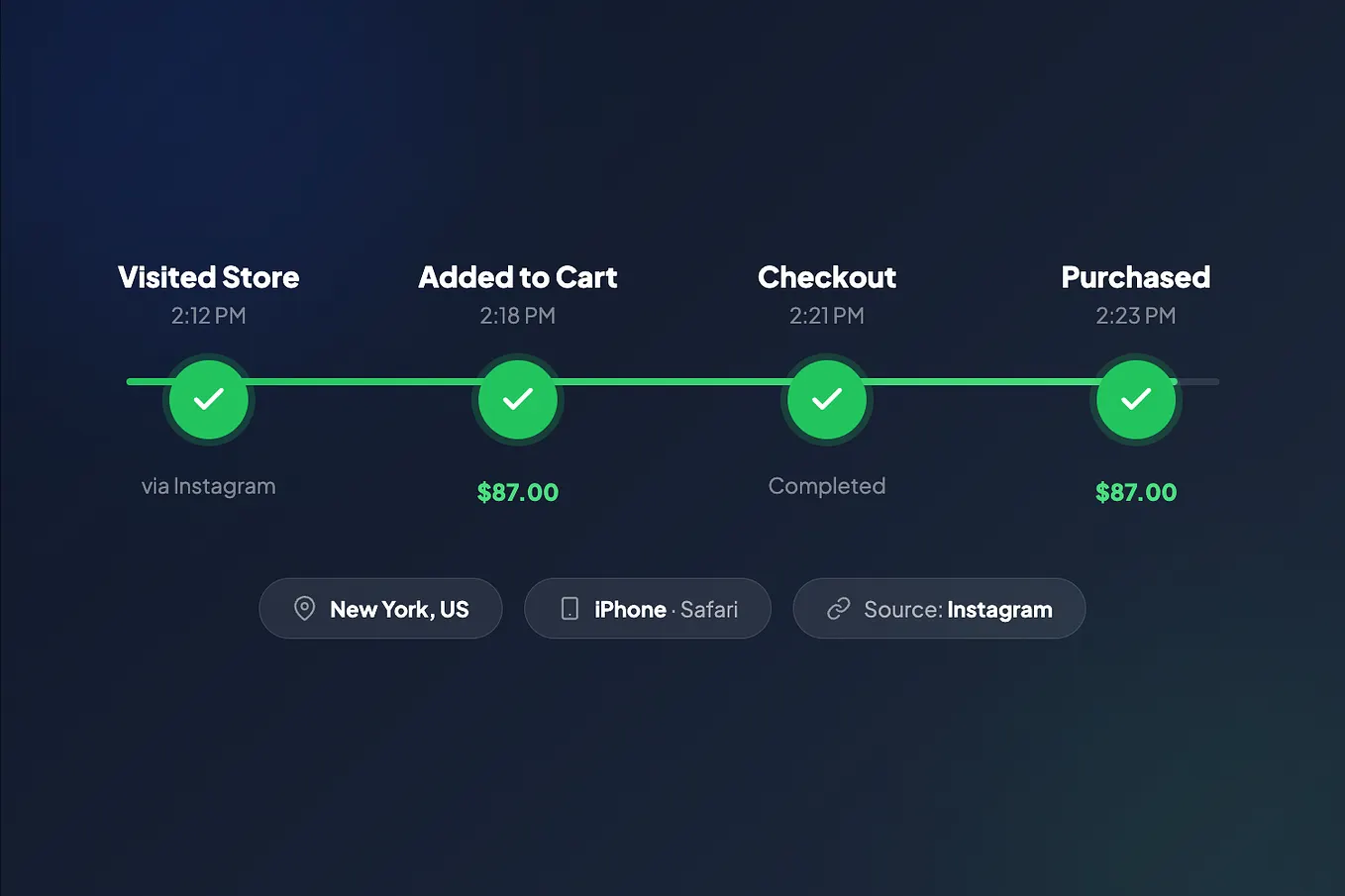
Click on any cart to see the full journey: every product added or removed, timestamps, customer location, and traffic source.
Tip: Look for patterns in carts that don’t convert. If customers consistently remove the same product, it might indicate a pricing or description issue.
Step 4: Top Products & Analytics
The Top Products page reveals your store’s best-performing items:
- Products most frequently added to carts
- Conversion rates by product
- Which variants (sizes, colors) perform best
- Products often removed from carts
Use these insights to optimize your marketing spend, adjust inventory, and feature winning products more prominently.
Step 5: Cart Recovery
Don’t let abandoned carts mean lost sales. Cartlytics offers two powerful ways to recover carts:
Get Oliver’s stories in your inbox
Join Medium for free to get updates from this writer.
Automated Recovery Emails
Set up automatic recovery emails to win back customers:
- Connect your email provider (SendGrid, Mailgun, or Postmark)
- Customize your email template with your branding and messaging
- Set rules for when to send emails (e.g., cart value thresholds, time delays)
- Track email history and performance
Draft Orders
For manual recovery or high-value carts:
- Find a cart in your Activity feed
- Click “Create Draft Order” to convert it to a Shopify draft order
- The draft order appears in your Shopify admin where you can send an invoice or apply discounts
Tip: For high-value carts, consider creating a draft order and adding a discount code before sending the invoice to incentivize completion.
Step 6: Reports & Exports
Stay informed without logging in every day. Cartlytics offers automated reports:
- Daily Summary — Yesterday’s cart activity delivered to your inbox each morning
- Weekly Digest — Comprehensive weekly overview with trends and top products
- CSV Export — Download your cart data for further analysis in Excel or Google Sheets
Configure your report preferences in Settings → Email Reports. Choose your preferred time and timezone for delivery.
Pricing Plans
Cartlytics offers flexible plans to match your store’s needs:
- Free — Perfect for new stores, up to 25 orders/month
- Starter ($9/mo) — Growing stores, up to 1,000 orders/month
- Growth ($19/mo) — Established stores, up to 3,000 orders/month
- Scale ($29/mo) — High-volume stores, up to 15,000 orders/month, then $5 per additional 10,000 orders
All plans include real-time tracking, the full dashboard, draft order creation, and email reports.
Ready to Get Started?
Join thousands of Shopify merchants who use Cartlytics to understand their customers and grow their sales. Installation takes less than a minute, and you’ll start seeing insights immediately.
Install Cartlytics on Shopify → https://apps.shopify.com/cartlytics