Static Website Hosting on AWS S3 with Public Access
The first and most common question at an early stage of AWS Journey is:
“ Where do I even begin?”
It is because AWS have many services which create overwhelmed situation for the beginners. To overcome this situation, I always suggest and recommend to start with a simple, visual, and practice project. This was what I did when I started my AWS journey.
In this blog, I will explain the entire process of hosting a static website on AWS S3 with public access using only the AWS Management Console, no Terraform, no CLI, no automation tools.
I want you to focus on understating concepts, not tools.
Amazon S3 (Simple Storage Service) is a scalable, secured cloud storage services which is used to store and retrieve any amount of data from anywhere o the web.
Firstly, let's create two simple HTML files on our local machine for the demo.
Index.html
<!DOCTYPE html>
<html>
<head>
  <title>AWS S3 Static Website</title>
</head>
<body>
  <h1>Welcome</h1>
  <p>This website is hosted on Amazon S3 by Shashank Ray.</p>
</body>
</html>
error.html
<!DOCTYPE html>
<html>
<head>
  <title>Error</title>
</head>
<body>
  <h1>Oops! Page not found.</h1>
</body>
</html>
Now, the steps required to host the website on AWS S3 are:
Step 1: Create an S3 bucket using AWS Console.
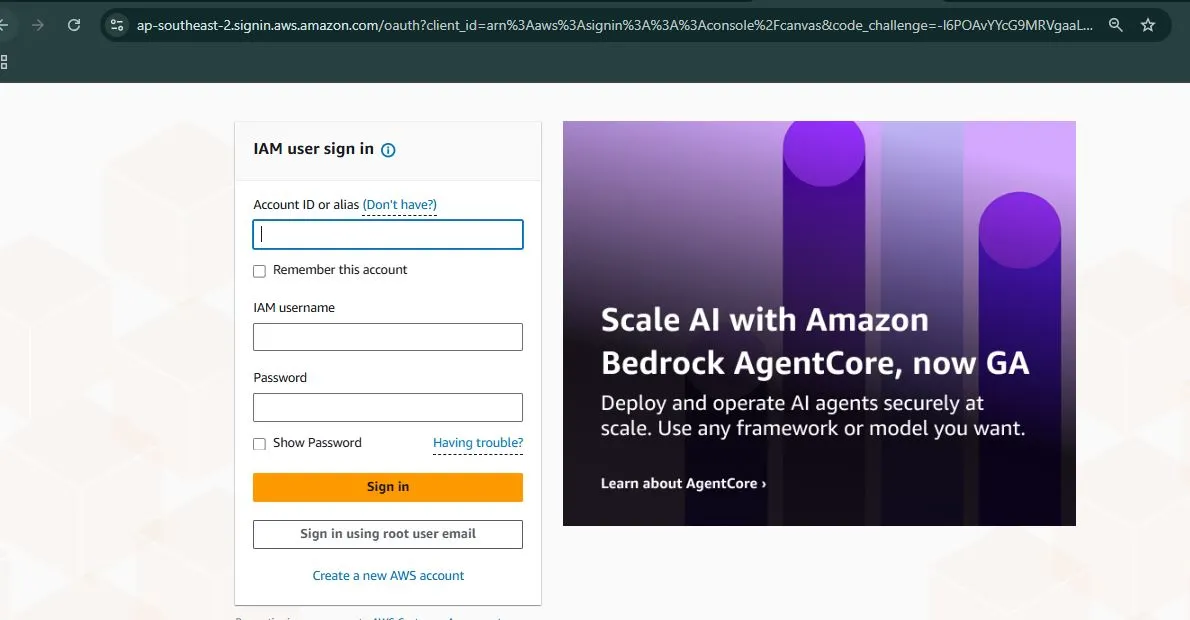
- Log into the AWS Management Console
- Search for S3 on search bar

3. Click create Bucket

4. Enter a globally unique bucket name.

5. Choose a region close to you
6. Uncheck “Block all public access”
7. Acknowledge the warning

8. Click Create bucket

Note: AWS blocks public access by default for security reasons and to protect your data from accidental exposure. So, we have to uncheck block all public access to make our websites publically accessible.
Step 2: Upload Website Files
- Open the bucket you just created
- Click Upload
- Upload:
. Index.html
. Error.html - Click Upload


Step 3: Enable Static Website Hosting
- Go to the Properties tab

2. Scroll to Static website hosting
Get Shashank Ray’s stories in your inbox
Join Medium for free to get updates from this writer.
3. Click Edit

4. Select Enable
5. Hosting type: Host a static website
6. Index document: index.html
7. Error document: error.html
8. Click Save changes.

Step 4: Allow Public Read Access (Bucket Policy)
AWS keep “deny by default” for security purpose for the files we upload in S3 bucket even after disabling the public block at early step 1.
So, we must make the files publically access ale and readable using bucket policy or manually.
We will be using bucket policy to make files publically accessible.
- Go to the Permissions tab
- Click Bucket policy
- Write this policy in JSON to make files public.
{
  "Version": "2012-10-17",
  "Statement": [
    {
      "Effect": "Allow",
      "Principal": "*",
      "Action": "s3:GetObject",
      "Resource": "arn:aws:s3:::skr-s3/*"
    }
  ]
}
Note: For “Resource”: “arn:aws:s3:::YOUR-BUCKET-NAME/*”, here my bucket name is skr-s3.
Step 5: Access Your Website
- Go back to the bucket Properties tab
- Scroll to Static website hosting
- Copy the Bucket website endpoint
- Paste it into your browser


Disclaimer:
This blog is meant for learning and practice purpose. It teaches you how to host a simple static website on AWS S3 so that you can understand the basics and get hands-on experience.
For real-world production use, we need to add HTTPS, CloudFront, custom domains and proper access control to make your sites secured and reliable.
This is a practice project which helps you to learn about the basics of AWS S3 before going live for real projects.
In conclusion, this project and blog is a great way to practice and get hands-on with AWS S3. You can easily understand how static websites work, how S3 handle files and lastly, how public access is managed.
References to explore:
- AWS Documentation: https://aws.amazon.com/documentation/s3/
- AWS Free Tier Info: https://aws.amazon.com/free/
- GitHub Repo: https://github.com/Shashank-ray2053/AWS-By-ShashankRay.github.io/tree/main/AWS-S3-project
If this guide helped you, feel free to connect or follow me for more beginner-friendly AWS content.