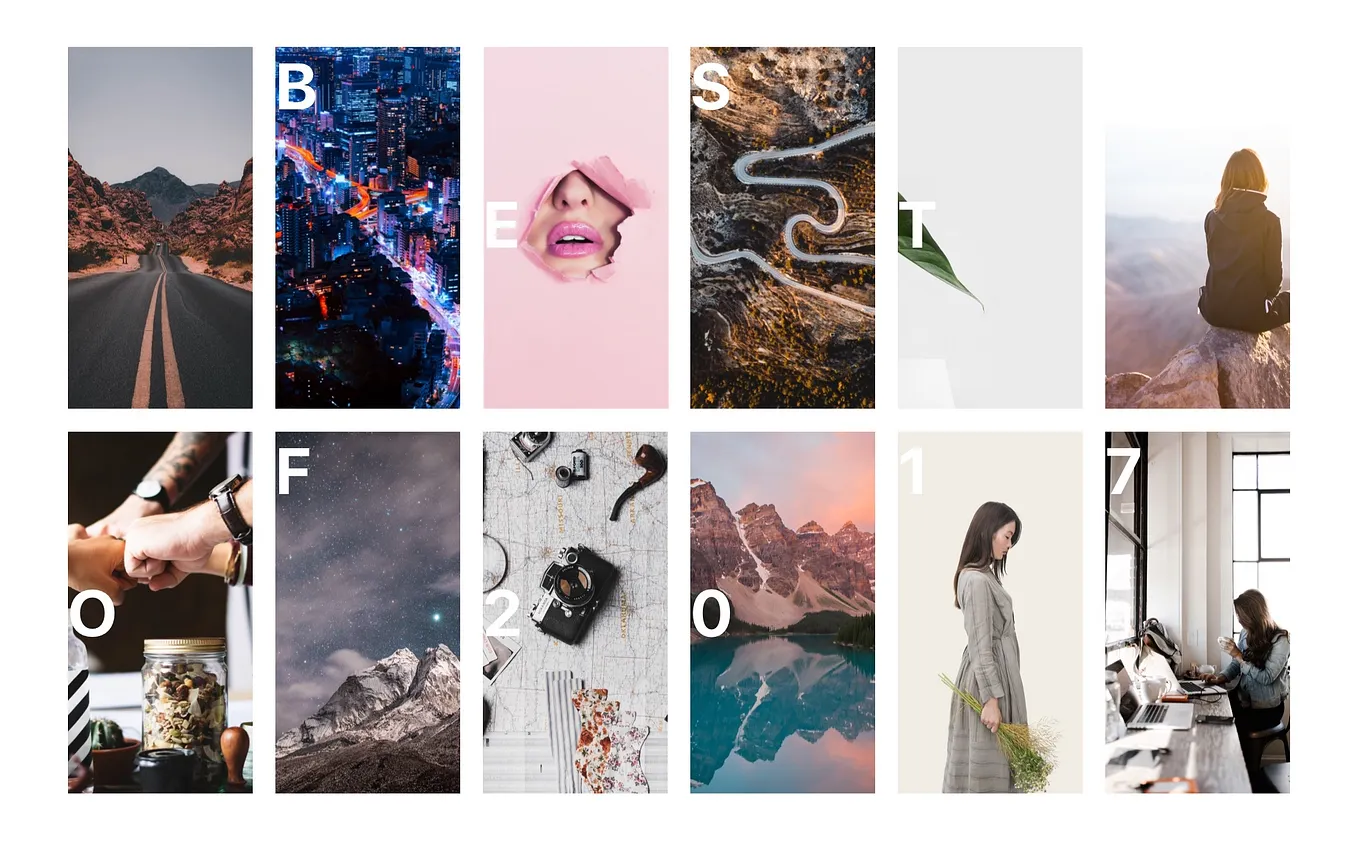
Unsplash Lightroom Presets
Vol. 1

Table of Contents

Introduction
👋 Annie here from the team — hello!
One of the (many) things I love about our Unsplash Slack community is the creative discussion. Timothy Rose had a great idea recently that creators could get together and make a collaborative Lightroom Preset pack, to be sent out to our community via email and our social channels.
As a team we appreciate our communities generosity, without wanting to ‘ask for more’. We chatted within the Community team and decided to trial the idea by releasing a small set of Lightroom Presets ourselves first. This way we can gauge interest and if others in the community are keen to join forces to create future presets packs.
Get Unsplash’s stories in your inbox
Join Medium for free to get updates from this writer.
This set of 3 Lightroom presets was inspired by my recent trip to the Faroe Islands and general love of nature. If you end up using them I’d love to see — I’m @anniespratt everywhere. 🙋🏻
Examples
№1 Bleached, №2 Natural, №3 Rich Warmth


As with most Lightroom presets, you might find that you need to adjust the exposure levels in the basic editing settings. These can be used as stand alone presets or as a base to tweak and create your own.
Installing the presets
Installing the presets in Lightroom CC
- Open Lightroom CC
- Click on the Preset Develop icon
- Click Presets
- Click the … icon
- Select ‘Import Presets’
- Select the files and hit ‘Import’ 💪
Installing the presets in Lightroom Classic CC
- Open Lightroom Classic CC
- Go to the Develop tab
- In the Presets tab, on the left hand side, click the + icon, then ‘Import Presets’
- Select the files and hit ‘Import’ 💪
Adobe have recently updated Lightroom, and have replaced the old .lrt files with .xmp files. This change will mean that if you are installing to Lightroom Classic CC the presets will end up in the ‘User Presets’ folder, as opposed to their own folder.
Get involved
Interested in sharing some presets with the community? Get in touch for a chat! Email support@unsplash.com or drop me a message in the Unsplash Slack community, I’m @annie-admin there. ✌️