- What is Agile?
- Agile Manifesto
- Overview
- Project management intro
- Workflow
- AI workflow automation
- Epics, stories, themes
- Epics
- User Stories
- Estimation
- Task management tools
- Metrics
- Gantt chart
- Best free project management software
- Program management vs. project management
- Project baseline
- Continuous improvement
- Lean principles
- 3 pillars of Scrum
- Scrum Board
- Waterfall Methodology
- Velocity in Scrum
- What is Definition of Ready
- Lean vs. agile
- Scrumban
- Lean Methodology
- Sprint backlog
- Burn up chart
- 4 kanban principles
- 4 kanban metrics
- Program vs. Project Manager
- Gantt chart examples
- Definition of done
- Backlog grooming
- Lean process improvement
- Backlog refinement meetings
- Scrum values
- Scope of work
- Scrum tools
- Tools
- Workflow automation software
- Templates
- Task tracker
- Workflow automation
- Status report
- Workflow chart
- Project roadmap
- Project schedule
- Tracking software
- Roadmap tools
- Technology roadmap
- Project scheduling software
- Backlog management tools
- Understanding workflow management strategies
- Workflow examples
- Create project roadmap
- Sprint planning tools
- Sprint demo
- Project Timeline Software
- Top task management tools
- Product backlog vs. sprint backlog
- Top workflow management tools
- Project dependencies
- Task dashboard guide
- Sprint cadence
- Fast tracking
- Fibonacci story points
- Product vs. Project Management
- Deadline management
- 10 must-have skills
- Value Stream Management
- DevOps
- All articles
- What is Agile?
- Agile Manifesto
- Overview
- Project management intro
- Workflow
- AI workflow automation
- Epics, stories, themes
- Epics
- User Stories
- Estimation
- Task management tools
- Metrics
- Gantt chart
- Best free project management software
- Program management vs. project management
- Project baseline
- Continuous improvement
- Lean principles
- 3 pillars of Scrum
- Scrum Board
- Waterfall Methodology
- Velocity in Scrum
- What is Definition of Ready
- Lean vs. agile
- Scrumban
- Lean Methodology
- Sprint backlog
- Burn up chart
- 4 kanban principles
- 4 kanban metrics
- Program vs. Project Manager
- Gantt chart examples
- Definition of done
- Backlog grooming
- Lean process improvement
- Backlog refinement meetings
- Scrum values
- Scope of work
- Scrum tools
- Tools
- Workflow automation software
- Templates
- Task tracker
- Workflow automation
- Status report
- Workflow chart
- Project roadmap
- Project schedule
- Tracking software
- Roadmap tools
- Technology roadmap
- Project scheduling software
- Backlog management tools
- Understanding workflow management strategies
- Workflow examples
- Create project roadmap
- Sprint planning tools
- Sprint demo
- Project Timeline Software
- Top task management tools
- Product backlog vs. sprint backlog
- Top workflow management tools
- Project dependencies
- Task dashboard guide
- Sprint cadence
- Fast tracking
- Fibonacci story points
- Product vs. Project Management
- Deadline management
- 10 must-have skills
- Value Stream Management
- DevOps
- All articles
What is a Gantt chart? Key features and benefits with helpful templates
A Gantt chart is a visual timeline for tracking tasks and milestones throughout a project's lifecycle.

Get started with the free Gantt chart template
Need to boost project efficiency? Use this template to visually plan, schedule, and manage timelines, tasks, and resources for seamless collaboration.
Looking for a high-level overview of project schedules or an easier way to manage complex plans involving multiple teams and shifting deadlines?
It's time to consider a custom Gantt chart.
This view empowers project managers and teams to stay organized and focused on achieving their goals together—not in silos. A customizable Gantt chart also works as a timeline in your project life cycle.
This provides you with the opportunity to track tasks and milestones, and share progress with stakeholders. Whether you're managing sprints or long-term projects, this comprehensive guide explores what Gantt charts are, their practical applications, benefits, and a free template to get you started now.
What is a Gantt chart?
A Gantt chart is an agile project management tool used to plan and track the progress of various tasks and activities within a project. Serving as a visual timeline, it displays the list of tasks, their start and end dates, milestones, dependencies between tasks, and assignees.
As a valuable roadmap, a Gantt chart guides teams and organizations in effectively planning and coordinating their work items. By illustrating task interconnections, it fosters seamless collaboration and alignment among project stakeholders.
A well-defined and visually clear Gantt chart ensures that everyone is on the same page and working toward the same goal.

The history of Gantt charts
The Gantt chart format traces back to Henry Gantt, an American mechanical engineer who developed this visual project management technique in the early 1910s. Originally designed for manufacturing and construction projects, the charts were hand-drawn on paper and required manual updates whenever project timelines changed.
Over the decades, this simple yet effective tool has undergone significant evolution. What started as static paper charts has transformed into dynamic, software-based solutions.
Modern Gantt chart makers now offer real-time collaboration, automated updates, and integration with other project management tools, making them indispensable for complex projects.
Key features of Gantt chart software
Gantt charts typically include two sections: the left side outlines a list of tasks, while the right side shows a project timeline with schedule bars that visualize work. Let's take a closer look at the primary components of a Gantt chart.
Timeline

The timeline is a visual representation of the project schedule, showing start and end dates at the top of the chart. It provides a clear view of your project schedule, helping you visualize the sequence of tasks and their durations.
Timelines help identify potential bottlenecks and allow for proactive adjustments to keep the project on track. For example, a marketing team uses the timeline to plan a product launch, ensuring all promotional activities are aligned and executed on time.
Dependencies

Links between tasks dictate the order of operations and show how tasks are related. With advanced roadmaps, you set dependencies between tasks to ensure they're completed in the correct order.
At the same time, a roadmap should automatically adjust schedules when changes occur. This prevents delays by so prerequisite tasks are completed before dependent tasks begin. For example, a construction project has dependencies to ensure foundation work is completed before the structure is built.
Resource allocation
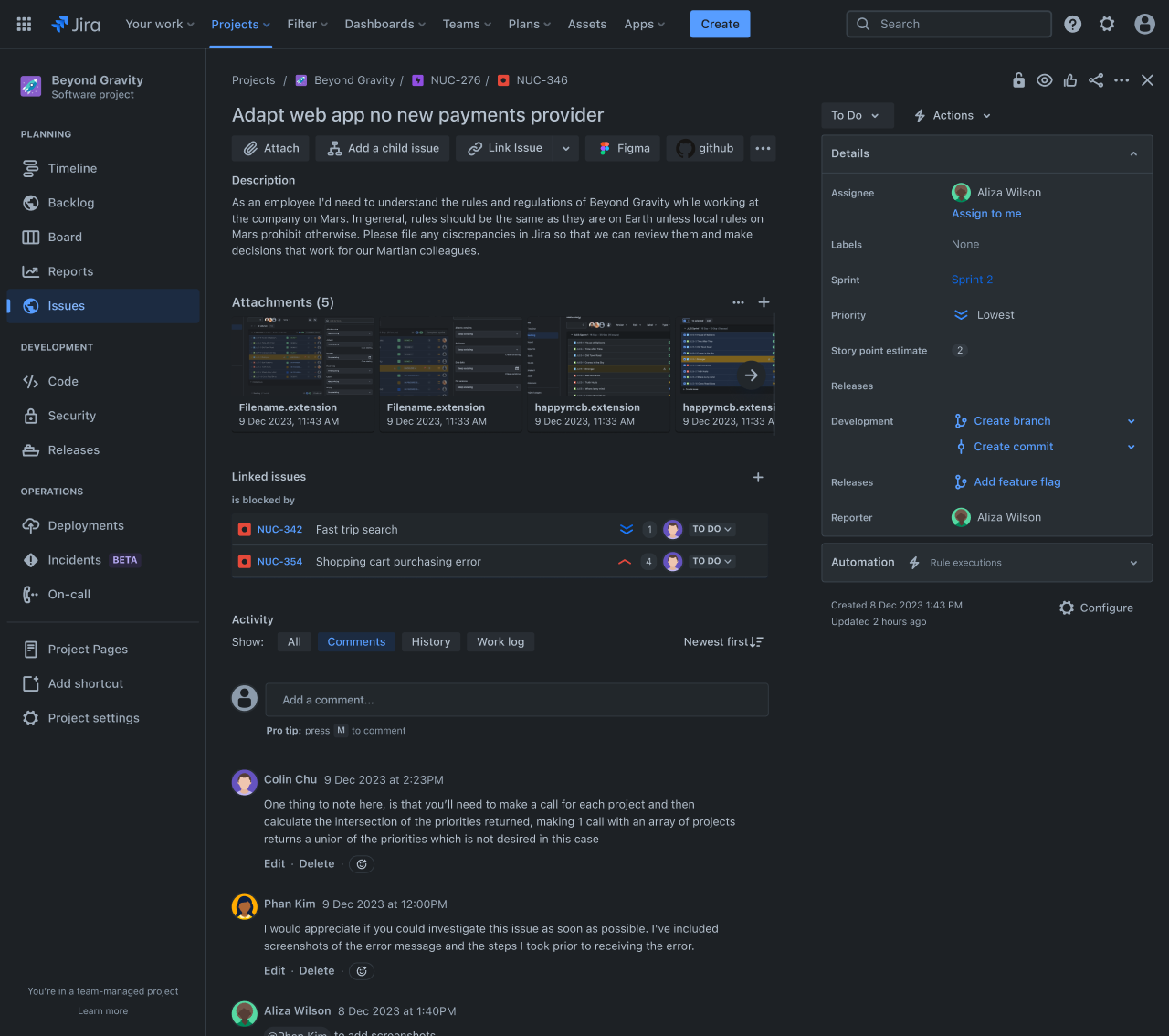
Break down large projects or bodies of work into smaller, manageable pieces called "work items." Use work items to capture task information and status updates so the entire team can stay up to date.
Effective resource management ensures that team members aren't overloaded and that skills are matched appropriately to tasks.
List

A task list is a comprehensive list of all tasks required to complete the project. With project management software, tasks can be created and managed using the work item tracker.
This allows you to assign tasks to team members, set priorities, and track progress. Every team member will be aware of their responsibilities and deadlines, promoting accountability and efficiency.
For example, a software development team uses a task list to assign coding, testing, and deployment tasks to different developers, thereby providing a smooth workflow.
Milestones
Project milestones on Gantt charts are markers on the project timeline that indicate major progress or the completion of project phases. With the right tools, you can mark key milestones using milestone markers, which help keep your team focused on critical deadlines and achievements.
Milestones provide motivation and a sense of accomplishment, helping teams stay focused on long-term goals. For instance, a product development team sets a milestone for completing the prototype phase, signaling readiness for user testing.
Pros and cons of using Gantt charts
Like any project management tool, Gantt charts come with distinct advantages and limitations that teams should consider.
Key advantages of Gantt charts
Visual clarity: Teams can instantly see project progress, upcoming deadlines, and task relationships at a glance.
Enhanced planning: The visual format makes it easier to identify potential conflicts and plan around them.
Improved communication: Stakeholders can quickly understand project status without diving into detailed reports.
Better time management: Clear timelines help teams stay focused on priorities.
Notable limitations of Gantt charts
Complexity in large projects: Gantt chart templates can become overwhelming when managing hundreds of tasks.
Maintenance requirements: Regular updates are essential to keep charts accurate and useful.
Learning curve: Some team members may need training to effectively read and update the charts.
When (and when not) to use Gantt charts
Gantt charts excel in specific scenarios, but they aren't always the best choice for every project type.
Ideal use cases are:
Large, timeline-driven projects: When project execution involves multiple phases and dependencies.
Cross-functional initiatives: Projects requiring coordination between different departments or teams.
Client-facing work: When stakeholders need clear visibility into project progress and deliverables.
While Gantt charts offer powerful visualization capabilities, they can sometimes create unnecessary complexity for simpler workflows. Consider simpler alternatives when:
Managing small, flexible projects: Agile sprints might benefit more from Kanban boards.
Working with frequently changing requirements: Static charts can quickly become outdated.
Leading creative projects: Where the process is more exploratory than linear.

Who should use Gantt charts?
Gantt charts aren't just for project managers — they're valuable tools for anyone who needs to coordinate complex work across time and teams. The roles that benefit the most from Gantt charts are:
Project managers: Project managers use these charts for comprehensive oversight and strategic planning across multiple initiatives. The visual format allows them to spot potential conflicts between projects, allocate resources effectively, and communicate progress to stakeholders at a glance.
Team leads: Team leads use Gantt charts to coordinate work within their specific departments or functional areas. They can see exactly when their team members are available, identify potential bottlenecks before they occur, and ensure that deliverables align with broader project timelines.
Operations managers: Operations managers use the Gantt chart format to manage recurring processes and optimize resource management across their organizations. Unlike project-based work, operations often involve cyclical activities that need careful coordination to maintain efficiency.
Keep in mind that industry applications vary significantly. For instance, construction teams use Gantt charts extensively to coordinate trades and manage material deliveries, ensuring that concrete pours happen after forms are set and electrical work begins only after framing is complete.
Meanwhile, software development teams have adapted Gantt charts for release planning and feature development, often integrating them with agile methodologies to visualize sprint planning over longer timeframes.
How to create a Gantt chart

With the benefits of Gantt charts in mind, let's explore how to translate your project plans into a clear and actionable chart. We'll cover the essential steps, from defining your scope of work to tracking progress, to ensure your Gantt chart becomes a valuable tool for successful project execution.
You have two options to get started: create your Gantt chart from scratch by following the steps below, or jump right in with our free template, which includes pre-built sections and examples to guide your setup.
Get the free Gantt chart template
Step 1: Define the project scope
The first step in creating a Gantt chart is to define the project scope. Start by identifying the project's main objectives. Clear objectives will guide the project and ensure that all tasks align with these goals throughout the project life cycle.
Once you have your project objectives, outline the key deliverables. These are the tangible outcomes that you need to produce throughout the project. Confluence offers a project planning template designed to streamline your project management process.
It guides you through the initial step of defining your project scope and planning with clear milestones. Once your project plan is set, you can seamlessly transition to creating tasks for each milestone and deliverable, ensuring a structured and efficient workflow.
Step 2: List all tasks and subtasks
Next, list every task necessary to complete each deliverable. Break large tasks into smaller subtasks to clearly show what your team needs to do. Identify each task, the team member responsible for it, and the required resources.
Using work items in Jira is an effective way to create and organize these tasks within your Gantt chart structure. Each work item can represent a specific task or subtask, allowing you to assign team members, set priorities, and track progress directly within your project timeline.
Pro Tip: Rovo integrates with Jira and Confluence to seamlessly transform your project plans into detailed tasks within Jira, streamlining your workflow and boosting productivity. Discover how Rovo converts your project plans into actionable Jira tickets today!
Step 3: Estimate task duration
Determine how long it will take to complete each task. Be realistic, and consider any potential delays. Include buffer time in your schedule to accommodate unexpected delays and ensure the project remains on track.
Step 4: Determine task dependencies
Identify the task sequence. Some tasks can only begin once others are completed. Use dependency types such as finish-to-start or start-to-start to define relationships between tasks.
With Jira's Advanced Roadmaps called Plans, teams can create comprehensive project roadmaps that visualize task connections and automatically adjust timelines when changes occur. This ensures your Gantt chart remains accurate as your project evolves.
Step 5: Choose a Gantt chart tool

When choosing a Gantt chart tool, consider several key factors to ensure the tool meets your project’s specific needs.
Jira is an excellent option for creating Gantt charts, particularly for software and marketing teams. Tools such as Timelines and Plans help you create advanced roadmaps. These features support detailed task management, dependency tracking, and resource allocation. You can even use a Gantt chart template to streamline the process.
Step 6: Input Data
With Jira, there's no need to manually input data into a Gantt chart. Once you've created tasks from your project plan, you can effortlessly switch to a timeline view or utilize Jira's Advanced Roadmaps for a Gantt chart-like perspective.
This feature automatically reflects task durations, dependencies, and key milestones, ensuring your project timeline is always up-to-date and accurately visualized.
Streamline your projects with Gantt charts in Jira
Jira enhances project planning and execution with its powerful timeline visualization and robust work tracking capabilities. The dynamic timeline feature in Jira automatically updates charts to reflect changes in tasks, dates, and dependencies, ensuring your project plan is always current.
With Advanced Roadmaps, you gain a portfolio-level view, perfect for managing complex, multi-team initiatives. This feature goes beyond simple task sequencing by automatically calculating the impact of changes across your entire project timeline, highlighting which tasks are affected by delays.
Confluence complements Jira by enhancing your project management workflow and timeline implementation. While Jira excels in execution and tracking, Confluence acts as your central hub for project documentation, requirements gathering, and stakeholder communication.
You can embed live Jira timelines directly into Confluence pages, creating comprehensive project dashboards that combine visual schedules with detailed project context, meeting notes, and status reports.
Recommended for you
Templates
Ready-made Jira templates
Browse our library of custom Jira templates for various teams, departments, and workflows.
Product guide
A comprehensive introduction to Jira
Use this step-by-step guide to discover essential features and the best practices to maximize your productivity.
Git Guide
Understanding the Basics of Git
From beginners to advanced experts, use this guide to Git to learn the basics with helpful tutorials and tips.