
It is one of the features provided by the word to its users. It can be used to give a different look to your document or project that you are making.
- For example, if you are making a project in MS Word and want the title of it to be in a different font and paragraph or other information in a different font, then this feature is for you.
- Also, you can change the text font of any specific text to highlight the whole text as per your requirement.
Step 1: Open the MS Word Document.
Open the document in which the text font is to be changed.
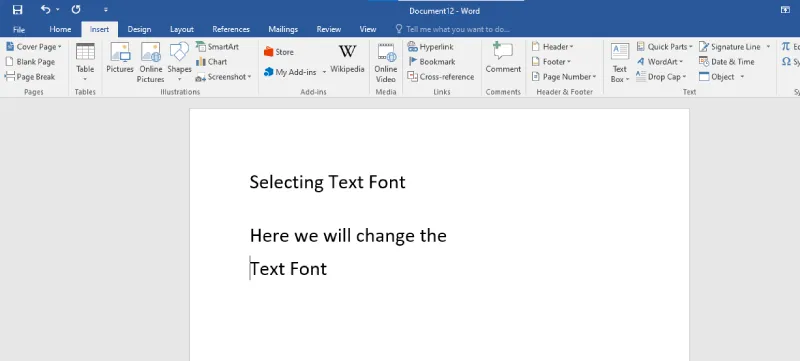
Step 2: Click on the Home tab in the toolbar
Now click on the Home Tab.

Step 3: Select the text to change the font
Now, select the text or paragraph for which the font is to be changed.
Step 4: Go to the font section in Home tab
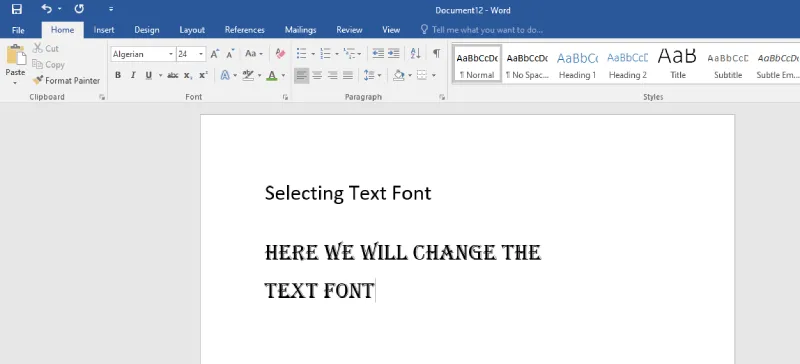
Now, go to the Font section in the Home tab (marked by a circle in the image)

Step 5: Change the font of text from the option
Now, change the Font of text from the font option and select the text font of your choice.
Step 6: Select the font 'Algerian'
Here, In the next image select the text font Algerian (You can choose the font of your choice) and make the changes.
Steps to Change the Default Font in Microsoft Word
Step 1: Open Microsoft Word
Step 2: Click on the "Home" tab in the toolbar
Step 3: In the "Font" group, click on the small arrow icon in the bottom right corner.
Step 4: In the "Font" dialog box, select your desired font, size, and style.
Step 5: Click on the "Set As Default" button at the bottom left corner.
Step 6: Choose whether to apply the changes to just the current document or to all documents based on the template.
Step 7: Click "OK" to confirm the changes.
Steps to Change Font Size and Color in MS Word
Step 1: Highlight the text you want to modify.
Step 2: In the "Home" tab, locate the "Font" group.
Step 3: To change the font size, click the "Font Size" dropdown and select the desired size.
Step 4: To change the font color, click the "Font Color" dropdown and choose a color, or click "More Colors" for additional options.
Font Size and Color in MS Word Using Keyboard Shortcuts
- To change font size: Ctrl + Shift + > (increase) or Ctrl + Shift + < (decrease).
- To change font color: Alt → H → F → C to open the color picker.