
Bullets are used in many ways like while writing anything point-wise. Also, to prepare a kind of list or something like that. So, it is a great feature provided by MS-Word, and it is easy to use.
There are different types of bullets that are supported by MS-Word, and they are:
- Bullets (simple bullets in which symbols are used like dot, arrow, etc.)
- Numbering (In this, number is given like {1,2,3...} , or alphabets {A, B,C}, or roman numbers etc.)
- Multilevel list (This is used when there are things like heading, subheading, and also further subheadings)
Method 1: Using Bullets
Let us see now how to use bullets in the MS-Word with step-by-step instructions and diagram:
Steps to follow:
Step 1: First open MS-Word in your PC.
Step 2: Now, Open the document or create a new one in which you want to perform this operation.

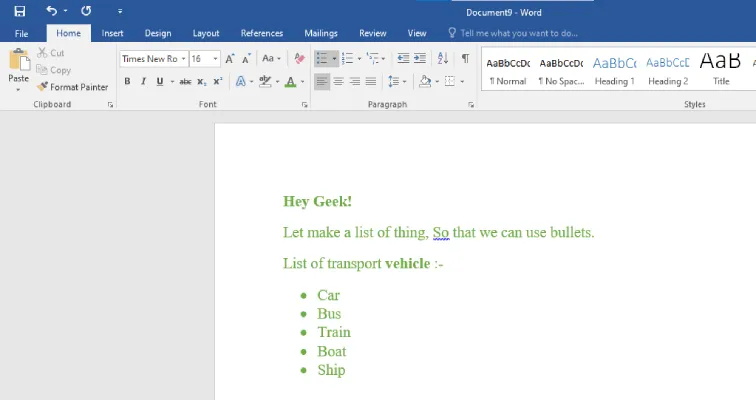
Step 3: Now, select the text for which bullets are to be used. (Here we will select "Car, Bus, Train, Boat, Ship")
Step 4: Now, Go to the "Home" tab.

Step 5: Now, Go to the "Paragraph" section in the Home tab, and select the "Bullets" option. Choose bullets to look from the available option. (We will use dot over here)

Step 6: Bullets have been placed in your document successfully.
Method 2: Using Numbers
Let us see now how to use numbering bullets in the MS-Word with step-by-step instructions and diagram:
Steps to follow:
Step 1: First open MS-Word in your PC.
Step 2: Now, Open the document or create new one in which you want to perform this operation.
Step 3: Now, Select the text for which bullets are to be used. (Here we will select "Car, Bus, Train, Boat, Ship")
Step 4: Now, Go to the "Home" tab.
Step 5: Now, Go to the "Paragraph" section in the Home tab, and select the "Numbering" option. Choose number bullets to look from the available option. (We will use 1,2,3 over here)

Step 6: Bullets have been placed in your document successfully.
