
Format Painter is a feature in Microsoft Word that copies formatting attributes (e.g., font type, size, color, alignment , etc.) from one piece of text or object and applies them to another with a single click. It acts like a "paintbrush" for formatting, streamlining the process of making your document visually consistent.
Key Features
- Copies Multiple Formatting Attributes: Includes font style, size, color, bold/italic/underline, text alignment, line spacing, and more.
- Works with Text and Objects: Apply formatting to text, paragraphs, tables, shapes, or other elements.
- Single or Multiple Uses: Use Format Painter for a one-time application or lock it for multiple applications.
- Non-Destructive: Only copies formatting, not the content itself.
Example: Copy the formatting of a heading (e.g., Arial, 14pt, bold, blue) to make all headings in a document uniform.
Steps to Use Format Painter
Step 1: Select the Source Formatting
Text: Click and drag to select the text or paragraph with the desired formatting (e.g., a bold, red, 12pt Calibri heading).
Object: Click on an object like a table, shape, or image with the formatting you want to copy.
Step 2: Activate Format Painter
Using the Ribbon:
- Go to the Home tab.
- In the Clipboard group, click the Format Painter button (a paintbrush icon).
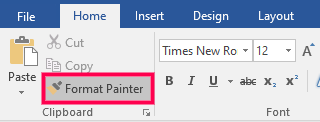
- The cursor changes to a paintbrush, indicating Format Painter is active.
Keyboard Shortcut: There is no default shortcut, but you can add Format Painter to the Quick Access Toolbar for faster access.
Step 3: Apply Formatting
Single Application:
- Click or drag over the target text or object to apply the copied formatting.

- Format Painter deactivates after one use.
Multiple Applications:
- Double-click the Format Painter button to lock it.
- Click or drag over multiple sections of text or objects to apply the formatting.
- Press Esc or click the Format Painter button again to deactivate.
Step 4: Verify and Adjust
- Check that the formatting applied correctly (e.g., font size, color, or alignment matches).

- If needed, use Undo (Ctrl+Z or Command+Z) to revert and try again.