
Microsoft Word provides a Cover Page feature that creates a professional first page with elements like the title, images, logo, or project details. It includes built-in templates and allows customization with your own images or backgrounds.
Steps to Add a Cover Page in MS Word
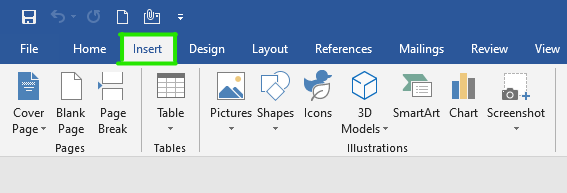
Step 1: On the navigation menu, select the insert option.
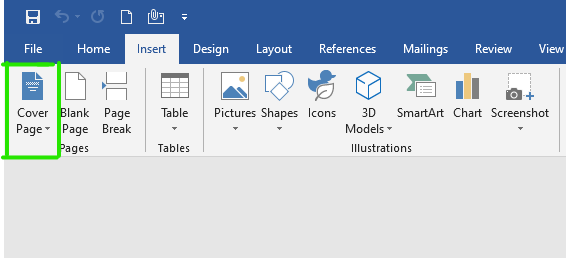
Step 2: Select the cover page from the left side of the navigation menu as shown:
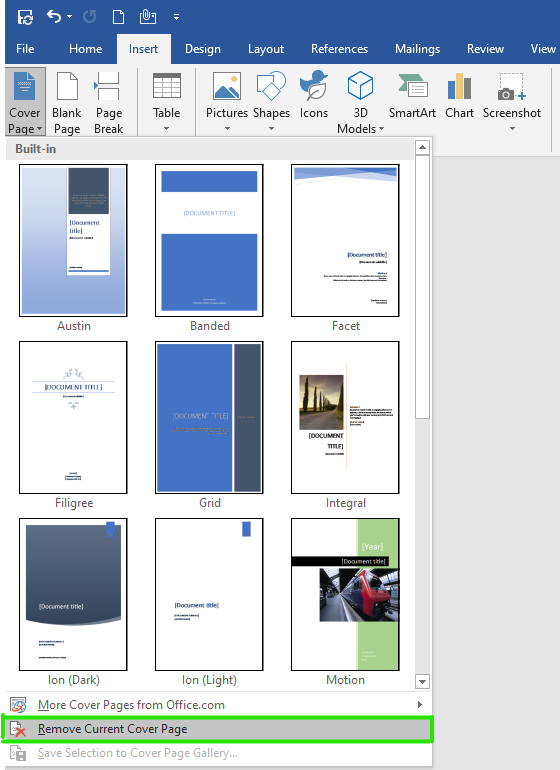
Step 3: A cover page menu will open where you can select different types of cover pages for your document.

Step 4: Now select cover page format as per your choice or requirement.
Some different types of cover pages are:


Step 5: You can also select more cover pages from office.com as shown:

Finally, the cover page is added to the document.
Steps to Remove Cover Page in MS Word:
Step 1: On the navigation menu select the insert option.
Step 2: Select cover page from the left side of the navigation menu.
Step 3: Now click on the remove current cover page option as shown:
Finally, the cover page will be removed from your document.