
Adding hyperlinks in MS Word enhances navigation by connecting readers to websites, emails, or sections within the file. This makes reports, resumes, or reference documents more interactive and user-friendly.
Steps to Add a Hyperlink in MS Word
Learn how to easily insert a clickable hyperlink into your Microsoft Word document using simple steps.
Step 1: Open MS Word
Launch Microsoft Word on your PC to begin the process of adding a hyperlink to your document.
Step 2: Create a Document
Either open an existing Word document or create a new one where you want to insert the hyperlink.

Step 3: Select the Text
Choose the specific text or phrase that you want to turn into a hyperlink. (Example: Select the word “GeeksforGeeks”)
Step 4: Navigate to the Insert Tab
Go to the Insert tab located on the top menu ribbon in MS Word.

Step 5: Click on the Hyperlink Option
In the Insert tab, find the Links group. Inside this section, click on the Hyperlink button.

Step 6: Open the "Insert Hyperlink" Dialog Box
Clicking on the Hyperlink button will open a new dialog box titled "Insert Hyperlink".

Step 7: Enter the Link Address
In the dialog box, locate the Address bar at the bottom. Enter the URL or file path that you want to link to. (Example: Enter https://www.geeksforgeeks.org/)
Step 8: Confirm the Link
After typing the link, click on the OK button to confirm and insert the hyperlink.
Step 9: Hyperlink Added Successfully
The selected text is now converted into a clickable hyperlink that redirects to the specified address.
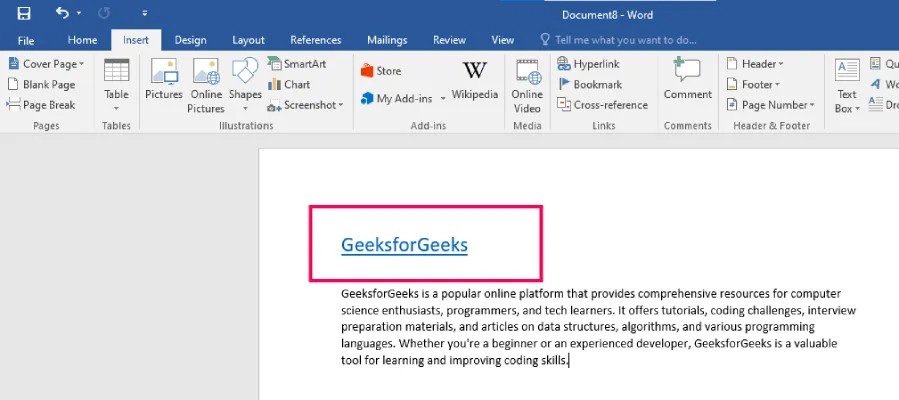
Shortcut key : Ctrl + K
Steps to Add a Hyperlink to an Image in MS Word
Follow these simple steps to turn an image into a clickable hyperlink in your Microsoft Word document.
Step 1: Open MS Word: Launch Microsoft Word on your computer to get started with the hyperlink creation process.
Step 2: Create a Document: Open the document where you want to insert the image hyperlink, or create a new one.
Step 3: Select the Image: Click on the image you want to turn into a hyperlink. (Example: Selecting a GeeksforGeeks icon image)

Step 4: Go to the Insert Tab: Navigate to the Insert tab located on the top ribbon of the Word interface.
Step 5: Choose the Hyperlink Option: Within the Insert tab, go to the Links group and click on the Hyperlink button.

Step 6: Open the "Insert Hyperlink" Dialog: Clicking on the Hyperlink button will open a new window titled "Insert Hyperlink".
Step 7: Enter the Link in the Address Bar: At the bottom of the dialog box, you’ll find an Address bar. Enter the desired link here. (Example: https://www.geeksforgeeks.org/)

Step 8: Click OK: After adding the link, click the OK button to confirm. Your image now functions as a clickable hyperlink.