Creating a fillable form in Word is a simple way to collect information efficiently, whether for surveys, job applications, or feedback forms. Microsoft Word offers powerful tools to help you build forms that users can complete digitally without needing to print or manually write on them.
Steps to Make a Fillable Form in Word
Creating interactive forms in Word is easy with this Microsoft Word form tutorial. Fillable forms are essential for gathering structured data efficiently, whether for surveys, job applications, or feedback forms. Here's how to make one:
Step 1: Open a Blank Document
Open Microsoft Word and start a new Blank Document.

Step 2: Enable the Developer Tab
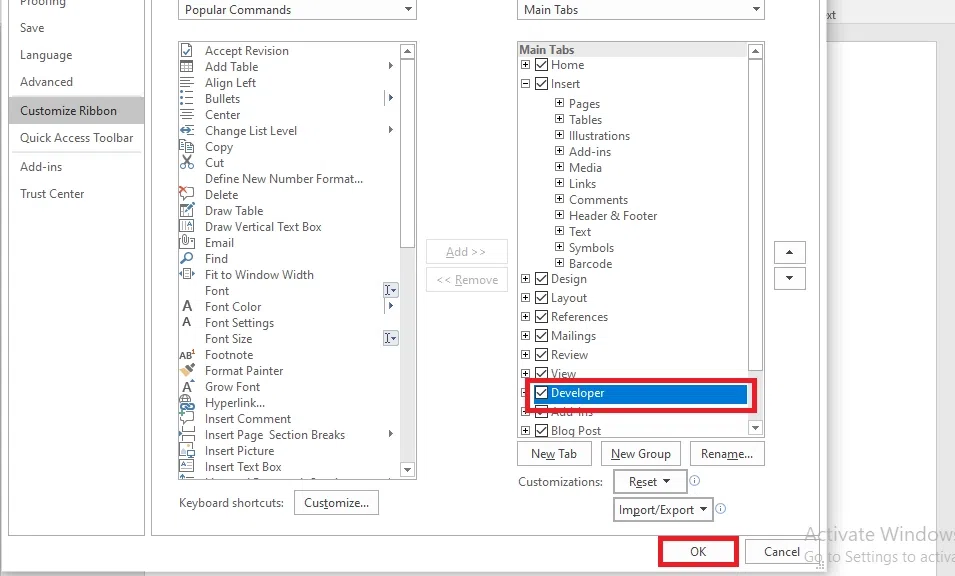
Go to File > Options > Customize Ribbon, and check the box for Developer in the right panel. Click OK to enable the Developer tab.
Step 3: Add Form Fields
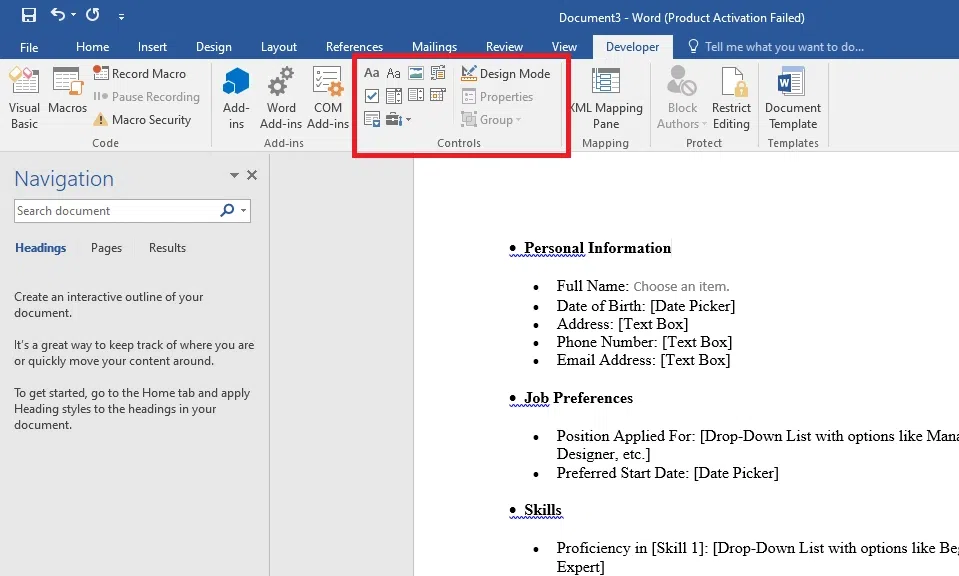
Go to the Developer tab and use the tools under Controls to add form fields:
- Text Boxes: Use for open-ended answers.
- Check Boxes: Use for multiple-choice options.
- Drop-Down Lists: Add a list of options for users to choose from.
Step 4: Customize Form Fields
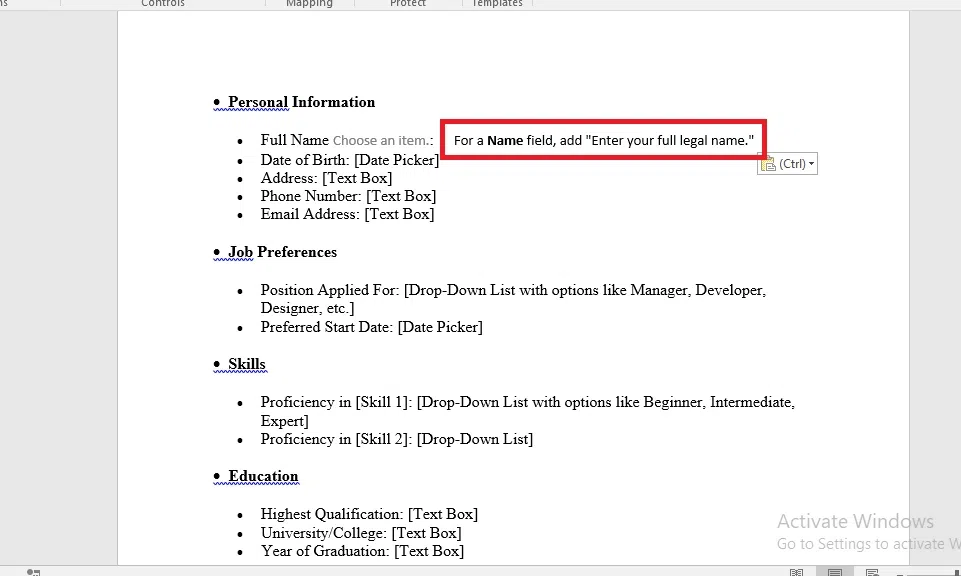
Click on a form field and select Properties (under the Developer tab) to customize its settings, such as placeholder text or dropdown options.

Step 5: Add Instructions
Type instructions or labels near each form field to guide users on how to fill out the form.
Step 6: Protect the Form
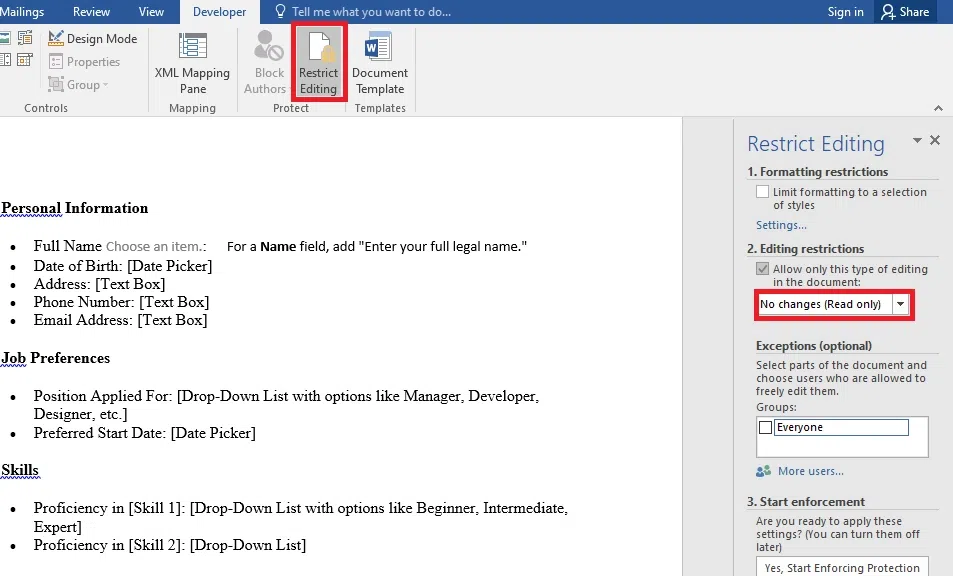
To prevent users from altering the form layout, go to Developer > Restrict Editing. Check the option for Allow only this type of editing in the document and select Filling in forms. Click Yes, Start Enforcing Protection and set a password if needed.
Step 7: Save the Form
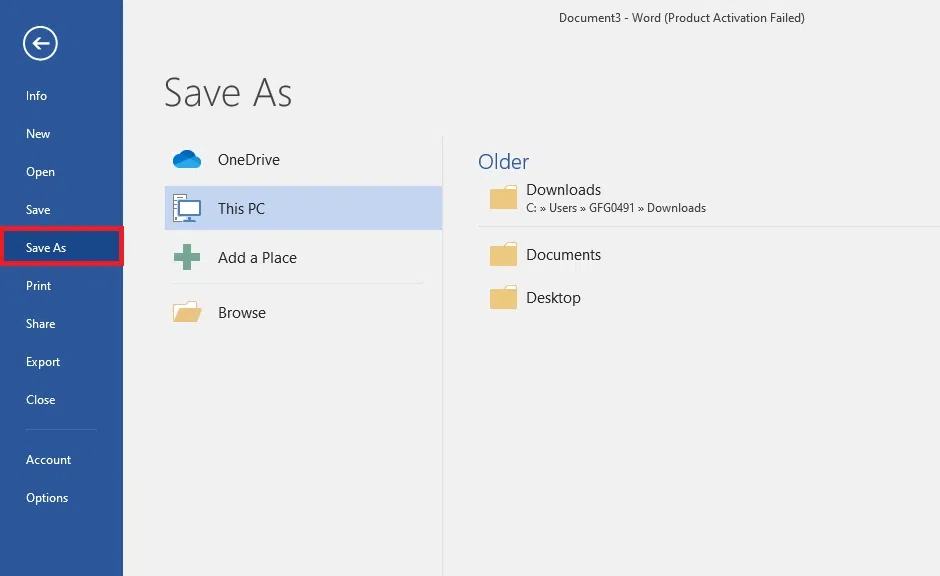
Save the form as a Word document for further edits or as a PDF if you want it to be fillable but not editable. Go to File > Save As, and choose the format you prefer.