
Deleting a Microsoft Word document involves permanently removing a file from your device, whether it’s a computer, Mac, or mobile device. This process requires locating the document in Microsoft Word or your device’s file management system and using specific commands to move it to the trash or recycle bin, from where it can be recovered if needed.
Steps to Delete Documents from Microsoft Word
Step 1: Open Microsoft Office Word
On your computer desktop, you can access the office suite and locate Microsoft Word to launch the application.

Step 2: Select File Tab
In your document access and select the "File tab" in the top-left corner once the window has opened. As you click on it a drop down menu will appear consisting of different options.
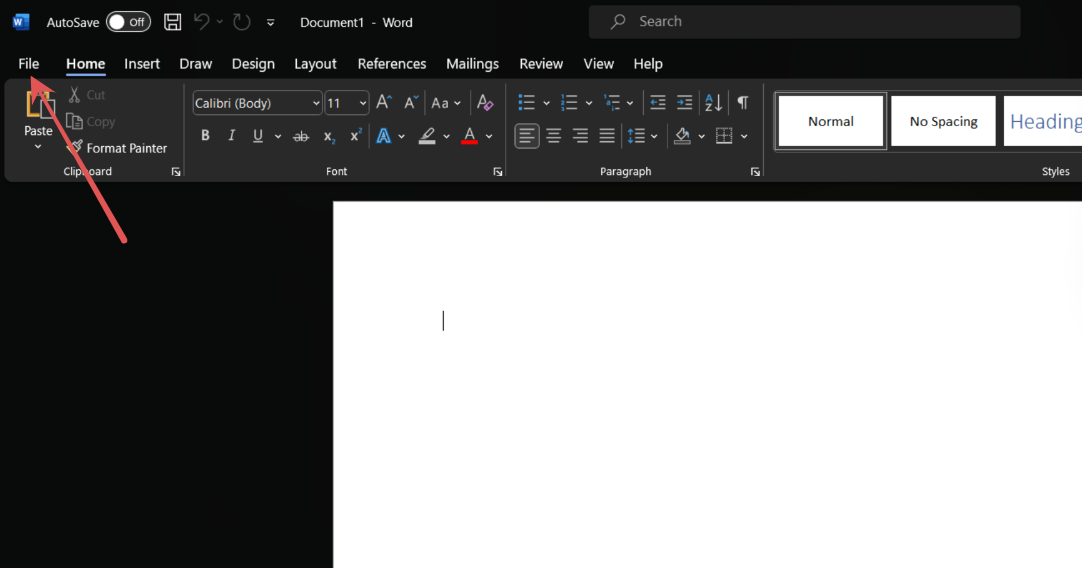
Step 3: Click on Open
Among different options given, Choose 'Open' from the drop-down menu to access your files.

Step 4: Select the Location of the Document
After clicking on open you need to go to the precise location of the file you want to delete by navigating there using any of the given approaches as shown in the below figure.
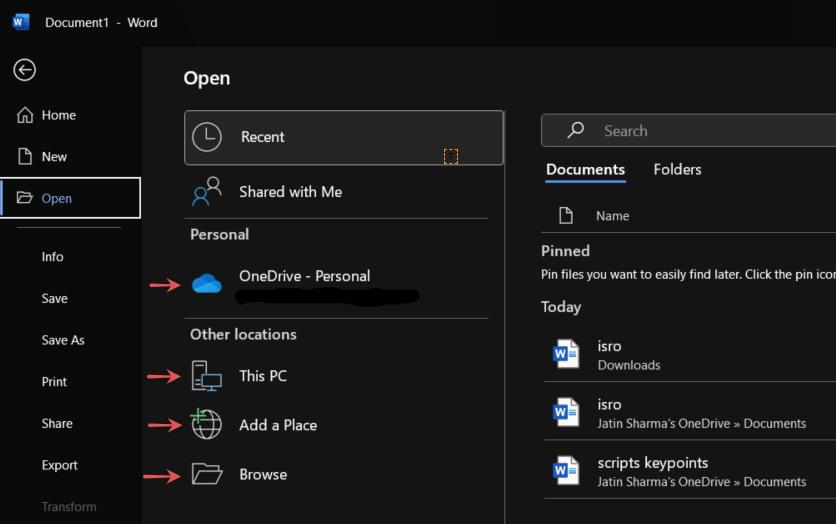
Step 5: Select Document and Right Click to choose Delete
Find the file you want to delete and then press the 'Delete' button from the menu by right-clicking it.
Note: The file that you deleted will go into the trash bin, from where you can recycle it again as per your need.

How to Delete a Word Document on Mac
Step 1: Go to Finder.
To delete a Word document, you must locate the MS word document within Finder.
Step 2: Locate the Word document you want to delete, then right-click it.
Step 3: Select Move to Trash
How to Delete a Word Document on Mobile
Step 1: Open MS Word Mobile Application
Open the Word application on you Mobile Device and look for the file you want to delete. You can't delete your file from here itself. For that you have to go to the Doc's Location in the device.

Step 2: Open File Explorer in your Device
To locate the file you wish to delete, open the file explorer or File manager in your device.

Step 3: Search for the Document
Now in the search bar, Search the name of your file.
.png)
Step 4: Select the file
Now long press on the file you want to delete to select it.

Step 5: Click on Delete
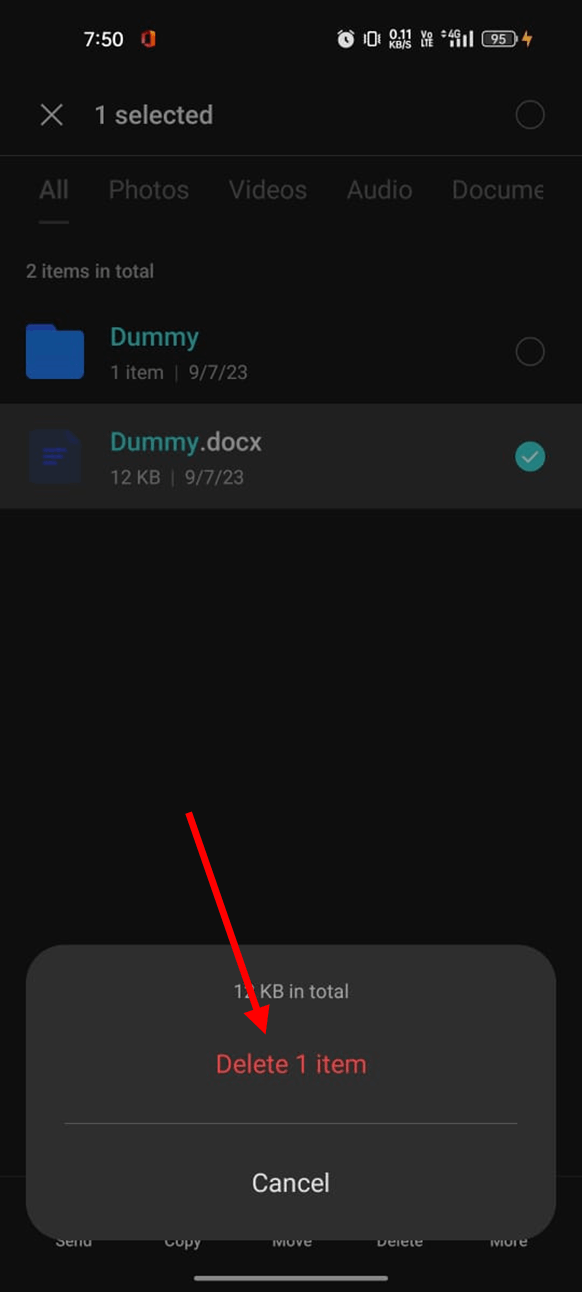
Now from the below options given on the screen of your device, click on delete tab.

Step 6: Confirm Delete the Item
Then, in the last step click on the confirmation text and then the file will get deleted.
Note: The file that you deleted will go into the trash bin, from where you can recycle it again as per your need.