
Working in MS Word for creating projects or making documents, you will need more than one page most of the time, and sometimes you need to add (insert) pages in between when you are modifying your document or project. It is easy to insert a page in between or anywhere you need.
Insertion of pages at different Positions
A user needs to insert a page at different positions as per the requirement. So, 3 common situations or conditions can arise, like
- To insert a page at the start of a Word file,
- To insert a page in the middle of a Word file
- And to insert a page in last or at the end of a Word file
Steps to follow for inserting a blank page at the start of a Word file:
Step 1: Open MS Word on your PC.
Step 2: Now, Open the document or create a new one in which you want to Insert a Blank page
Step 3: Now, choose where you want to insert a blank page.
Step 4: Now, Go to the insert tab above.

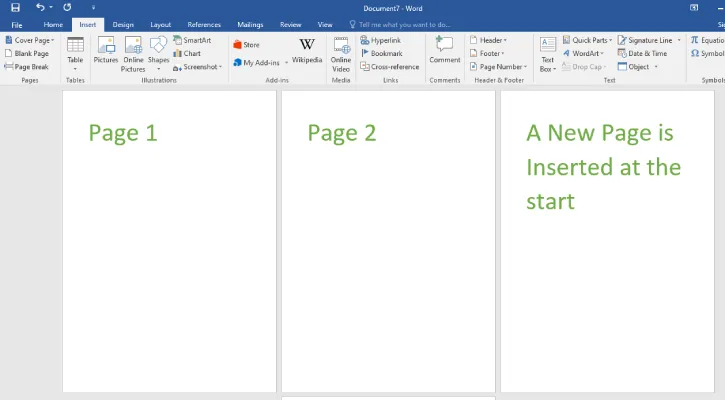
Step 5: Now, if you want to insert a page in starting, then take your cursor to the start of the current First page. And Select the Blank Page option from the Pages section.

Step 6: Now, click on Blank Page to insert a Blank page in starting.
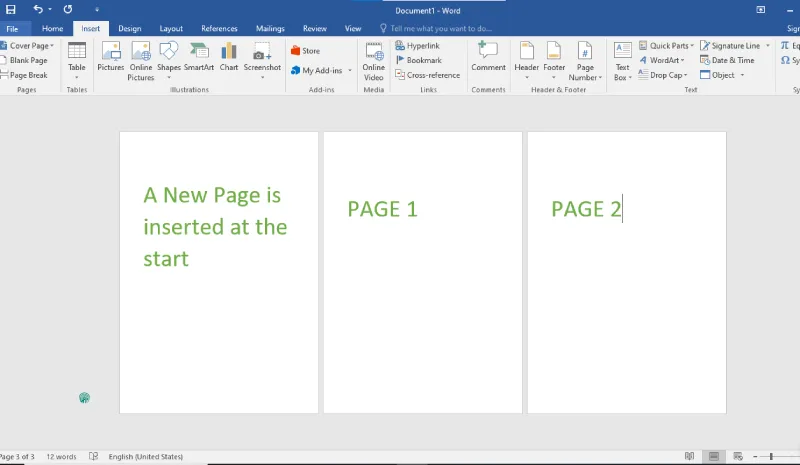
Step 7: So, a new page is inserted at the start of a document.
Steps to follow for Inserting a Blank Page in the middle of a Word file:
Step 1 and Step 2 are the same as above.
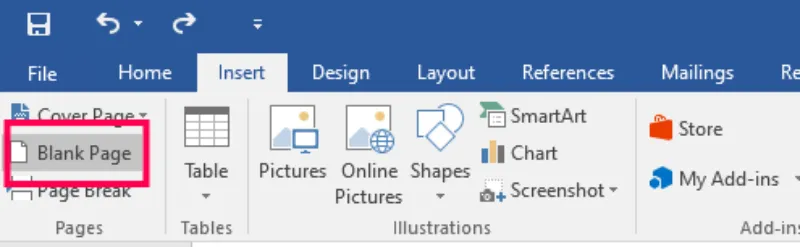
Step 3: Now, if you want to insert a page in the middle of a document (For e.g.:- you want to Insert a page in between PAGE 1 And PAGE 2), then take your cursor to the end of the previous page where you want to insert a new page and Select Blank Page option from the Pages section.
Step 4: Page gets inserted as before
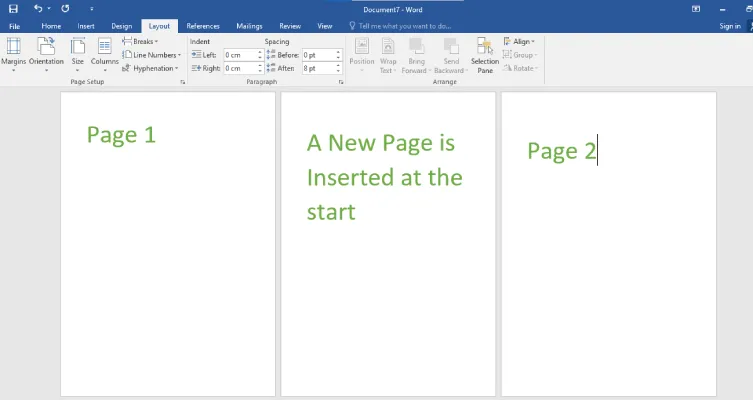
Step 5: So, a new page is inserted in the document.
Steps to follow for Inserting a blank Page at last or at end of a Word file:
Step 1 and Step 2 are the same as above.
Step 3: Now, if you want to insert a page at end of a document (For e.g.:- you want to Insert a page after PAGE 2), then take your cursor to the end of PAGE 2 where you want to insert a new page and Selects Blank Page option from the Pages section.
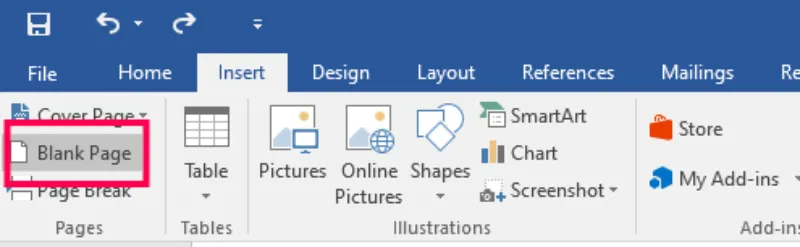
Step 4: New page gets inserted as before
Step 5: So, a new page is inserted at the last or at end of a document.
So, in this way, we can easily insert a new blank page at any required place.