
Microsoft Word's Equation Editor simplifies inserting mathematical equations into documents. It supports a wide range of symbols and formats, including fractions, integrals, matrices, and more, covering fields like mathematics, physics, and chemistry. Use this feature to easily create or add equations to your document.

Steps to Insert Equations in MS Word
Step 1: On the navigation menu, click on the insert option.

Step 2: Under Equation tools click on the drop-down arrow button as shown in the figure:

Step 3: A built-In dialog box will open where you can select the different types of equations.
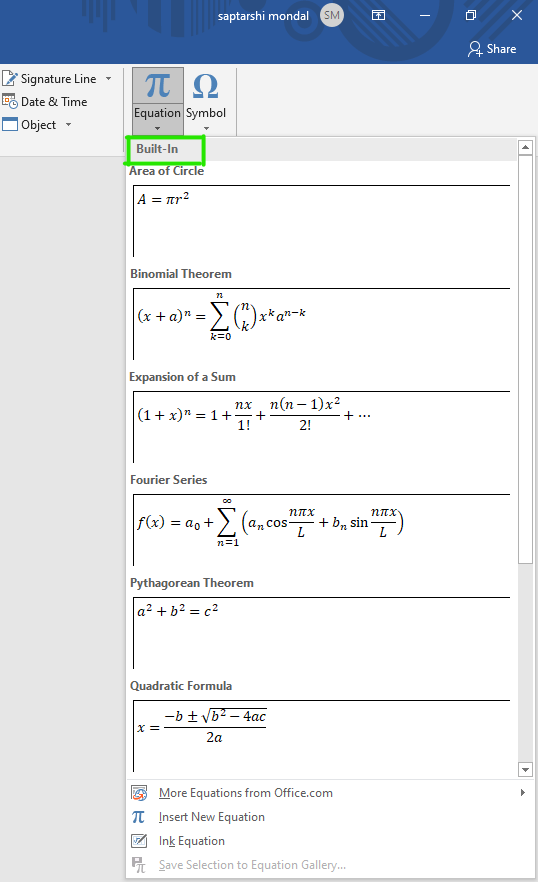
Step 4: There are multiple sets of equations in the list, Select the equation as per your requirement as shown in figure:

The below figures show that a preset equation is inserted in your Word document.

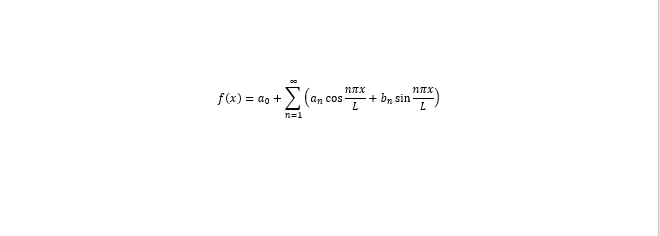
Step 5: Now click on the equation to edit or modify the Symbols or Structures of the equation.
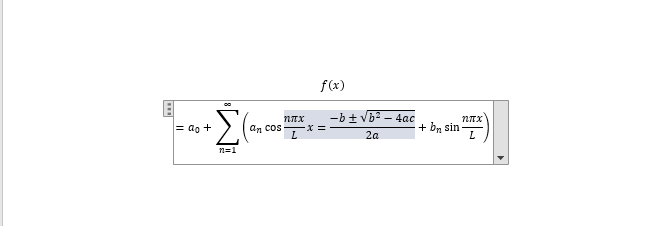
Step 6: A design menu bar will open which contains different types of symbols, equation structure, fractions, integration, and many more as shown in the below Figures.


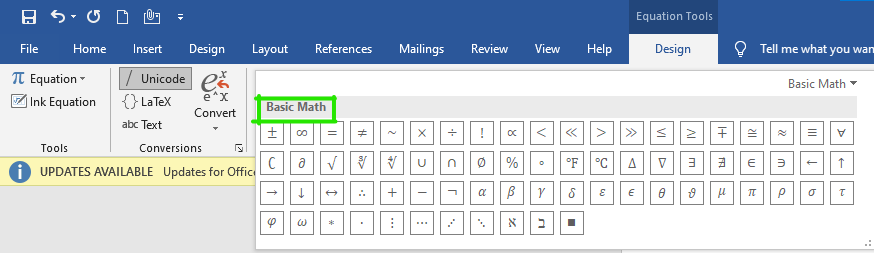
Step 7: Click on the drop-down arrow under the symbol section to extend the symbol.

Step 8: A basic math dialog box will open where you can choose different types of symbols for the equation.
Note- You can also select different types of equations formats, formulas from office.com as shown in the figure:

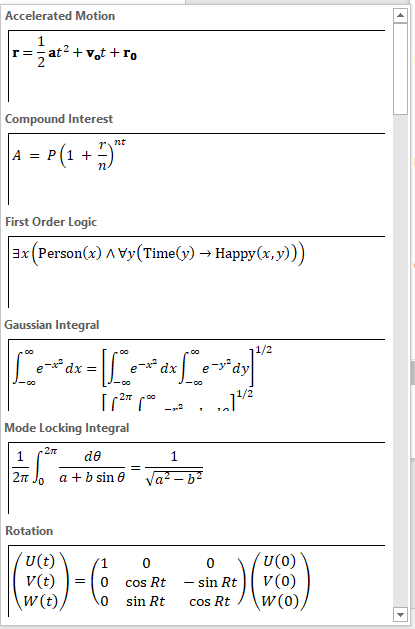
Finally, the equation is inserted in our document.
How to Create Equations Manually
Step 1: On the navigation menu click on the insert option.
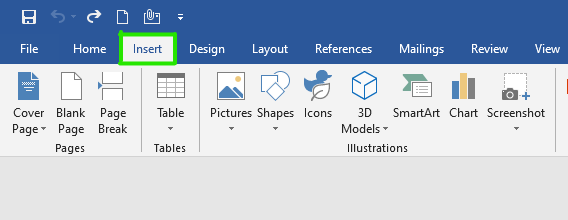
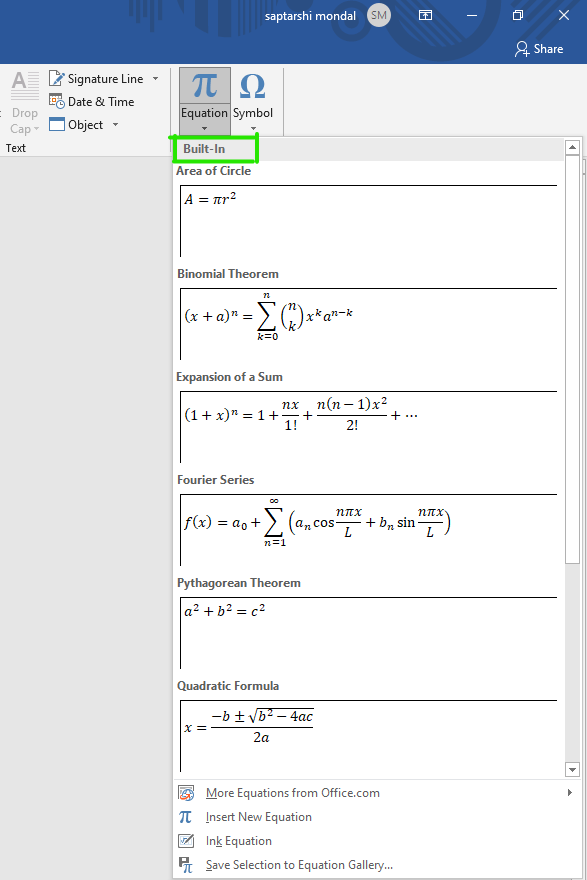
Step 2: Next click on the equation as shown in the figure:

Step 3: A built-In dialog box will open where you can select different types of equations.
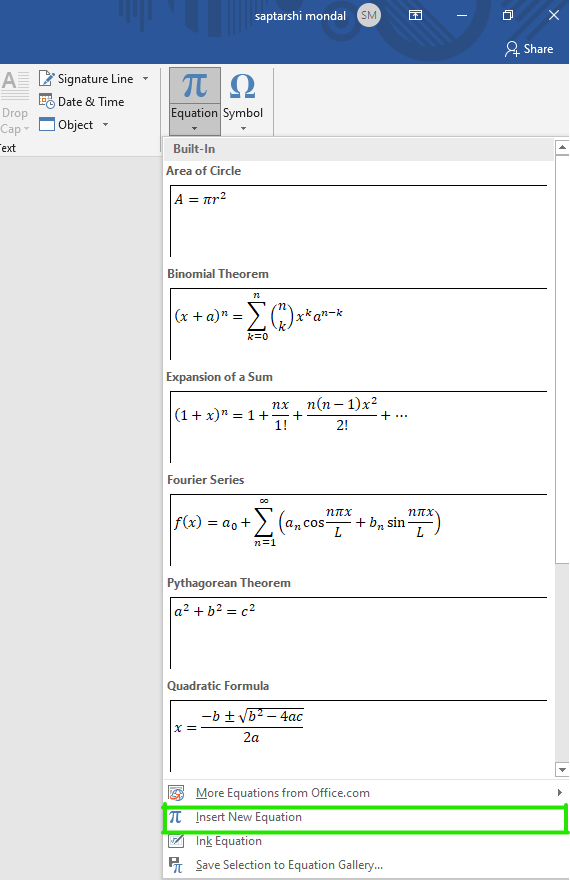
Step 4: A window will appear on the screen in which select the Insert New Equation option as shown in figure:
Step 5: On your current page Type equation here box will appear.

Step 6: On the design ribbon bar, various tools, symbols, equations format are there which helps you to create equations as shown in the Figures:
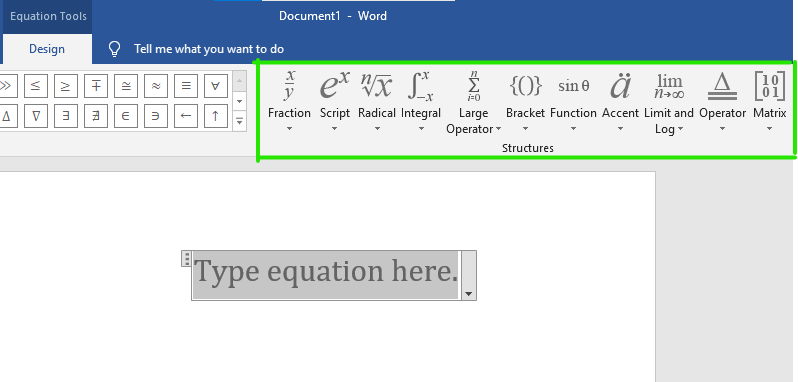
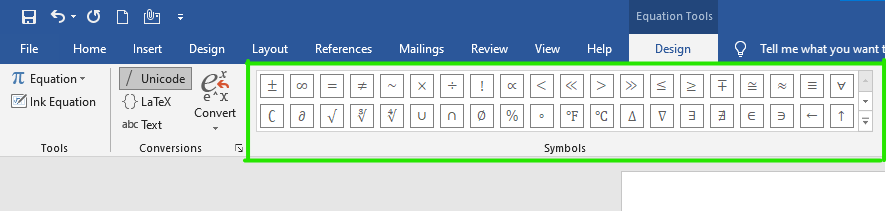
With the help of these tools finally, you can create your own equations.
Example of manually created equation:
Shortcut to Add Equations : Alt + =