
Add-ins for MS Word are lightweight tools or extensions that integrate with Word to enhance its functionality. They allow users to add new features, automate tasks, improve productivity, and customize their experience, ranging from grammar checkers and translation tools to project management, data visualization, and design enhancements.
Steps to Install Add-In for Microsoft Office
The process is very similar across Word, Excel, PowerPoint, and others. We'll use Word as an example, but the steps will be applicable to all Office programs.
Step 1: Accessing the Add-In Store
Open your Microsoft Office application (Word).

Step 2: Click on Insert
Click on the "Insert" tab on the ribbon. [Insert image of MS Office Ribbon]

Step 3: Locate Add-ins
In the "Insert" tab, locate the "Add-ins" section. You might see a button directly labeled "Add-ins" or an icon with a puzzle piece symbol. Click on it. [Insert image of MS Office Insert tab with Add-ins button]

How to Open and Close Add-ins in Office
Managing add-ins in Microsoft Office allows you to enhance functionality and customize your experience. Here’s how you can open and close add-ins,
View Installed Add-ins
In Word, choose File > Get Add-ins or from the Home tab, select Add-ins > See all. You can explore and manage existing add-ins from there.

Disable or Remove Add-ins
Open Office app (eg. MS Word) Options > Click on the File tab > > Look through the list of “Add-Ins available.” >> Check the ones you need or stop any unnecessary ones. >> Click OK to save your changes. Then, Restart Word, Close Word and reopen it to apply the changes.

Steps to Delete Office Add-ins
Step 1: Open Word
Launch the Office application (Word).
Step 2: Navigate to Add-ins
- Click on the Insert tab in the top menu.
- Look for the Add-ins group (it might be under a different tab like Home or Insert).

Step 3: Access Installed Add-ins
- Click the Add-ins button or a similar option that opens the add-in pane.
- You’ll see a list of installed add-ins.
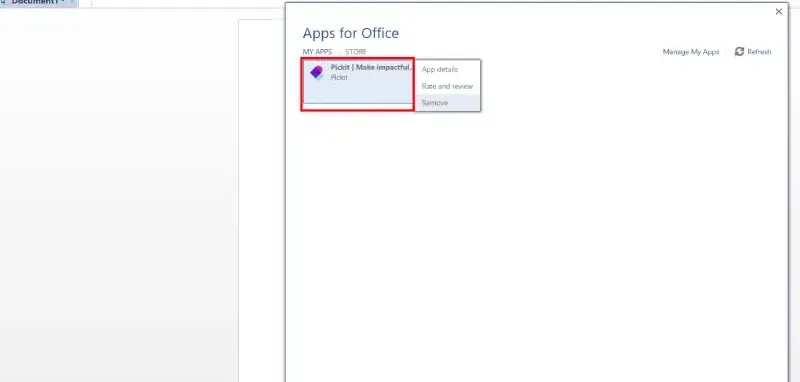
Step 4: Remove an Add-in
- Locate the add-in you want to delete.
- Find an option like Manage My Add-ins or a gear/settings icon associated with the add-in.
- Click that option and choose Remove or Delete.
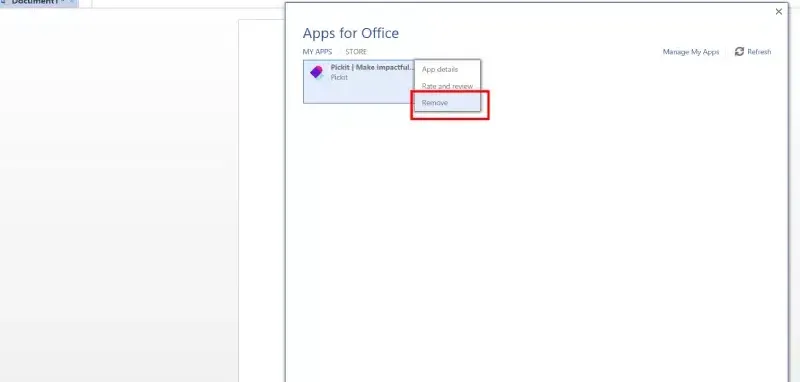
Step 5: Confirm Removal
Confirm the removal when prompted.
Best Add-ins for Microsoft Office
Microsoft Office Add-ins are extensions that enhance the functionality of apps like Word, Excel, and PowerPoint. Available through the Office Store or from trusted developers, they help users improve writing, visualize data, automate tasks, manage projects, and design professional presentations.
- Boost Writing: Grammar checkers & translation tools for polished documents.
- Data Visualization: Create clear charts and graphs from complex data.
- Excel Automation: Save time by automating repetitive actions.
- Project Management: Track tasks and collaborate within Office.
- Presentations: Access animations, design tools, and royalty-free images.
- Beyond the Store: Use custom add-ins carefully from trusted sources.