
Headers and footers are useful features in Word that allow you to add important information such as page numbers, document titles, dates, or author names at the top (header) or bottom (footer) of each page. They help maintain consistency and improve the overall presentation of a document, especially in reports, assignments, and official documents.
Steps for Adding Headers and Footers
Headers and footers will help keep long documents organised and make them easier to read. Text entered within the header or footer will appear on each page of the document. Let us see a demonstration.
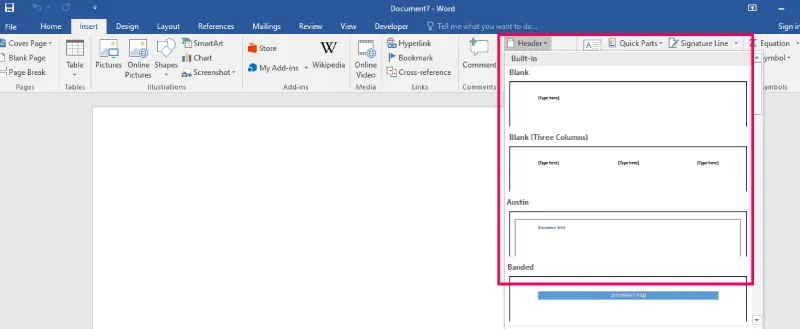
Step 1. Click on the Insert menu.

Step 2. Go under the Header & Footer column.

Step 3. Click on the Header and choose any of the following options in the drop-down menu.
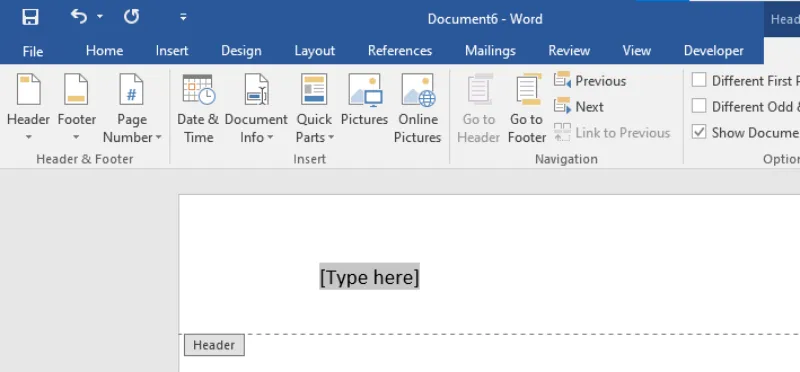
The Design tab will appear on the Ribbon, and thus the header or footer will appear within the document. Here you can place Date & Time, Picture Clip, Page number Art and other desired information.
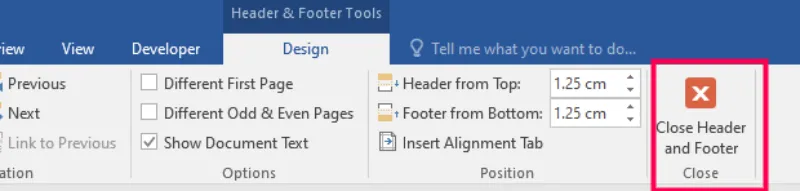
When you have finished editing, click Close Header and Footer within the Design tab, or hit the Esc key.
After you close the header or footer, it'll still be visible, but it'll be locked. We can edit it again, you just have to double-click anywhere on the header or footer margin, and it'll become unlocked for editing
Steps to insert the time or date into a header or footer:
Step 1. Click on the Date and Time option under the Insert category of the Design Tab.

Step 2. Select a date format within the dialog box that appears.

Step 3. Place a checkmark within the Update Automatically box if you'd like it to always reflect the present date. Otherwise, it'll not change when the document is opened on an old date.
Step 4. Click OK Then date & time will appear in the Word document.