
Moving text is a useful feature in Microsoft Word that allows users to reposition text within a document. For instance, while writing an article or assignment, you may realize that a portion of text needs to be relocated.
- This feature simplifies the process by enabling you to move text to the desired location using the "cut" and "paste" operations.
- When text is moved, it is removed from its original position and inserted into the new location.
Method 1
Steps to follow for Moving the text:
Step 1: First open MS-Word on your PC.
Step 2: Now, Open the document or create a new one in which you want to perform this operation.

Step 3: Now, Select the text you want to move. (For example, here we will move "Let us learn about MS-word through Geeksforgeeks.")
Step 4: Now, click on the "home tab".
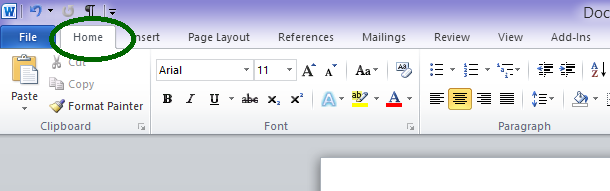
Step 5: Now, go to the "Clipboard Section" in the home tab.
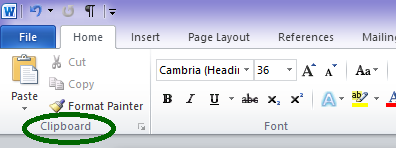
Step 6: Now, In the "Clipboard Section" select the "Cut" option. (This will make the text vanish from that place)

Step 7: Now, Put the cursor where you want the text to be placed. (anywhere as per your choice)
Step 8: Now, select the "Paste" option from the Clipboard section. (To paste the text there)
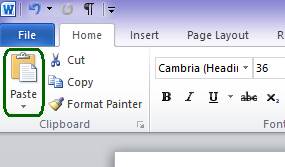
Step 9: So, the Selected text is successfully moved.

Method 2: Shortcut way
As for moving text, we have used operations like cut and paste. So there are shortcut keys for both cut-and-paste operations.
The shortcut key for cut operation is "Ctrl + X" and the shortcut key for Paste operation is "Ctrl + V".
Steps to follow:
Step 1: First open MS-Word on your PC.
Step 2: Now, Open the document or create a new one in which you want to perform this operation.
Step 3: Now, Select the text you want to move. (for example, here we will move "Let us learn about MS-word through Geeksforgeeks.")
Step 4: Now, To cut the selected text use shortcut key "Ctrl + X". (This will make the text vanish from that place)
Step 5: Now, Put the cursor where you want the text to be placed. (anywhere as per your choice)
Step 6: Now, To Paste the selected text use shortcut key "Ctrl + V". (To paste the text there)
Step 7: So, the Selected text is successfully moved.
So, this way a text is moved. This is the easy and very basic operation in MS-Word. Keep practicing to learn it quickly.