FedEX Rpi5 (Fedora 43 ARM64) for Raspberry Pi5 and Pi4 with GNOME 49 :: Build 251215

FedEX Rpi5 for Raspberry Pi5 and 4 is a “remaster” of the Fedora Project’s Fedora 43 Workstation build for ARM64 (aarch64).

REPLACEMENT
My previous version of FedEX from 250105 was also made for Raspberry Pi5.

ABOUT

FedEX Rpi5 uses the GNOME 49 Desktop. (As the original system does). The original Fedora 43 ARM64 system can only run a Raspberry Pi4 computer. You may be able to start it on a Rpi5, but you can’t make the keyboard and mouse work. My Build works very well on a Raspberry Pi5 computer though. You can also run FedEX Rpi5 on a Rpi4 computer. Your Raspberry Pi computer will automatically choose the correct kernel at boot.

What is Raspberry Pi?

The Raspberry Pi is a low cost, credit-card sized computer that plugs into a computer monitor or TV, and uses a standard keyboard and mouse. It is a capable little device that enables people of all ages to explore computing, and to learn how to program in languages like Scratch and Python. It’s capable of doing everything you’d expect a desktop computer to do, from browsing the internet and playing high-definition video, to making spreadsheets, word-processing, and playing games.
Read more about Raspberry Pi…
NOTE:
A Raspberry Pi 5 is about twice as fast as the Raspberry Pi 4.

Study all installed packages in FedEX fc43…

USED KERNEL
6.12.56-1.rpi5-fc43.aarch64

PERFORMANCE
The system is quite fast and responsive. All included applications work very well.

INSTALLATION of FedEX in Windows
In Windows you can use Rufus for installation of fedex-rpi5-fc43-gnome-aarch64-2180mb-251215.img to a SD card of at least 64GB. The image file is of 30GB. (Not 2180 mb). You will first download fedex-rpi5-fc43-gnome-aarch64-2180mb-251215.raw.xz. Unpack it with 7-Zip. You will then get fedex-rpi5-fc43-gnome-aarch64-2180mb-251215.raw. Change the file ending to .img before installing with Rufus.
NOTE: You MUST use a SD card of at least 64GB. There is not enough space on a card of 32GB. Be sure also to unpack the downloaded file (fedex-rpi5-fc43-gnome-aarch64-2180mb-251215.raw.xz) on a partition which is big enough. When unpacked the raw file is of 30 GB!!!

INSTALLATION of FedEX in Linux
In Linux you can/shall use the dd-command. This is the command to use: xzcat fedex-rpi5-fc43-gnome-aarch64-2180mb-251215.raw.xz | dd status=progress bs=4M of=/dev/sdX
NOTE1: Everything in red on one line.
Change /dev/sdX to (for example) /dev/sdb. Check it carefully to avoid data losses.
NOTE2: You MUST use a SD card of at least 64GB. There is not enough space for FedEX on a card of 32GB.

Resize the root partition
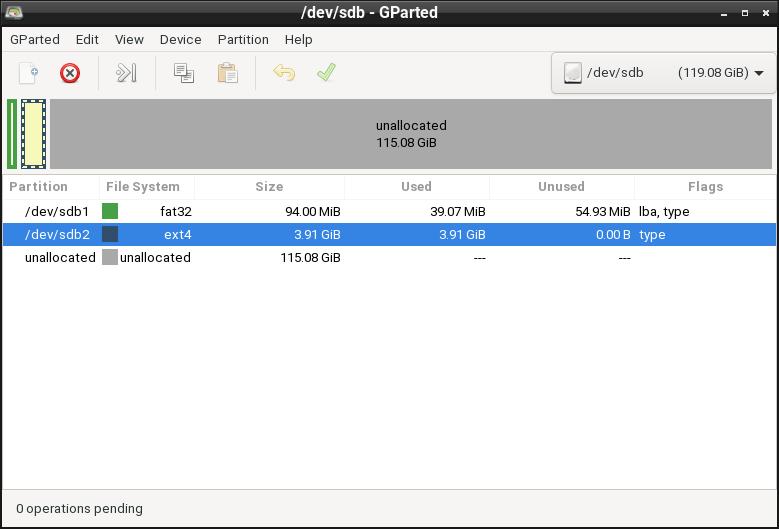
After the installation of FedEX to a SD card of 64GB you can see that there is an unused space of 29 GB. The space to use for new apps etc. is of 22 GB. If you don’t think that is enough you can use GParted in a Linux System to resize the root partition (btrfs). See
below how it looks when GParted is running.

LOGIN to GNOME 49
When the boot process is ready you will end up at the GDM Login Site. Log in to the Gnome Desktop as the ordinary user pi with password raspberry or as root (Superuser) with password root. When logged in as pi you can use Sudo to become root. Example: sudo su and sudo pcmanfm.

SOUND in FedEX
When logged in as the ordinary user pi you will have HDMI audio output. When logged in as root you won’t have sound. You can’t run PulseAudio as root.

WiFi
Works very well. Just give you Network password and connect.

INSTALLING or removing packages in FedEX/Fedora
Basically you’ll only need to use four commands:
1) sudo dnf upgrade ‐‐refresh (upgrade the whole system)
2) sudo dnf install MyNecessaryProgram
3) sudo dnf remove MyUnnecessaryProgram
4) sudo dnf clean all
NOTE1: All packages are up to date as of 251215. Watch this screenshot… 
NOTE2: You’ll have 22GB for new installations (without resizing the ROOT partition on the SD-card). So you can install a lot of new packages if you want.

UPGRADE TO FEDORA 44?
You can upgrade the System to upcoming fc44 already (if you want). Just run the following two commands:
1) sudo dnf system-upgrade download ‐‐refresh ‐‐releasever=44
2) sudo dnf system-upgrade reboot
Fedora 44 will be released in a STABLE version in April or May 2026.

WHO SHOULD RUN FedEX Rpi5 for Raspberry Pi5 and 4?
My answer: The system fits the “advanced” Linux user/enthusiast, who would be willing to run an occasional command from time to time.

SCREENSHOTS
1. The Desktop for the ordinary user pi
2. The Desktop for root
3. Running YouTube showing very good video quality
4. Running dnf upgrade 251215

DOWNLOAD
FedEX Rpi5 can be downloaded from SourceForge.netFast, secure and free downloads from the largest Open Source applications and software directory.

md5sum for fedex-rpi5-fc43-gnome-aarch64-2180mb-251215.raw.xz

Read about my Android-x86 Systems – 11, 10, Pie, Oreo, Nougat, Marshmallow, Lollipop and KitKat at andex.exton.net – latest is AndEX 11 (with GAPPS), AndEX 10 (with GAPPS) and AndEX Pie 9.0 (also with GAPPS)!
and
about my Android 16, 15, 14, 13, 12, 11, 10, Pie, Oreo, Nougat, Marshmallow and Lollipop versions for Raspberry Pi 5, Pi 4 and  Pi 3/2 at raspex.exton.se – latest is RaspAnd 16 (with GAPPS), RaspAnd 15 (also with GAPPS), RaspAnd 14 (also with GAPPS), 13 and 12 (without GAPPS), RaspAnd 11 (with GAPPS) and RaspAnd Oreo 8.1 (also with GAPPS)!


Follow me on Facebook…

Posted in Exton Linux, FedEX, Linux, Raspberry Pi systems, Uncategorized | Tagged , , , , , , , , , , , | Leave a comment

RaspEX Rpi5/Rpi4 64 bit based on Ubuntu 24.04.2 LTS “Noble Numbat” with LXQt 1.4, kernel 6.8.0-1031-raspi and Firefox with DRM support :: Build 250804

NEWS 250804 about RaspEX with LXQt based on Ubuntu 24.04.2 LTS Noble Numbat.
RaspEX Build 250804 is a Linux ARM (64 bit) system for Raspberry Pi 5 with 4GB/8GB and Raspberry Pi 4 with 2GB/4GB/8GB RAM It is based on Debian and Ubuntu 24.04.2 LTS. Firefox Browser with DRM (Digital Rights Management) support is pre-installed. Study all installed packages in RaspEX Build 250804.

RASPBERRY Pi 5 and 4
RaspEX Kodi is made especially for the new Raspberry Pi 5 released October 23, 2023 (4GB and 8GB), but can also be used on a Raspberry Pi 4.
NOTE: A Raspberry Pi 5 is about twice as fast as the Raspberry Pi 4.

ABOUT Snaps
I have removed all snaps and snapd (The snap daemon) altogether from RaspEX following the advice’s here. The main reason for that was that the RaspEX image became too big with snaps installed.

What is Raspberry Pi?

The Raspberry Pi is a low cost, credit-card sized computer that plugs into a computer monitor or TV, and uses a standard keyboard and mouse. It is a capable little device that enables people of all ages to explore computing, and to learn how to program in languages like Scratch and Python. It’s capable of doing everything you’d expect a desktop computer to do, from browsing the internet and playing high-definition video, to making spreadsheets, word-processing, and playing games.
Read more about Raspberry Pi…


The Raspberry Pi 5 with 8GB RAM released in October 2023. It has:

Processor Broadcom BCM2712 2.4GHz quad-core 64-bit Arm Cortex-A76 CPU,
with Cryptographic Extension, 512KB per-core L2 caches, and a
2MB shared L3 cache
Features: • VideoCore VII GPU, supporting OpenGL ES 3.1, Vulkan 1.2
• Dual 4Kp60 HDMI® display output with HDR support
• 4Kp60 HEVC decoder
• LPDDR4X-4267 SDRAM
(4GB and 8GB SKUs available at launch)
• Dual-band 802.11ac Wi-Fi®
• Bluetooth 5.0 / Bluetooth Low Energy (BLE)
• microSD card slot, with support for high-speed SDR104 mode
• 2 × USB 3.0 ports, supporting simultaneous 5Gbps operation
• 2 × USB 2.0 ports
• Gigabit Ethernet, with PoE+ support
(requires separate PoE+ HAT)
• 2 × 4-lane MIPI camera/display transceivers
• PCIe 2.0 x1 interface for fast peripherals
(requires separate M.2 HAT or other adapter)
• 5V/5A DC power via USB-C, with Power Delivery support
• Raspberry Pi standard 40-pin header
• Real-time clock (RTC), powered from external battery
• Power button

More about RaspEX
RaspEX is a full Linux Desktop system with LXQt (which is the product of the merge between LXDE-Qt, an initial Qt flavour of LXDE, and Razor-qt, a project aiming to develop a Qt based desktop environment with similar objectives as the current LXQt) with many other useful programs pre-installed. Firefox is used as Web Browser and Synaptic as Package Manager. You can use Synaptic to install any extra packages you may need. For example LibreOffice. RaspEX uses Ubuntu’s software repositories so you can install thousands of extra packages if you want.

Kernel
Kernel 6.8.0-1031-raspi for Raspberry Pi 5 and 4.

How do I install RaspEX in Windows?
Just like any other Raspberry Pi system. I.e.: Unpack the downloaded ZIP file raspex-rpi5-64bit-ubuntu-24.04-lxqt-2930mb-250804.zip) and transfer the IMAGE file (raspex-rpi5-64bit-ubuntu-24.04-lxqt-8000mb-250804.img) to your Micro SD card of at least 16GB. For that you shall use Rufus 4.7 in Windows. It will look like this.

How do I install RaspEX in Linux?
You can of course also install RaspEX in any Linux system using the dd command. Just open up at terminal and run the following command (as root):
dd if=raspex-rpi5-64bit-ubuntu-24.04-lxqt-8000mb-250804.img of=/dev/sdX bs=1M
Note:
Change /dev/sdX to for example /dev/sdc, /dev/sde or…
(Check it carefully before you run the above command so you won’t lose important data).

Different Micro SD Cards
For best performance you should use SD Cards of good quality. I can recommend Samsung MicroSD Pro Plus 32GB Class 10. Write speed up to 95 MB/s. Also SanDisk MicroSD Ultra 128GB Class 10. Write speed up to 100 MB/s. NOTE: If you can’t run RaspEX at all you should try with a new “better” card.


How do I use RaspEX?

When you start up your Raspberry Pi 5 or 4 with RaspEX installed you will (after a few seconds) end up at SDDM‘s Login Page. Log in as user raspex with password raspex. When logged in as raspex you can use Sudo to become root. Examples: sudo su and sudo pcmanfm-qt. The password for root (superuser) is root. You can’t log in as root to the LXQt Desktop from SDDM’s Login Page.

When logged in as the ordinary user raspex your Desktop will look like this.

Click to view a larger picture

Expand the filesystem on the SD card
If you install many new big programs and/or download large files (for example videos) you may run out of space on the SD card. That is best fixed by running the following command: sudo raspi-config. Click on “Advanced Options” and choose A1 Expand Filesystem.
NOTE: That’s all you have to do. Just wait for the script to fix everything. If you use a SD card of 64 GB all the space on it will be used afterwards. Watch a screenshot when raspi-config is running.

Create a SWAP file
Run the command sudo dphys-swapfile setup

A SWAP file of 1 GB will be created. Then run the command dphys-swapfile swapon Very useful if you want to run many programs at the same time. If you forget to run said command a SWAP file of 1 GB will be created automatically after a reboot.

Error no_pubkey when trying to upgrade the system
When you run the command sudo apt-get update it can happen that you can’t update the sources due to missing pub_keys.
The solution is to run the following commands.

$ cd /var/lib/apt
$ sudo mv lists lists.old
$ sudo mkdir -p lists/partial
$ sudo apt update

Wireless connections
The new Raspberry Pi 5/4 has “built in” 802.11n Wireless LAN.

View all installed packages in RaspEX – Build 250804

SCREENSHOTS
Screenshot 1 – raspex’s Desktop 250804
Screenshot 2 – running raspi-config
Screenshot 3 – running Synaptic
Screenshot 4 – running SMPlayer

DOWNLOAD – raspex-rpi5-64bit-ubuntu-24.04-lxqt-2930mb-250804.zip from SourceForge.net

md5sum for raspex-rpi5-64bit-ubuntu-24.04-lxqt-2930mb-250804.zip

Raspberry Pi is a trademark of Raspberry Pi Foundation

Read about my Android-x86 Systems – 11, 10, Pie, Oreo, Nougat, Marshmallow, Lollipop and KitKat at andex.exton.net – latest is AndEX 11 (with GAPPS), AndEX 10 (with GAPPS) and AndEX Pie 9.0 (also with GAPPS)!
and
about my Android 16, 15, 14, 13, 12, 11, 10, Pie, Oreo, Nougat, Marshmallow and Lollipop versions for Raspberry Pi 5, Pi 4 and  Pi 3/2 at raspex.exton.se – latest is RaspAnd 16 (with GAPPS), RaspAnd 15 (also with GAPPS), RaspAnd 14 (also with GAPPS), 13 and 12 (without GAPPS), RaspAnd 11 (with GAPPS) and RaspAnd Oreo 8.1 (also with GAPPS)!


Follow me on Facebook…

Posted in Exton Linux, Raspberry Pi systems, RaspEX | Tagged , , , , , , , , , , , | Leave a comment

RaspEX Kodi 64 bit – especially made for the new Raspberry Pi 5 – with the LXQt 2.1 Desktop and Kodi 21.2 “Omega” :: Build 250730

NEWS 250730 about RaspEX Kodi 64-bit
I’ve made a new version of RaspEX Kodi 64-bit. This version is based on Raspbian (Raspberry Pi OS) and Debian Trixie (upcoming Debian 13). The LXDE Desktop is replaced with LXQt , which has a more “modern look” than LXDE. Historically, LXQt is the product of the merge between LXDE-Qt, an initial Qt flavour of LXDE, and Razor-qt, a project aiming to develop a Qt based desktop environment with similar objectives as the current LXQt. In RaspEX Kodi Build 250730 I’ve upgraded Kodi to version 21.2 Omega, which was released 250119. You can now much easier install extra repositories. Read about the best Kodi repos 2025.

INSTALLED PACKAGES in Build 250730
Study all installed packages in Build 250730…

REPLACEMENT
This RaspEX Kodi Build (250730) replaces all previous versions of RaspEX Kodi. You can only run this new version on a Rpi5.

RASPBERRY Pi 5
RaspEX Kodi is made especially for the new Raspberry Pi 5 released October 23, 2023 (4GB and 8GB). You cannot run it on a Raspberry Pi 4 or any other Raspberry Pi model than Rpi5.

NOTE
: A Raspberry Pi 5 is about twice as fast as the Raspberry Pi 4.

PERFORMANCE
RaspEX Kodi is now very fast and responsive. And the video performance is brilliant. Almost as good as if you use a new “big” computer.

History
My first version of RaspEX Kodi from 190124 was a replacement for RaspEX Kodi with OSMC, which was released 190117. Sam Nazarko (founder of OSMC) contacted me 190118 claiming that I was “violating” his rights to the trademark OSMC and the rules in GPLv2. I don’t think I did, but I’m also very tired. Therefore I made a new version (190124) of RaspEX Kodi without any traces of OSMC. I would say that all my later versions of RaspEX Kodi are as good as the old one from 190117. I.e. excellent video and sound performance both in Kodi and LXQt. For version 190124 I charged 9 $. My new versions (210829/2103017210211/210205/210904/220218/240215/250730) can be downloaded for free from SourceForge.net. People should not refrain from downloading RaspEX Kodi because of the money issue. I want all Linux and Raspberry Pi enthusiasts to enjoy the system. It runs very well on a the Raspberry Pi 5  (i.e. fast and responsive) with 4GB or 8GB RAM – released October 23, 2023. 
NOTE: All previous versions of RaspEX Kodi are replaced by version 250730.

How do I install RaspEX Kodi in Windows?
Just like any other Raspberry Pi system. I.e.: Unpack the downloaded ZIP file raspex-rpi5-64bit-kodi-21.2-lxqt-2810mb-250730.zip) and transfer the IMAGE file (raspex-raspex-rpi5-64bit-kodi-21.2-lxqt-8000mb-250730.img) to your Micro SD card of at least 16GB. For that you shall use Rufus 4.7 in Windows.


How do I install RaspEX Kodi in Linux?

You can of course also install RaspEX in any Linux system using the dd command. Just open up at terminal and run the following command (as root):
dd if=raspex-raspex-rpi5-64bit-kodi-21.2-lxqt-8000mb-250730.img of=/dev/sdX bs=1M
Note:
Change /dev/sdX to for example /dev/sdc, /dev/sde or…
(Check it carefully before you run the above command so you won’t lose important data).

Log in to LXQt or Kodi
After the boot process is ready you will end up at LightDM‘s login screen. It will look like this – see below. Log in as user pi with password raspberry. You can run Kodi on the LXQt Desktop like any other program or run it in full screen. Just change Kodi’s Settings from Windowed to Fullscreen. Watch this screenshot. You cannot log in as root (superadmin).  The password for root is root (if you should ever need it).

Expand the filesystem on the SD card
If you install many new big programs and/or download large files (for example videos) you may run out of space on the SD card. That is best fixed by running the following command: sudo raspi-config. Click on “Advanced Options” and choose A1 Expand Filesystem – watch this screenshot…
NOTE: That’s all you have to do. Just wait for the script to fix everything. If you use a SD card of 64 GB all the space on it will be used afterwards.

API and Authentication keys
Google and Netflix make it more and more difficult to use the YouTube and Netflix add-ons in Kodi. They demand API and Authentication keys. To create the API key and make it work can be rather complicated. I’ve found two good instructions for it though.
1) Instruction 1
2) Instruction 2
IMPORTANT NOTE 1: Some (most) Add-ons need the YouTube Add-on to work. So I simply had to make YouTube work. Finally I managed to make the API keys work permanently. I have thus included the YouTube Add-on in RaspEX Kodi.
IMPORTANT NOTE 2: For Kodi to work you’ll have to run two commands:
1) sudo chown -R pi:pi .kodi
2) sudo chown -R pi:pi .kodi/*
Watch this screenshot…
If you don’t run the just mentioned commands Kodi will crash.

INSTALL EXTRA REPOSITORIES in Kodi
Read about the best Kodi repos in July 2025. I’ve tried some. The best one is Scrubs V2. Read about how to install Scrubs V2…

WiFi connections
Go to Menu >> Preferences >> Advanced Network Configuration and add your credentials. Then run the command sudo dhclient wlan0 (to get an IP-address).
Watch this screenshot.

Used kernel
Kernel 6.12.40-exton-v8-16k+ (for Rpi5).
NOTE: Build 250730 can only run on a Raspberry Pi 5.

SCREENSHOTS
1. The LXQt Desktop running as user pi
2. Expanding the filesystem

3. RaspEX Kodi 21.2 system info
4. Kodi running showing some Add-ons (including YouTube)
5. Synaptic running in LXQt 2.1
6. Showing video quality in YouTube (in Kodi)
7. Running the NASA Add-on in Kodi
8. Running a movie clip in YouTube in Kodi

DOWNLOAD raspex-rpi5-64bit-kodi-21.2-lxqt-2810mb-250730.zip

md5sum for RaspEX Kodi Build 250730

Raspberry Pi is a trademark of Raspberry Pi Foundation

Kodi is a trademark of XBMC Foundation

Read about my Android-x86 Systems – 11, 10, Pie, Oreo, Nougat, Marshmallow, Lollipop and KitKat at andex.exton.net – latest is AndEX 11 (with GAPPS), AndEX 10 (with GAPPS) and AndEX Pie 9.0 (also with GAPPS)!
and
about my Android 16, 15, 14, 13, 12, 11, 10, Pie, Oreo, Nougat, Marshmallow and Lollipop versions for Raspberry Pi 5, Pi 4 and  Pi 3/2 at raspex.exton.se – latest is RaspAnd 16 (with GAPPS), RaspAnd 15 (also with GAPPS), RaspAnd 14 (also with GAPPS), 13 and 12 (without GAPPS), RaspAnd 11 (with GAPPS) and RaspAnd Oreo 8.1 (also with GAPPS)!


Follow me on Facebook…

Posted in Exton Linux, Raspberry Pi systems, RaspEX | Tagged , , , , , , , , , , , , | Leave a comment

RaspAnd 16 (Android 16) for Raspberry Pi 5 with GAPPS (Google Play Store), Spotify and Bluetooth pre-installed ::: Build 250716

ABOUT RaspAnd 16 – Build 250716 – with GAPPS
RaspAnd 16 runs very well on a Raspberry Pi 5. I.e. the system is pretty responsive if you use a micro SD card of good quality. RaspAnd 16 has the following apps pre-installed: GAPPS (Google Play Store and other Google apps) and Spotify.  Once you have configured Google Play Store you can install the apps you want/prefer.

RASPBERRY Pi 5
RaspAnd 16 is made especially for the new Raspberry Pi 5 released on October 23, 2023 (4GB and 8GB). You can’t run RaspAnd 16 on another Raspberry Pi model than Pi 5.
NOTE: A Raspberry Pi 5 is about twice as fast as the Raspberry Pi 4.

ABOUT Android 16, which was released 250610…
Read also an article about The Evolution of Android  – List of Android Versions and Release Dates. As you can see Android 16 is the latest stable version of Android.

PLEASE NOTE that you must be aware of the fact that the Raspberry Pi 5 computer has its limitations and that Android 16 is a very advanced Linux system. Having said that I must also say that the apps I have included in this Build (see above) work very well. The max screen resolution is 1920×1080. I think.

NOTE also that you’ll have to register “your device” (i.e. your Rpi5) before you can log in to Google Play Store. Please read my instructions below about how to register so that your device will be Play Protect Certified.

About Raspberry Pi 5
This build (RaspAnd 16 250716) works very well on the new Raspberry Pi 5 . I used the latest model with 8GB RAM, but you can of course use the other models too.

Startup of RaspAnd 16 Build 250716
The first thing you will see on the screen is this boot animation.

If you do not see this animation you haven’t installed RaspAnd correctly on the SD card. (Please use Rufus in Windows for the installation to the SD Card). The first boot is a bit slow. (Can take a few minutes). Next boot will be faster.

Instructions about how to register so that your device will be Play Protect Certified
First things to do after booting RaspAnd 16:
1. After a few minutes you will reach the Desktop – screenshot 1
2. You should then immediately connect to your WiFi Network – screenshot 2
3. When you try to start Google Play Store you will get a message saying that This device isn’t Play Protect certified. Google apps and services can’t run on this device screenshot 3
4. Start the app Device Info (pre-installed of course). You will see that the GFS ID is empty (i.e. not available) – screenshot 4…
5. Reboot your Rpi5. Be sure that you have once tried to start Google Play Store before you reboot.
6. Now you shall start the app Device Info again and write down the GSF ID –  screenshot 6
7. Now you will have to go to this site and register your device.
8. Here you shall fill in the GSF ID you wrote down before and click on Registrera (Swedish for Register) – screenshot 7. Restart your Rpi5 after a successful registration. Click on the power button in the menu up to the right and hold your finger there until you see the alternatives Restart and Power offscreenshot 8. When back to the Desktop you will have to wait a while Google Play is updating . You will then be able to log in to your Google account – screenshot 9
9. Finally you can enjoy Google Play Store – screenshot 10. Start with installing Microsoft Launcher (for example). You can install and run many “big” games. For example Asphalt 8 and Hunting Clash. NOTE: Unfortunately many big games need a touchscreen. While running Asphalt 8 you can maneuver the car with the keyboard though. While running Hunting Clash you can also use the keyboard.

My sources
You can find my sources for RaspAnd 16 here. Following those instructions you can build your own “RaspAnd” system.

What is Raspberry Pi?
The Raspberry Pi is a low cost, credit-card sized computer that plugs into a computer monitor or TV, and uses a standard keyboard and mouse. It is a capable little device that enables people of all ages to explore computing, and to learn how to program in languages like Scratch and Python. It’s capable of doing everything you’d expect a desktop computer to do, from browsing the internet and playing high-definition video, to making spreadsheets, word-processing, and playing games.
Read more about Raspberry Pi…

About sound
HDMI sound works very well in this RaspAnd build.

MORE NEWS 250716 ABOUT RaspAnd 16
RaspAnd 16 can be installed to a Micro SD card (preferable a class 10 card) in Windows 11/10 using Rufus, Win32 Disk Imager or Etcher. You can alternatively (of course) use the dd-command in a Linux system. Unzip the downloaded file raspand-android-16-rpi5-gapps-1210mb-250716.zip. Then open a terminal and run the command dd if=raspand-android-16-rpi5-gapps-14300mb-250716.img of=/dev/sdX bs=4MiB
(Change X to b, d or…).

Using Rufus in Windows it will look like this.

Different Micro SD Cards
For best performance you should use SD Cards of good quality. I can recommend Samsung MicroSD Pro Plus 32GB Class 10. Write speed up to 95 MB/s. Also Samsung MicroSD EVO 16GB Class 10. Write speed up to 48 MB/s. Price 47 $ respectively 10 $ (in Sweden).

Kernel

Kernel 6.12.30 is used in RaspAnd 16 Build 250716 – screenshot…

After boot – first Desktop
Your desktop can look like this if you use the Microsoft Launcher (not pre-installed). You can install another launcher via Google Play to use instead of Microsoft Launcher. One of the best is Computer Launcher Pro. You can also choose Quickstep, which is preinstalled – watch this screenshot (your first Desktop). Quickstep is the default launcher for Android devices.

Screen resolution
The max screen resolution is 1920×1080 according to my experience. You can experiment with other resolutions if you want.

Spotify
The Spotify app works very well. Watch this screenshot when Spotify is running.

Netflix
You can’t run Netflix in RaspAnd 16, which is rooted.
The Netflix app works very well in my RaspAnd 11 build, which isn’t rooted. (You can’t run Netflix on rooted devices).

WiFi support
The newer versions of RaspAnd has excellent support for WiFi (on Raspberry Pi 5, 4, 3 Model B and Model B+). Previous problems with the WiFi connection are gone. I.e. the WiFi connection will automatically be re-established after every reboot. Just go to Settings/Network and connect. Watch this screenshot.

Bluetooth
Bluetooth works very well in this RaspAnd 16 build. I.e. you can send and receive files without problems. Watch this screenshot showing the pairing process with my Android phone. I haven’t tried other Bluetooth functions.

PERFORMANCE
Everything works! The System is responsive and quite fast.

SCREENSHOTS
1. The Desktop with GAPPS (Google Play Store) – first screen after boot
2. The Desktop using Microsoft Launcher – not pre-installed
3. Asphalt8 running – not pre-installed
4. Google Play Store running
5. Spotify running
6. YouTube running showing the video quality
7. Running AIDA64 showing System info
8. Installing Hunting Clash in Google Play Store
9. The Desktop using Smart Launcher
10. The Desktop using Niagara Launcher (possibly the best one) – not pre-installed

DOWNLOAD
raspand-android-16-rpi5-gapps-1210mb-250716.zip

md5sum for RaspAnd 16 – Build 250716

Android is a trademark of Google Inc.
Raspberry Pi is a trademark of Raspberry Pi Foundation

Read about my Android-x86 Systems – 10, Pie, Oreo, Nougat, Marshmallow, Lollipop and KitKat at
andex.exton.net – latest is AndEX 10 (with GAPPS) and AndEX Pie 9.0 (also with GAPPS)!
and

about my Android 16, 15, 14, 12, 11, 10, Pie, Oreo, Nougat, Marshmallow and Lollipop versions for Raspberry Pi 5, 4 and 3/2 at
raspex.exton.se
– latest is RaspAnd 16 (with GAPPS), RaspAnd 15 (with GAPPS) RaspAnd 14 (also with GAPPS), RaspAnd 12 (without GAPPS), RaspAnd 11 (with GAPPS) and RaspAnd Oreo 8.1 (also with GAPPS)!
Posted in Android, Exton Linux, RaspAnd, Raspberry Pi systems | Tagged , , , , , , | 1 Comment

FedEX Rpi5 (Fedora 41 ARM64) for Raspberry Pi 5 and Pi 4 with GNOME 47 :: Build 250105

FedEX Rpi5 for Raspberry Pi 5 and 4 is a “remaster” of the Fedora Project’s Fedora 41 Workstation build for ARM64 (aarch64).

REPLACEMENT
My previous version of FedEX from 2018 (!) was made for Raspberry Pi 3.

ABOUT

FedEX Rpi5 uses the GNOME 47 Desktop. (As the original system does). The original Fedora 41 ARM64 system can only run a Raspberry Pi 4 computer. You may be able to start it on a Rpi 5, but you can’t make the keyboard and mouse work. My Build works very well on a Raspberry Pi 5 computer though. You can also run FedEX Rpi5 on a Rpi 4 computer if you switch /boot/config.txt to /boot/config-rpi4.txt. Watch this screenshot…

What is Raspberry Pi?

The Raspberry Pi is a low cost, credit-card sized computer that plugs into a computer monitor or TV, and uses a standard keyboard and mouse. It is a capable little device that enables people of all ages to explore computing, and to learn how to program in languages like Scratch and Python. It’s capable of doing everything you’d expect a desktop computer to do, from browsing the internet and playing high-definition video, to making spreadsheets, word-processing, and playing games.
Read more about Raspberry Pi…
NOTE:
A Raspberry Pi 5 is about twice as fast as the Raspberry Pi 4.

USED KERNEL
6.6.62-1-rpi4.fc41.aarch64

PERFORMANCE
The system is quite fast and responsive. All included applications work very well.

INSTALLATION of FedEX in Windows
In Windows you can use Rufus for installation of fedex-rpi5-fc41-gnome-aarch64-30gb-250105.img to a SD card of at least 64GB. The image file is of 30GB. You will first download fedex-rpi5-fc41-gnome-aarch64-1900mb-250105.raw.xz. Unpack it with 7-Zip. You will then get fedex-rpi5-fc41-gnome-aarch64-1900mb-250105.raw. Change the file ending to .img before installing with Rufus.
NOTE: You MUST use a SD card of at least 64GB. There is not enough space on a card of 32GB. Be sure also to unpack the downloaded file (fedex-rpi5-fc41-gnome-aarch64-1900mb-250105.raw.xz) on a partition which is big enough. When unpacked the file is of 30 GB!!!

INSTALLATION of FedEX in Linux
In Linux you can/shall use the dd-command. This is the command to use: xzcat fedex-rpi5-fc41-gnome-aarch64-1900mb-250105.raw.xz | dd status=progress bs=4M of=/dev/sdX
NOTE1: Everything in red on one line.
Change /dev/sdX to (for example) /dev/sdb. Check it carefully to avoid data losses.
NOTE2: You MUST use a SD card of at least 64GB. There is not enough space for FedEX on a card of 32GB.

LOGIN to GNOME 47
When the boot process is ready you will end up at the GDM Login Site. Log in to the Gnome Desktop as the ordinary user pi with password raspberry or as root (Superuser) with password root. When logged in as pi you can use Sudo to become root. Example: sudo su and sudo thunar.
NOTE: When you start up FedEX Rpi5 for the first time you MAY have to reboot before you can log in to GNOME 47.

SOUND in FedEX
When logged in as the ordinary user pi you will have HDMI audio output. When logged in as root you won’t have sound. You can’t run PulseAudio as root.

WiFi
Works very well. Just give you Network password and connect.

INSTALLING or removing packages in FedEX/Fedora
Basically you’ll only need to use four commands:
1) sudo dnf update (upgrade the whole system)
2) sudo dnf install MyNecessaryProgram
3) sudo dnf remove UnnecessaryProgram
4) sudo dnf clean all
NOTE: All packages are up to date as of 250105. Watch this screenshot…

WHO SHOULD RUN FedEX Rpi5 for Raspberry Pi 5 and 4?
My answer: The system fits the “advanced” Linux user/enthusiast, who would be willing to run an occasional command from time to time.

SCREENSHOTS
1. The Desktop for the ordinary user pi
2. The Desktop for root
3. Running YouTube showing very good video quality
4. Running dnf update 250105

DOWNLOAD
FedEX Rpi5 can be downloaded from SourceForge.netFast, secure and free downloads from the largest Open Source applications and software directory.

md5sum for fedex-rpi5-fc41-gnome-aarch64-1900mb-250105.raw.xz

Read about my Android-x86 Systems – 11, 10, Pie, Oreo, Nougat, Marshmallow, Lollipop and KitKat at andex.exton.net – latest is AndEX 11 (with GAPPS), AndEX 10 (with GAPPS) and AndEX Pie 9.0 (also with GAPPS)!
and
about my Android 16, 15, 14, 13, 12, 11, 10, Pie, Oreo, Nougat, Marshmallow and Lollipop versions for Raspberry Pi 5, Pi 4 and  Pi 3/2 at raspex.exton.se – latest is RaspAnd 16 (with GAPPS), RaspAnd 15 (also with GAPPS), RaspAnd 14 (also with GAPPS), 13 and 12 (without GAPPS), RaspAnd 11 (with GAPPS) and RaspAnd Oreo 8.1 (also with GAPPS)!


Follow me on Facebook…

Posted in Exton Linux, FedEX, Raspberry Pi systems | Tagged , , , , , , , , , , , | Leave a comment

RaspAnd 15 (Android 15) for Raspberry Pi 5 with GAPPS (Google Play Store), Spotify, Bluetooth, Aptoide App Store, F-Droid and Microsoft Launcher pre-installed :: Build 241221

ABOUT RaspAnd 15 – Build 241221 – with GAPPS
RaspAnd 15 runs very well on a Raspberry Pi 5. I.e. the system is pretty responsive if you use a micro SD card of good quality. RaspAnd 15 has the following apps pre-installed: GAPPS (Google Play Store and other Google apps), Spotify, Aptoide App Store, Microsoft Launcher, Duck Duck Go Private Browser and F-Droid.

RASPBERRY Pi 5
RaspAnd 15 is made especially for the new Raspberry Pi 5 released on October 23, 2023 (4GB and 8GB). You can’t run RaspAnd 15 on another Raspberry Pi model than Pi 5.
NOTE: A Raspberry Pi 5 is about twice as fast as the Raspberry Pi 4.

ABOUT Android 15, which was released 240903…
Read also an article about The Evolution of Android  – List of Android Versions and Release Dates. As you can see Android 15 is the latest stable version of Android.

PLEASE NOTE that you must be aware of the fact that the Raspberry Pi 5 computer has its limitations and that Android 15 is a very advanced Linux system. Having said that I must also say that the apps I have included in this Build (see above) work very well. The max screen resolution is 1920×1080. I think.

NOTE also that you’ll have to register “your device” (i.e. your Rpi5) before you can log in to Google Play Store. Please read my instructions below about how to register so that your device will be Play Protect Certified.

About Raspberry Pi 5
This build (RaspAnd 15 241221) works very well on the new Raspberry Pi 5 . I used the latest model with 8GB RAM, but you can of course use the other models too.

Startup of RaspAnd 15 Build 241221
The first thing you will see on the screen is this boot animation.

If you do not see this animation you haven’t installed RaspAnd correctly on the SD card. (Please use Rufus in Windows for the installation to the SD Card).

Instructions about how to register so that your device will be Play Protect Certified
First things to do after booting RaspAnd 15:
1. After a few seconds you will be asked to connect to your WiFi Network – screenshot 1
2. After answering a few questions you will reach the Desktop – screenshot 2
3. When you try to start Google Play you will get a message saying that This device isn’t Play Protect certified. Google apps and services can’t run on this device screenshot 3
4. Now try to log in to Google Play – screenshot 4
5. Your try will now give you a link to a site where you can fix the registration matter – screenshot 5
6. Now you shall start the app Device Info (pre-installed of course) and write down the GSF ID –  screenshot 6
7. Then click on the link shown on screenshot 5. When there click on the link Device isn’t certifiedscreenshot 7
8. You will see a line Custom ROM – register your device. Click on it – screenshot 8
8b. NEWS 241221: Now you will have to go to this site and register your device.
9. Here you shall fill in the GSF ID you wrote down before and click on Registrera (Swedish for Register) – screenshot 9. Restart your Rpi5 after a successful registration. Click on the power button in the menu up to the right and hold your finger there until you see the alternatives Restart and Power offscreenshot
10. When back to the Desktop you will have to wait a while Google Play is updating – screenshot. You will then be able to log in to your Google account – screenshot 10
11. Finally you can enjoy Google Play Store – screenshot 11. Start with installing YouTube (for example). You can install and run many “big” games. For example Asphalt 8 and Hunting Clash. NOTE: Unfortunately many big games need a touchscreen. While running Asphalt 8 you can maneuver the car with the keyboard though.

About Aptoide App Store
Aptoide is the fastest growing app store and distribution platform in the world. We are a global platform for global talent. Do you want the world? Let’s play together. Use Aptoide App Store if you can’t find what you are looking for at Google Play Store.

My sources
You can find my sources for RaspAnd 15 here. Following those instructions you can build your own “RaspAnd” system.

What is Raspberry Pi?
The Raspberry Pi is a low cost, credit-card sized computer that plugs into a computer monitor or TV, and uses a standard keyboard and mouse. It is a capable little device that enables people of all ages to explore computing, and to learn how to program in languages like Scratch and Python. It’s capable of doing everything you’d expect a desktop computer to do, from browsing the internet and playing high-definition video, to making spreadsheets, word-processing, and playing games.
Read more about Raspberry Pi…

About sound
HDMI sound works very well in this RaspAnd build. You can also use the 3.5mm jack and connect speakers. Change it under Advanced (Desktop icon). Watch this screenshot.

MORE NEWS 241221 ABOUT RaspAnd 15
RaspAnd 15 can be installed to a Micro SD card (preferable a class 10 card) in Windows 11/10 using Rufus, Win32 Disk Imager or Etcher. You can alternatively (of course) use the dd-command in a Linux system. Unzip the downloaded file raspand-android-15-rpi5-1000mb-241221.zip. Then open a terminal and run the command dd if=raspand-android-15-rpi5-7000mb-241221.img of=/dev/sdX bs=4MiB
(Change X to b, d or…).

Using Rufus it will look like this.

Different Micro SD Cards
For best performance you should use SD Cards of good quality. I can recommend Samsung MicroSD Pro Plus 32GB Class 10. Write speed up to 95 MB/s. Also Samsung MicroSD EVO 16GB Class 10. Write speed up to 48 MB/s. Price 47 $ respectively 10 $ (in Sweden).

Using GParted to increase the data partition

As I said above RaspAnd 15 can be installed in Windows using Rufus, Win32 Disk Imager or Etcher. This method has one disadvantage. Only about about 5GB can be used as data storage no matter which card you use. Now say, for example, that you use Micro SD card (preferable a class 10 card) of 128GB about 123GB will be “wasted”. You can, however, change that with the help of GParted. See below how to do it.

How to get rid of the 5GB limit after Rufus, Win32 Disk Imager or Etcher has been used:
– write the image with Rufus, Win32 Disk Imager or Etcher
– start up Ubuntu or another Linux system – you can also use a Linux Live CD/USB stick
– insert your card
– start GParted – screenshot before resizing
– resize the DATA partition – screenshot after resizing
– done!
NOTE: If you want to install BIG games you’ll have to do this. (Games can take space up to 4GB or more).

Kernel

Kernel 6.6.60-v8 is used in RaspAnd 15 Build 241221.

After boot – first Desktop
Your first desktop will look like this if you use the Microsoft Launcher (pre-installed). You can install another launcher via Google Play to use instead of Microsoft Launcher. One of the best is Computer Launcher Pro. You can also choose Quickstep, which is preinstalled – watch this screenshot. Quickstep is the default launcher for Android devices.

Screen resolution
The max screen resolution is 1920×1080 according to my experience. You can experiment with other resolutions if you want.

Spotify
The Spotify app works very well. Watch this screenshot when Spotify is running.

Netflix
You can’t run Netflix in RaspAnd 15, which is rooted.
The Netflix app works very well in RaspAnd 11 build, which isn’t rooted. (You can’t run Netflix on rooted devices).

WiFi support
The newer versions of RaspAnd has excellent support for WiFi (on Raspberry Pi 5, 4, 3 Model B and Model B+). Previous problems with the WiFi connection are gone. I.e. the WiFi connection will automatically be re-established after every reboot. Just go to Settings/Network and connect. Watch this screenshot.

Bluetooth
Bluetooth works very well in this RaspAnd 15 build. I.e. you can send and receive files without problems. Watch this screenshot showing the pairing process with my Android phone. I haven’t tried other Bluetooth functions.

PERFORMANCE
Everything works! The System is responsive and quite fast.

SCREENSHOTS
1. The Desktop with GAPPS (Google Play Store), Aptoide App Store, F-Droid and Spotify pre-installed
2. The Desktop using Microsoft Launcher – pre-installed
3. Asphalt 8 running – not pre-installed
4. Google Play Store running
5. Spotify running
6. AIDA64 running showing the System specifications
7. F-Droid running
8. Aptoide running
9. Microsoft Launcher possibilities
10. Running YouTube in Duck Duck Go Private Browser (pre-installed)
11. Showing the File Manager

DOWNLOAD
raspand-android-15-rpi5-1000mb-241221.zip

md5sum for RaspAnd 15 – Build 241221

Android is a trademark of Google Inc.
Raspberry Pi is a trademark of Raspberry Pi Foundation

Read about my Android-x86 Systems – 10, Pie, Oreo, Nougat, Marshmallow, Lollipop and KitKat at
andex.exton.net – latest is AndEX 10 (with GAPPS) and AndEX Pie 9.0 (also with GAPPS)!
and

about my Android 15, 14, 12, 11, 10, Pie, Oreo, Nougat, Marshmallow and Lollipop versions for Raspberry Pi 5, 4 and 3/2 at
raspex.exton.se
– latest is RaspAnd 15 (with GAPPS), RaspAnd 14 (also with GAPPS), RaspAnd 12 (without GAPPS), RaspAnd 11 (with GAPPS) and RaspAnd Oreo 8.1 (also with GAPPS)!
Posted in Exton Linux, RaspAnd, Raspberry Pi systems | Tagged , , , , , , , , , , , | Leave a comment

RaspArch Rpi5 Build 241218 :: Run Arch Linux (aarch64) with the LXQt 2.1 DE on your new Raspberry Pi 5 computer :: Install using Rufus or Etcher in Windows!

rasparch-logoRaspArch Build 241218 for the new Raspberry Pi 5 (released on October 23, 2023)

RaspArch Build 241218 is a “ready-to-go” ARM (aarch64/arm64) system. It can only run on a Raspberry Pi 5 computer. RaspArch Build 240302 can also run on a Raspberry Pi 4 computer.  I have therefore kept version 240302 on the server. All included packages have been updated to the latest version as of 241218. The Desktop Environment is LXQt 2.1. You can log in to LXQt from SLiM as the normal user archpi or as root.

RASPBERRY Pi 5
This RaspArch version is made especially for the new Raspberry Pi 5 released on October 23, 2023 (4GB and 8GB).
NOTE: A Raspberry Pi 5 is about twice as fast as the Raspberry Pi 4.

Install RaspArch to the SD card using Rufus in Windows
This version can be installed in Windows using Rufus, Win32 Disk Imager or Etcher. Previous versions could only be installed when running a Linux system. Using Rufus or Win32 Disk Imager has one disadvantage though. Only about 3.5GB can be used as data storage no matter which card you use. The system is of 3.5GB and the system partition of 7GB. If you use a card of 128GB about 121GB will be unused. A few years ago a member on this site wrote about how to get rid of the 7GB limit after Rufus, Win32 Disk Imager or Etcher has been used:
– write the image with Rufus
– start up Ubuntu or another Linux system – you can also use a Linux Live CD/USB stick
– start GParted – screenshot before resizing
screenshot during resizing
– resize the DATA (/dev/sdb2 ext4) partition – screenshot after resizing
– done!
This screenshot shows that RaspArch now has about 113GB free storage.
NOTE (very important): You should do the resizing directly after you have transferred the image to your SD card. That is if you don’t think that 3.5GB (7GB – 3.5GB) is enough for new installations etc.

Writing the image using Rufus. See the screenshot below.

KERNELS
6.6.66-exton-v8-16k+ for Rpi 5.
NOTE: You can use other 64bit kernels – for example linux-rpi-6.12.5-1-aarch64 – but the video performance will be bad and you can’t use a WiFi connection.

Log in to LXQt 2.1
After the boot process is ready you will end up at SLiM‘s login page. Log in as the ordinary user archpi with password raspberry or as root with password root. While logged in as archpi you can use Sudo to become root. Example command: sudo su.


What is Raspberry Pi?

The Raspberry Pi is a low cost, credit-card sized computer that plugs into a computer monitor or TV, and uses a standard keyboard and mouse. It is a capable little device that enables people of all ages to explore computing, and to learn how to program in languages like Scratch and Python. It’s capable of doing everything you’d expect a desktop computer to do, from browsing the internet and playing high-definition video, to making spreadsheets, word-processing, and playing games.
Read more about Raspberry Pi…

The Raspberry Pi 5 with 8GB RAM released in October 2023. It has:

Processor Broadcom BCM2712 2.4GHz quad-core 64-bit Arm Cortex-A76 CPU,
with Cryptographic Extension, 512KB per-core L2 caches, and a
2MB shared L3 cache
Features: • VideoCore VII GPU, supporting OpenGL ES 3.1, Vulkan 1.2
• Dual 4Kp60 HDMI® display output with HDR support
• 4Kp60 HEVC decoder
• LPDDR4X-4267 SDRAM
(4GB and 8GB SKUs available at launch)
• Dual-band 802.11ac Wi-Fi®
• Bluetooth 5.0 / Bluetooth Low Energy (BLE)
• microSD card slot, with support for high-speed SDR104 mode
• 2 × USB 3.0 ports, supporting simultaneous 5Gbps operation
• 2 × USB 2.0 ports
• Gigabit Ethernet, with PoE+ support
(requires separate PoE+ HAT)
• 2 × 4-lane MIPI camera/display transceivers
• PCIe 2.0 x1 interface for fast peripherals
(requires separate M.2 HAT or other adapter)
• 5V/5A DC power via USB-C, with Power Delivery support
• Raspberry Pi standard 40-pin header
• Real-time clock (RTC), powered from external battery
• Power button

More about RaspArch
When you have installed RaspArch to your Micro SD Card you can use the system like any other Arch Linux system. I.e. install new programs etc. Arch motto is KISS (Keep It Simple Stupid).

Program Management in Arch Linux
Arch Linux uses a proprietary system called Pacman. It is similar to that found in CRUX Linux. Read about Pacman.
You can also read all the documentation on Arch Linux. Seven commands are basically the only ones you need to use:
1) pacman -Sy (update the packages database)
2) pacman -Sy archlinux-keyring
3) pacman -Syu (upgrading the whole system)
4) pacman -S MyUsefulProgram (the package installation command)
5) pacman -R UnnecessaryProgram (uninstall a package).
6) pacman -S ‐‐overwrite MyUsefulProgram (in case you get an error about “conflicting packages”)
7) pacman -Scc (clean pacman cache)
Very simple!

How do I install RaspArch?
Use Rufus, Win32 Disk Imager or Etcher – see above. Unzip the downloaded filerasparch-rpi5-exton-2800mb-241218.zip. You will get the image file rasparch-rpi5-exton-8000mb-241218.img which is the file you shall install to your micro SD card.

Different Micro SD Cards
For best performance you should use SD Cards of good quality. I can recommend Samsung MicroSD Pro Plus 32GB Class 10. Write speed up to 95 MB/s. Also SanDisk MicroSD Ultra 128GB Class 10. Write speed up to 100 MB/s. NOTE: If you can’t run RaspArch at all you should try with a new “better” card.


Wireless connections

Just use NetworkManager Applet, add your password and connect.

Installing/using Samba

A way to reach your Windows computers in your home network is to install Samba. Command: pacman -S samba gvfs gvfs-smb sshfs
Then start Samba with the command systemctl start smb.service nmb.service
After that you can connect to your Windows computers via PCManFM-qt – watch this screenshot. (My Raspberry Pi 5 running RaspArch is connected to one of my computers in my home network).
NOTE: Samba is already installed and configured in RaspArch Build 241218. Just run the command sudo systemctl enable smb.service nmb.service. You may have to reboot your Rpi5 before you can use Samba.

Sound in RaspArch
In Build 241218 I’ve installed alsa-utils, PulseAudio and Pavucontrol. The sound works very well also when logged in as root.

WHO should run Arch Linux/RaspArch?
My answer: The system fits the “advanced” Linux user/enthusiast, who would be willing to run an occasional command from time to time.

BENEFITS of Arch Linux/RaspArch
“Cutting Edge”-software and speed. A member on this site recently wrote this about RaspArch: I’ve used Slackware, Debian, Gentoo, Ubuntu & Arch. I prefer Arch. Ubuntu is easier to install, Arch is easier to keep up to date. You do not go through big, painful, changes every year instead you just update, once in a while, make changes if instructed. Arch has most of the benefits of Gentoo without the pain of recompiling _everything_. When you do need to build a package in Arch its painless especially if you use one of the tools that support AUR (I like Yay). Arch avoids the politics of Debian and Ubuntu and delivers a great Linux distribution. RaspArch now brings these advantages to the Pi 4. I.e. that was before Raspberry Pi 5 was released…

Study all installed packages in RaspArch…

PERFORMANCE
Everything works! The System is responsive and quite fast. The sound and video performance is very good.

UNIQUE
There is no other (good) Arch Linux ARM System for Raspberry Pi 5 (as far as I know). Not for downloading anyhow.

SCREENSHOTS
Screenshot 1 of RaspArch’s Desktop
– logged in as archpi

Screenshot 2 of RaspArch’s Desktop – logged in as root
Screenshot 3 – showing a Bluetooth connection
Screenshot 4 – Samba connection to a Windows computer
Screenshot 5 – SLiM’s Login Screen

DOWNLOAD (rasparch-rpi5-exton-2800mb-241218.zip) for free from SourceForge.net.

md5sum


Follow me on Facebook…

Read about my Android-x86 Systems – 11, 10, Pie, Oreo, Nougat, Marshmallow, Lollipop and KitKat at andex.exton.net – latest is AndEX 11 (with GAPPS), AndEX 10 (with GAPPS) and AndEX Pie 9.0 (also with GAPPS)!
and
about my Android 16, 15, 14, 13, 12, 11, 10, Pie, Oreo, Nougat, Marshmallow and Lollipop versions for Raspberry Pi 5, Pi 4 and  Pi 3/2 at raspex.exton.se – latest is RaspAnd 16 (with GAPPS), RaspAnd 15 (also with GAPPS), RaspAnd 14 (also with GAPPS), 13 and 12 (without GAPPS), RaspAnd 11 (with GAPPS) and RaspAnd Oreo 8.1 (also with GAPPS)!


Follow me on Facebook…

Posted in Exton Linux, RaspArch, Raspberry Pi systems | Tagged , , , , , , , , , | Leave a comment

RaspAnd 14 (Android 14) for Raspberry Pi 5 with GAPPS (Google Play Store), Spotify, Bluetooth, Aptoide App Store and Microsoft Launcher pre-installed :: Build 240625

ABOUT RaspAnd 14 – Build 240625 – with GAPPS
RaspAnd 14 runs very well on a Raspberry Pi 5. I.e. the system is pretty responsive if you use a micro SD card of good quality. RaspAnd 14 has the following apps pre-installed: GAPPS (Google Play Store and other Google apps), Spotify, Aptoide App Store, Microsoft Launcher and Aida64.

RASPBERRY Pi 5
RaspAnd 14 is made especially for the new Raspberry Pi 5 released on October 23, 2023 (4GB and 8GB). You can’t run RaspAnd 14 on another Raspberry Pi model than Pi 5.
NOTE: A Raspberry Pi 5 is about twice as fast as the Raspberry Pi 4.

ABOUT Android 14, which was released 231004…
Read also an article about The Evolution of Android  – List of Android Versions and Release Dates. As you can see Android 14 is the latest stable version of Android.

PLEASE NOTE that you must be aware of the fact that the Raspberry Pi 5 computer has its limitations and that Android 14 is a very advanced Linux system. Having said that I must also say that the apps I have included in this Build (see above) work very well. The max screen resolution is 1920×1080. I think.

NOTE also that you’ll have to register “your device” (i.e. your Rpi5) before you can log in to Google Play Store. Please read my instructions below about how to register so that your device will be Play Protect Certified.

About Raspberry Pi 5
This build (RaspAnd 14 240625) works very well on the new Raspberry Pi 5 . I used the latest model with 8GB RAM, but you can of course use the other models too.

Startup of RaspAnd 14 Build 240625
The first thing you will see on the screen is this boot animation.

If you do not see this animation you haven’t installed RaspAnd correctly on the SD card. (Please use Rufus 4.5 in Windows for the installation to the SD Card).

Instructions about how to register so that your device will be Play Protect Certified
First things to do after booting RaspAnd 14:
1. After a few seconds you will be asked to connect to your WiFi Network – screenshot 1
2. After answering a few questions you will reach the Desktop – screenshot 2
3. You will get a message saying that This device isn’t Play Protect certified. Google apps and services can’t run on this device when you try to log in to Google Play – screenshot 3
4. Now try to log in to Google Play – screenshot 4
5. Your try will now give you a link to a site where you can fix the registration matter – screenshot 5
6. Now you shall start the app Device ID (pre-installed of course) and write down the GSF ID –  screenshot 6
7. Then click on the link shown on screenshot 5. When there click on the link Device isn’t certifiedscreenshot 7
8. You will see a line Custom ROM – register your device. Click on it – screenshot 8
8b. NEWS 240904: Now you will have to go to this site and register your device.
9. Here you shall fill in the GSF ID you wrote down before and click on Registrera (Swedish for Register) – screenshot 9. Restart your Rpi5 after a successful registration. Click on the power button in the menu up to the right and hold your finger there until you see the alternatives Restart and Power offscreenshot
10. When back to the Desktop you will have to wait a while Google Play is updating – screenshot. You will then be able to log in to your Google account – screenshot 10
11. Finally you can enjoy Google Play Store – screenshot 11. Start with installing YouTube (for example). You can install and run many “big” games. For example Race Max Pro and Hunting Clash.

About Aptoide App Store
Aptoide is the fastest growing app store and distribution platform in the world. We are a global platform for global talent. Do you want the world? Let’s play together. Use Aptoide App Store if you can’t find what you are looking for at Google Play Store.

My sources
You can find my sources for RaspAnd 14 here. Following those instructions you can build your own “RaspAnd” system.

What is Raspberry Pi?
The Raspberry Pi is a low cost, credit-card sized computer that plugs into a computer monitor or TV, and uses a standard keyboard and mouse. It is a capable little device that enables people of all ages to explore computing, and to learn how to program in languages like Scratch and Python. It’s capable of doing everything you’d expect a desktop computer to do, from browsing the internet and playing high-definition video, to making spreadsheets, word-processing, and playing games.
Read more about Raspberry Pi…

About sound
HDMI sound works very well in this RaspAnd build. You can also use the 3.5mm jack and connect speakers. Change it under Advanced (Desktop icon). Watch this screenshot.

MORE NEWS 240625 ABOUT RaspAnd 14
RaspAnd 14 can be installed to a Micro SD card (preferable a class 10 card) in Windows 11/10 using Rufus, Win32 Disk Imager or Etcher. You can alternatively (of course) use the dd-command in a Linux system. Unzip the downloaded file raspand-android-14-rpi5-1060mb-240625.zip. Then open a terminal and run the command dd if=raspand-android-14-rpi5-7000mb-240624.img of=/dev/sdX bs=4MiB
(Change X to b, d or…).

Using Rufus it will look like this.

Different Micro SD Cards
For best performance you should use SD Cards of good quality. I can recommend Samsung MicroSD Pro Plus 32GB Class 10. Write speed up to 95 MB/s. Also Samsung MicroSD EVO 16GB Class 10. Write speed up to 48 MB/s. Price 47 $ respectively 10 $ (in Sweden).

Using GParted to increase the data partition

As I said above RaspAnd 14 can be installed in Windows using Rufus, Win32 Disk Imager or Etcher. This method has one disadvantage. Only about about 5GB can be used as data storage no matter which card you use. Now say, for example, that you use Micro SD card (preferable a class 10 card) of 128GB about 123GB will be “wasted”. You can, however, change that with the help of GParted. See below how to do it.

How to get rid of the 5GB limit after Rufus, Win32 Disk Imager or Etcher has been used:
– write the image with Rufus, Win32 Disk Imager or Etcher
– start up Ubuntu or another Linux system – you can also use a Linux Live CD/USB stick
– insert your card
– start GParted – screenshot before resizing
– resize the DATA partition – screenshot after resizing
– done!

Kernel

Kernel 6.1.84-gfd-v8 is used in RaspAnd 14 Build 240625.

After boot – first Desktop
Your first desktop will look like this if you use the Microsoft Launcher (pre-installed). You can install another launcher via Google Play to use instead of Microsoft Launcher. One of the best is Computer Launcher Pro. Watch this screenshot when I have installed Computer Launcher Pro, which isn’t pre-installed.

Screen resolution
The max screen resolution is 1920×1080 according to my experience. You can experiment with other resolutions if you want.

Spotify
The Spotify app works very well. Watch this screenshot when Spotify is running.

Netflix
You can’t run Netflix in RaspAnd 14, which is rooted.
The Netflix app works very well in RaspAnd 11 build, which isn’t rooted. (You can’t run Netflix on rooted devices).

WiFi support
The newer versions of RaspAnd has excellent support for WiFi (on Raspberry Pi 5, 4, 3 Model B and Model B+). Previous problems with the WiFi connection are gone. I.e. the WiFi connection will automatically be re-established after every reboot. Just go to Settings/Network and connect. Watch this screenshot.

Bluetooth
Bluetooth works very well in this RaspAnd 14 build. I.e. you can send and receive files without problems. Watch this screenshot showing the pairing process with my Android phone. I haven’t tried other Bluetooth functions.

PERFORMANCE
Everything works! The System is responsive and quite fast.

SCREENSHOTS
1. The Desktop with GAPPS (Google Play Store), Aptoide App Store, AIDA14 and Spotify pre-installed
2. The Desktop using Microsoft Launcher – pre-installed
3. Race Max Pro running – not pre-installed
4. Google Play Store running
5. Spotify running
6. Running Angry Birds2 – not pre-installed
7. The Desktop using Computer Launcher Pro – not pre-installed
8. AIDA64 running showing the System specifications

DOWNLOAD
raspand-android-14-rpi5-1060mb-240625.zip

md5sum for RaspAnd 14 – Build 240625

Android is a trademark of Google Inc.
Raspberry Pi is a trademark of Raspberry Pi Foundation

Read about my Android-x86 Systems – 10, Pie, Oreo, Nougat, Marshmallow, Lollipop and KitKat at
andex.exton.net – latest is AndEX 10 (with GAPPS) and AndEX Pie 9.0 (also with GAPPS)!
and

about my Android 14, 12, 11, 10, Pie, Oreo, Nougat, Marshmallow and Lollipop versions for Raspberry Pi 5, 4 and 3/2 at
raspex.exton.se
– latest is RaspAnd 14 (with GAPPS), RaspAnd 12 (without GAPPS), RaspAnd 11 (with GAPPS) and RaspAnd Oreo 8.1 (also with GAPPS)!
Posted in Android, Exton Linux, RaspAnd, Raspberry Pi systems | Tagged , , , , , , , , , | Leave a comment

RaspArch Rpi5 Build 240302 :: Run Arch Linux (aarch64) with the LXQt DE on your new Raspberry Pi 5 computer :: Install using Rufus or Etcher in Windows!

rasparch-logoRaspArch Build 240302 especially for the new Raspberry Pi 5 released on October 23, 2023

RaspArch is a “ready-to-go” ARM (aarch64/arm64) system. It can only run on a Raspberry Pi 5 or Raspberry Pi 4 computer. The previous RaspArch version was from 230908 (32 bit). All included packages have been updated to the latest version as of 240302. The Desktop Environment is LXQt 1.4. You can log in to LXQt from SLiM as the normal user archpi or as root.

NEWS 241218
I have released a new version of RaspArch. It can only run on a Raspberry Pi 5 computer. I have therefore kept version 240302 on the server.
READ MORE…

RASPBERRY Pi 5 and 4
RaspArch is made especially for the new Raspberry Pi 5 released on October 23, 2023 (4GB and 8GB), but can also be used on a Raspberry Pi 4.
NOTE: A Raspberry Pi 5 is about twice as fast as the Raspberry Pi 4.

Install RaspArch to the SD card using Rufus 4.4 in Windows
This version can be installed in Windows using Rufus 4.4, Win32 Disk Imager or Etcher. Previous versions could only be installed when running a Linux system. Using Rufus or Win32 Disk Imager has one disadvantage though. Only about 3.5GB can be used as data storage no matter which card you use. The system is of 3.5GB and the system partition of 7GB. If you use a card of 128GB about 121GB will be unused. A few years ago a member on this site wrote about how to get rid of the 7GB limit after Rufus, Win32 Disk Imager or Etcher has been used:
– write the image with Rufus 4.4
– start up Ubuntu or another Linux system – you can also use a Linux Live CD/USB stick
– start GParted – screenshot before resizing
screenshot during resizing
– resize the DATA (/dev/sdb2 ext4) partition – screenshot after resizing
– done!
This screenshot shows that RaspArch now has about 113GB free storage. NOTE (very important): You should do the resizing directly after you have transferred the image to your SD card. That is if you don’t think that 3.5GB (7GB – 3.5GB) is enough for new installations etc.

Writing the image using Rufus 4.4. See the screenshot below.

KERNELS
6.1.77-exton-v8-16k+ for Rpi 5 and 6.1.0-rpi8-rpi-v8 for Rpi 4.
NOTE: You can use other 64bit kernels – for example linux-rpi-6.1.63-1-aarch64 – but the video performance will be bad and you can’t use a WiFi connection.

Log in to LXQt 1.4
After the boot process is ready you will end up at SLiM‘s login page. Log in as the ordinary user archpi with password raspberry or as root with password root. While logged in as archpi you can use Sudo to become root. Example command: sudo su.

What is Raspberry Pi?

The Raspberry Pi is a low cost, credit-card sized computer that plugs into a computer monitor or TV, and uses a standard keyboard and mouse. It is a capable little device that enables people of all ages to explore computing, and to learn how to program in languages like Scratch and Python. It’s capable of doing everything you’d expect a desktop computer to do, from browsing the internet and playing high-definition video, to making spreadsheets, word-processing, and playing games.
Read more about Raspberry Pi…

The Raspberry Pi 5 with 8GB RAM released in October 2023. It has:

Processor Broadcom BCM2712 2.4GHz quad-core 64-bit Arm Cortex-A76 CPU,
with Cryptographic Extension, 512KB per-core L2 caches, and a
2MB shared L3 cache
Features: • VideoCore VII GPU, supporting OpenGL ES 3.1, Vulkan 1.2
• Dual 4Kp60 HDMI® display output with HDR support
• 4Kp60 HEVC decoder
• LPDDR4X-4267 SDRAM
(4GB and 8GB SKUs available at launch)
• Dual-band 802.11ac Wi-Fi®
• Bluetooth 5.0 / Bluetooth Low Energy (BLE)
• microSD card slot, with support for high-speed SDR104 mode
• 2 × USB 3.0 ports, supporting simultaneous 5Gbps operation
• 2 × USB 2.0 ports
• Gigabit Ethernet, with PoE+ support
(requires separate PoE+ HAT)
• 2 × 4-lane MIPI camera/display transceivers
• PCIe 2.0 x1 interface for fast peripherals
(requires separate M.2 HAT or other adapter)
• 5V/5A DC power via USB-C, with Power Delivery support
• Raspberry Pi standard 40-pin header
• Real-time clock (RTC), powered from external battery
• Power button

More about RaspArch
When you have installed RaspArch to your Micro SD Card you can use the system like any other Arch Linux system. I.e. install new programs etc. Arch motto is KISS (Keep It Simple Stupid).

Program Management in Arch Linux
Arch Linux uses a proprietary system called Pacman. It is similar to that found in CRUX Linux. Read about Pacman.
You can also read all the documentation on Arch Linux. Seven commands are basically the only ones you need to use:
1) pacman -Sy (update the packages database)
2) pacman-key ‐‐refresh-keys
3) pacman -Sy archlinux-keyring
4) pacman -Syu (upgrading the whole system)
5) pacman -S MyUsefulProgram (the package installation command)
6) pacman -R UnnecessaryProgram (uninstall a package).
7) pacman -S ‐‐overwrite MyUsefulProgram (in case you get an error about “conflicting packages”)
8) pacman -Scc (clean pacman cache)
Very simple!

How do I install RaspArch?
Use Rufus 4.4, Win32 Disk Imager or Etcher – see above. Unzip the downloaded file rasparch-rpi5-exton-2890mb-240302.zip. You will get the image file rasparch-rpi5-exton-8000mb-240302.img which is the file you shall install to your micro SD card.

Different Micro SD Cards
For best performance you should use SD Cards of good quality. I can recommend Samsung MicroSD Pro Plus 32GB Class 10. Write speed up to 95 MB/s. Also SanDisk MicroSD Ultra 128GB Class 10. Write speed up to 100 MB/s. NOTE: If you can’t run RaspArch at all you should try with a new “better” card.

Wireless connections

Just use NetworkManager Applet, add your password and connect. Watch this screenshot…

Installing/using Samba

A way to reach your Windows computers in your home network is to install Samba. Command: pacman -S samba gvfs gvfs-smb sshfs
Then start Samba with the command systemctl start smb.service nmb.service
After that you can connect to your Windows computers via PCManFM-qt – watch this screenshot. (My Raspberry Pi 5 running RaspArch is connected to one of my computers in my home network). NOTE: Samba is already installed and configured in RaspArch Build 240302. Just run the command sudo systemctl enable smb.service nmb.service. You may have to reboot your Rpi before you can use Samba.

Sound in RaspArch
In Build 240302 I’ve installed alsa-utils, PulseAudio and Pavucontrol. The sound works very well also when logged in as root.

WHO should run Arch Linux/RaspArch?
My answer: The system fits the “advanced” Linux user/enthusiast, who would be willing to run an occasional command from time to time.

BENEFITS of Arch Linux/RaspArch
“Cutting Edge”-software and speed. A member on this site recently wrote this about RaspArch: I’ve used Slackware, Debian, Gentoo, Ubuntu & Arch. I prefer Arch. Ubuntu is easier to install, Arch is easier to keep up to date. You do not go through big, painful, changes every year instead you just update, once in a while, make changes if instructed. Arch has most of the benefits of Gentoo without the pain of recompiling _everything_. When you do need to build a package in Arch its painless especially if you use one of the tools that support AUR (I like Yay). Arch avoids the politics of Debian and Ubuntu and delivers a great Linux distribution. RaspArch now brings these advantages to the Pi 4. I.e. that was before Raspberry Pi 5 was released…

Study all installed packages in RaspArch…

PERFORMANCE
Everything works! The System is responsive and quite fast, especially if you use a Rpi 5 computer to run it.

UNIQUE
There is no other Arch Linux ARM System for Raspberry Pi 5 (as far as I know). Not for downloading anyhow.

EDIT 240306

I have to change my statement that RaspArch is “unique”. EndeavourOS has a very good Arch Linux System for the Rpi5. It can be downloaded here…

I used Method Three to “test install” EndeavourOS.

At first – when automatically logged in to the KDE Plasma Desktop – the System is totally unresponsive. I had to edit /home/alarm/.bashrc to make the System boot up in console mode. Then update the whole System with sudo pacman -Syyu using a wired connection. About 140 apps were updated. After a reboot I could enter the KDE Plasma Desktop with startx. Everything was normal then.

EndeavourOS is “better” than RaspArch in at least one respect. It uses a newer kernel – 6.6.18-1-rpi-16k. I think I “must” install that kernel in RaspArch. On the other hand I think that RaspArch is a bit faster than EndeavourOS. Maybe that’s only because RaspArch uses the LXQt DE and EndeavourOS the KDE Plasma DE. KDE is “heavy” also on a Rpi5.


SCREENSHOTS

Screenshot 1 of RaspArch’s Desktop
– logged in as archpi
Screenshot 2 of RaspArch’s Desktop – logged in as root
Screenshot 3 – logged in as root 2
Screenshot 4 – Samba connection to a Windows computer

DOWNLOAD (rasparch-rpi5-exton-2890mb-240302.zip) for free from SourceForge.net.

NEWS 241218
I have released a new version of RaspArch. It can only run on a Raspberry Pi 5 computer. I have therefore kept version 240302 on the server.
READ MORE…

md5sum


Follow me on Facebook…

Read about my Android-x86 Systems – 11, 10, Pie, Oreo, Nougat, Marshmallow, Lollipop and KitKat at
andex.exton.net – latest is AndEX 11 (with GAPPS), AndEX 10 (with GAPPS) and AndEX Pie 9.0 (also with GAPPS)!
and
about my Android 14, 13, 12, 11, 10, Pie, Oreo, Nougat, Marshmallow and Lollipop versions for Raspberry Pi 5, Pi 4 and  Pi 3/2 at
raspex.exton.se
– latest is RaspAnd 14 (with GAPPS), 13 and 12 (without GAPPS), RaspAnd 11 (with GAPPS) and RaspAnd Oreo 8.1
(also with GAPPS)!
Posted in Exton Linux, RaspArch | Tagged , , , , , , , , , | Leave a comment

RaspEX Rpi5 64 bit based on upcoming Ubuntu 24.04 LTS “Noble Numbat” with LXQt 1.4, kernel 6.5.0-1005-raspi and Firefox with DRM support :: Build 240221

NEWS 240221 about RaspEX with LXQt based on upcoming Ubuntu 24.04 LTS Noble Numbat.
RaspEX Build 240221 is a Linux ARM (64 bit) system for Raspberry Pi 5 with 4GB/8GB and Raspberry Pi 4 with 2GB/4GB/8GB RAM It is based on Debian and upcoming Ubuntu 24.04 LTS. Firefox Browser with DRM (Digital Rights Management) support is pre-installed. Study all installed packages in RaspEX Build 240221.

REPLACEMENT
This RaspEX Build replaces RaspEX Build 220228, which was a 32 bit System using LXDE (instead of LXQt).

RASPBERRY Pi 5 and 4
RaspEX Kodi is made especially for the new Raspberry Pi 5 released October 23, 2023 (4GB and 8GB), but can also be used on a Raspberry Pi 4.
NOTE: A Raspberry Pi 5 is about twice as fast as the Raspberry Pi 4.

ABOUT Snaps
I have removed all snaps and snapd (The snap daemon) altogether from RaspEX following the advice’s here. The main reason for that was that the RaspEX image became too big with snaps installed.

What is Raspberry Pi?

The Raspberry Pi is a low cost, credit-card sized computer that plugs into a computer monitor or TV, and uses a standard keyboard and mouse. It is a capable little device that enables people of all ages to explore computing, and to learn how to program in languages like Scratch and Python. It’s capable of doing everything you’d expect a desktop computer to do, from browsing the internet and playing high-definition video, to making spreadsheets, word-processing, and playing games.
Read more about Raspberry Pi…


The Raspberry Pi 5 with 8GB RAM released in October 2023. It has:

Processor Broadcom BCM2712 2.4GHz quad-core 64-bit Arm Cortex-A76 CPU,
with Cryptographic Extension, 512KB per-core L2 caches, and a
2MB shared L3 cache
Features: • VideoCore VII GPU, supporting OpenGL ES 3.1, Vulkan 1.2
• Dual 4Kp60 HDMI® display output with HDR support
• 4Kp60 HEVC decoder
• LPDDR4X-4267 SDRAM
(4GB and 8GB SKUs available at launch)
• Dual-band 802.11ac Wi-Fi®
• Bluetooth 5.0 / Bluetooth Low Energy (BLE)
• microSD card slot, with support for high-speed SDR104 mode
• 2 × USB 3.0 ports, supporting simultaneous 5Gbps operation
• 2 × USB 2.0 ports
• Gigabit Ethernet, with PoE+ support
(requires separate PoE+ HAT)
• 2 × 4-lane MIPI camera/display transceivers
• PCIe 2.0 x1 interface for fast peripherals
(requires separate M.2 HAT or other adapter)
• 5V/5A DC power via USB-C, with Power Delivery support
• Raspberry Pi standard 40-pin header
• Real-time clock (RTC), powered from external battery
• Power button

More about RaspEX
RaspEX is a full Linux Desktop system with LXQt (which is the product of the merge between LXDE-Qt, an initial Qt flavour of LXDE, and Razor-qt, a project aiming to develop a Qt based desktop environment with similar objectives as the current LXQt) with many other useful programs pre-installed. Firefox is used as Web Browser and Synaptic as Package Manager. You can use Synaptic to install any extra packages you may need. For example LibreOffice. RaspEX uses Ubuntu’s software repositories so you can install thousands of extra packages if you want.

Kernel
Kernel 6.5.0-1005-raspi for Raspberry Pi 5 and 4.

How do I install RaspEX in Windows?
Just like any other Raspberry Pi system. I.e.: Unpack the downloaded ZIP file (raspex-ubuntu-24.04-rpi5-lxqt-2960-mb-240221.zip) and transfer the IMAGE file (raspex-ubuntu-24.04-rpi5-lxqt-8000-mb-240221.img) to your Micro SD card of at least 16GB. For that you shall use Rufus 4.4 in Windows. It will look like this.

How do I install RaspEX in Linux?
You can of course also install RaspEX in any Linux system using the dd command. Just open up at terminal and run the following command (as root):
dd if=raspex-ubuntu-24.04-rpi5-lxqt-8000-mb-240221.img of=/dev/sdX bs=1M
Note:
Change /dev/sdX to for example /dev/sdc, /dev/sde or…
(Check it carefully before you run the above command so you won’t lose important data).

Different Micro SD Cards
For best performance you should use SD Cards of good quality. I can recommend Samsung MicroSD Pro Plus 32GB Class 10. Write speed up to 95 MB/s. Also SanDisk MicroSD Ultra 128GB Class 10. Write speed up to 100 MB/s. NOTE: If you can’t run RaspEX at all you should try with a new “better” card.


How do I use RaspEX?

When you start up your Raspberry Pi 5 or 4 with RaspEX installed you will (after a few seconds) end up at SDDM‘s Login Page. Log in as user raspex with password raspex. When logged in as raspex you can use Sudo to become root. Examples: sudo su and sudo pcmanfm-qt. The password for root (superuser) is root. You can’t log in as root to the LXQt Desktop from SDDM’s Login Page.

When logged in as the ordinary user raspex your Desktop will look like this.

Click to view a larger picture

Expand the filesystem on the SD card
If you install many new big programs and/or download large files (for example videos) you may run out of space on the SD card. That is best fixed by running the following command: sudo raspi-config. Click on “Advanced Options” and choose A1 Expand Filesystem.
NOTE: That’s all you have to do. Just wait for the script to fix everything. If you use a SD card of 64 GB all the space on it will be used afterwards. Watch a screenshot when raspi-config is running.

Create a SWAP file
Run the command sudo dphys-swapfile setup

A SWAP file of 2 GB will be created. Then run the command dphys-swapfile swapon Very useful if you want to run many programs at the same time. If you forget to run said command a SWAP file of 2 GB will be created automatically after a reboot. NOTE: A SWAP file of 1 GB is already present.

Error no_pubkey when trying to upgrade the system
When you run the command sudo apt-get update it can happen that you can’t update the sources due to missing pub_keys.
The solution is to run the following commands.

$ cd /var/lib/apt
$ sudo mv lists lists.old
$ sudo mkdir -p lists/partial
$ sudo apt update

Wireless connections
The new Raspberry Pi 5/4 has “built in” 802.11n Wireless LAN.

View all installed packages in RaspEX – Build 240221

SCREENSHOTS
Screenshot 1 – raspex’s Desktop 240221
Screenshot 2 – running raspi-config
Screenshot 3 – running Netflix in Firefox
Screenshot 4 – RaspEX running Spotify Web Player

DOWNLOAD
This RaspEX build has been replaced by Build 250804…

Raspberry Pi is a trademark of Raspberry Pi Foundation

READ also about my RaspEX Build 210109 (for Raspberry Pi 4, Pi 3 Model B, Model B+ and 2 Model B) with OpenCPN pre-installed
OpenCPN is a free software (GPLv2) project to create a concise chart plotter and navigation software, for use underway or as a planning tool. OpenCPN is developed by a team of active sailors using real world conditions for program testing and refinement.

Read about my Android-x86 Systems – 11, 10, Pie, Oreo, Nougat, Marshmallow, Lollipop and KitKat at andex.exton.net – latest is AndEX 11 (with GAPPS), AndEX 10 (with GAPPS) and AndEX Pie 9.0 (also with GAPPS)!
and
about my Android 16, 15, 14, 13, 12, 11, 10, Pie, Oreo, Nougat, Marshmallow and Lollipop versions for Raspberry Pi 5, Pi 4 and  Pi 3/2 at raspex.exton.se – latest is RaspAnd 16 (with GAPPS), RaspAnd 15 (also with GAPPS), RaspAnd 14 (also with GAPPS), 13 and 12 (without GAPPS), RaspAnd 11 (with GAPPS) and RaspAnd Oreo 8.1 (also with GAPPS)!


Follow me on Facebook…

Posted in Exton Linux, Raspberry Pi systems, RaspEX | Tagged , , , , , , | Leave a comment