Sandbox agent terminal commands
Agent terminal commands can run processes with the same operating system permissions as your user account. Agent sandboxing adds an operating system-level boundary that restricts the files and network resources these commands can access.
Use this article to turn on sandboxing for Local sessions and Copilot Agent Host sessions, check the restrictions that apply, and handle commands that need additional access.
Understand the sandbox boundary
Sandboxing and approvals provide separate layers of protection:
| Protection | Purpose |
|---|---|
| Approvals | Determine whether an action runs automatically or requires your confirmation. |
| Sandboxing | Restricts the file system and network resources that an approved terminal command can access. |
Sandboxing applies to terminal commands and their child processes. It does not apply to built-in file tools or other agent tools, and it does not replace the isolation provided by cloud sessions or Dev Containers. MCP server sandboxing is a separate feature with its own configuration and platform support.
For the security model and threats that sandboxing helps mitigate, see Trust and safety.
Turning on sandboxing does not block network access by default.
chat.agent.sandbox.allowNetwork
defaults to true, so commands can still contact external services. Configure network access separately if you need to restrict outbound connections.
Check platform availability
Agent terminal sandboxing has different lifecycle states and prerequisites by platform. The following table applies to Local sessions and the Agent Host custom terminal tool. Sandboxing for the Agent Host built-in shell is Experimental on all supported platforms. Both terminal implementations use the same platform enablement settings.
| Platform | Status | Prerequisite |
|---|---|---|
| macOS | Preview | None. |
| Linux and WSL2 | Preview | Install bubblewrap and socat. |
| Windows | Experimental | Install the applicable September 8, 2026 Windows security update. |
On Debian and Ubuntu, install the Linux dependencies:
sudo apt-get install bubblewrap socat
On Fedora, install the Linux dependencies:
sudo dnf install bubblewrap socat
WSL version 1 is not supported because it does not provide the Linux kernel features that bubblewrap requires.
On Windows, install the update that applies to your Windows version:
Windows support is Experimental. The Windows lifecycle status in this article applies only to agent terminal sandboxing. MCP server sandboxing is not available on Windows.
Turn on agent sandboxing
Sandboxing is off by default. To turn it on for sessions running on your machine:
-
Check the prerequisites for the operating system where the commands run.
-
Open the Settings editor and set the applicable setting to
on. These settings apply to both Local and Copilot Agent Host sessions.Platform Setting macOS, Linux, and WSL2 chat.agent.sandbox.enabled Windows chat.agent.sandbox.enabledWindows -
Start a new session. For an existing Agent Host session, use Sandboxing for terminal in the permissions picker to change that session's sandbox state.
-
For a Copilot Agent Host session, inspect the effective sandbox policy to verify that sandboxing is on and check its restrictions.
If a setting or session toggle is locked, check whether your organization manages sandboxing.
Sandboxing is independent of the selected permission level. For example, an enabled sandbox continues to restrict terminal commands even when you select Allow all.
If the required operating system dependencies are unavailable, VS Code does not silently run the command without the sandbox. Follow the notification to install the missing dependency.
Configure sandboxing for an Agent Host session
Copilot Agent Host sessions are available in both the Agents window and an editor window. They use the Copilot SDK built-in shell by default. Its sandbox support is Experimental and uses the same enablement settings listed above.
You do not need to change terminal implementations to use sandboxing. The Experimental
chat.agentHost.customTerminalTool.enabled
setting switches to the Agent Host custom terminal tool and defaults to false. The tools share enablement and file system settings, but their network filtering capabilities differ. Start a new Agent Host session after changing the terminal tool.
For a remote Agent Host, use the session toggle to change the current session's sandbox state. Defaults for new sessions come from the connected host's sandbox configuration, not from the client machine's settings.
Inspect the effective sandbox policy
Use /sandbox-policy in a Copilot Agent Host session to check which sandbox restrictions apply or investigate why a terminal command is blocked.
- Enter
/sandbox-policyin the chat input and submit it. - Select Open Sandbox Policy in the response to open the report in a Markdown preview.
The report shows whether sandboxing is enabled, the operating system's sandbox implementation, and the effective file system and network policy. You can also run the command when sandboxing is off. In that case, the report indicates that sandbox restrictions are not active.
The command does not start a model turn or change your sandbox settings.
Each report is a snapshot. Run /sandbox-policy again after a change to inspect the policy currently applied to the session. Earlier links continue to open their original policy snapshots. To check the defaults for new sessions, start a new session before running the command.
Configure file system access
With the default file system configuration, sandboxed terminal commands:
- Can read workspace folders, the sandbox runtime temporary folder, and paths that VS Code adds for common developer tools.
- Can write to the current working directory and its subdirectories.
- Cannot read sensitive locations in your home directory by default.
- Apply the same restrictions to child processes, such as build scripts and package managers.
Use the file system setting for your platform to add or restrict paths:
| Platform | Setting | Rules | Path syntax |
|---|---|---|---|
| macOS | chat.agent.sandbox.fileSystem.mac | allowRead, allowWrite, denyRead, denyWrite |
Literal paths and Git-style glob patterns. |
| Linux and WSL2 | chat.agent.sandbox.fileSystem.linux | allowRead, allowWrite, denyRead, denyWrite |
Literal paths. |
| Windows | chat.agent.sandbox.fileSystem.windows | allowRead, allowWrite, denyRead |
Literal paths. |
The following example grants read access to an application configuration folder and prevents access to an SSH folder on Linux:
{
    "chat.agent.sandbox.fileSystem.linux": {
        "allowRead": ["/home/me/.config/myapp"],
        "denyRead": ["/home/me/.ssh"]
    }
}
Workspace folders, the sandbox runtime temporary folder, and per-command read paths are added automatically. You typically only need allowRead for configuration or data outside the workspace.
Configure network access
File system and network isolation are separate controls. By default,
chat.agent.sandbox.allowNetwork
is true, which permits unrestricted network access while preserving the file system boundary.
Choose the behavior that applies to your session:
| Terminal environment | When
chat.agent.sandbox.allowNetwork
is false |
|---|---|
| Copilot Agent Host built-in shell, on any supported platform | Outbound network access is blocked. Domain lists are not used. |
| Windows terminal sandbox | Outbound network access is blocked. Domain lists are not used. |
| Local sessions or the Agent Host custom terminal tool on macOS, Linux, or WSL2 | Domain filtering applies. An empty allowlist blocks outbound access. |
All-or-nothing network access
The Agent Host's Copilot SDK built-in shell and the Windows terminal sandbox do not support hostname-based network restrictions:
- Set
chat.agent.sandbox.allowNetwork
to
falseto block outbound network access. - Set it to
trueto permit unrestricted outbound network access.
The
chat.agent.allowedNetworkDomains
and
chat.agent.deniedNetworkDomains
lists do not provide domain filtering for these sandboxed commands. Do not rely on a domain allowlist to limit network access when
chat.agent.sandbox.allowNetwork
is true.
Domain filtering on macOS and Linux
Local sessions and the Agent Host custom terminal tool support domain filtering on macOS, Linux, and WSL2. Set
chat.agent.sandbox.allowNetwork
to false to apply network isolation. An empty
chat.agent.allowedNetworkDomains
list then blocks all outbound network access. Add only the domains that terminal commands need, and use
chat.agent.deniedNetworkDomains
to block exceptions. Denied domains take precedence over allowed domains.
{
    "chat.agent.sandbox.allowNetwork": false,
    "chat.agent.allowedNetworkDomains": [
        "api.github.com"
    ],
    "chat.agent.deniedNetworkDomains": [
        "example.com"
    ]
}
The same domain lists apply to the fetch tool and integrated browser when you turn on chat.agent.networkFilter .
Restart VS Code after you change chat.agent.networkFilter , chat.agent.allowedNetworkDomains , or chat.agent.deniedNetworkDomains to ensure new integrated browser sessions use the updated network policy.
An agent can perform actions on an allowed domain, not only read data. For example, access to api.github.com can permit repository changes. Allow only domains that are required for the task.
In Local sessions, when a sandboxed command is blocked by network isolation,
chat.agent.sandbox.retryWithAllowNetworkRequests
controls whether the agent can ask you to retry the command inside the sandbox with unrestricted network access. The default is true. File system restrictions remain active for the approved retry.
Your organization can enforce network restrictions that you cannot relax with a local setting. See organization-managed sandboxing.
Control approval and fallback behavior
If a command is blocked, check the applicable file system or network restriction first. Grant only the access needed for the task rather than turning off the sandbox.
In Local sessions, terminal commands that run inside the sandbox are approved automatically by default. Set
chat.agent.sandbox.allowAutoApprove
to false to use the normal terminal approval flow for sandboxed commands.
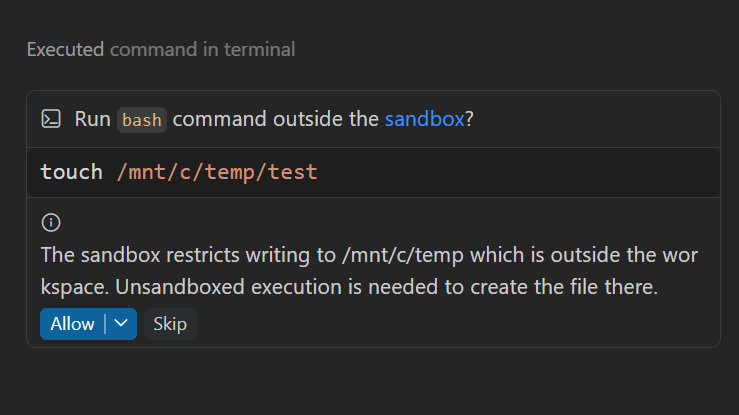
If a command cannot run inside the sandbox, the agent can ask for confirmation to run it outside the sandbox. The chat.agent.sandbox.allowUnsandboxedCommands setting controls this fallback for Local and Copilot Agent Host sessions:
true(default): the agent can request permission to run outside the sandbox. For Agent Host sessions, a supported prompt can offer approval for one operation or for the current session. Approve only if you trust the command to run without the sandbox's file system and network restrictions.false: Allow Outside Sandbox is not offered, and requests to run outside the sandbox fail instead of prompting for approval. Commands that comply with the sandbox policy can still run.
The agent tries the command inside the sandbox first. Rejecting the confirmation prevents the command from running outside the sandbox.
Control sandboxing for an Agent Host session
For a Copilot Agent Host session, select Sandboxing for terminal in the permissions picker to change the current session's sandbox state, unless your organization requires sandboxing.
- A new session inherits its Agent Host's effective sandbox configuration. For a local Agent Host, applicable Workspace settings take precedence over User settings, followed by product defaults.
- Your session selection does not update User or Workspace settings or affect other sessions. Peer chats and subagents use the owning session's sandbox state.
- An explicit selection persists when you restore the session, reload the window, or restart VS Code, unless a managed restriction overrides it.
- A session without an explicit selection follows changes to its host's sandbox configuration.
When your organization manages sandboxing
Organization-managed settings can require sandboxing, prevent bypass, or block outbound network access. Enforced settings are locked and show an organization-managed indicator. You can choose more restrictive local settings where a control remains editable.
If your organization requires sandboxing, the Sandboxing for terminal toggle stays on and locked. Even when policy permits a bypass, you cannot directly switch it off. When a command is blocked and bypass is permitted by both managed policy and your local settings, the agent can request approval to run outside the sandbox.
On a supported bypass prompt, Allow in this Session turns off sandboxing only after approval succeeds. An approval for one operation does not turn off sandboxing for the session. Rejecting the prompt leaves sandboxing on.
A session-wide bypass removes the sandbox's file system and network restrictions for subsequent terminal commands in that session, not only the command that triggered the prompt. It does not change other sessions or global settings.
You can turn sandboxing back on for the session. The toggle then locks again, and a later session-wide bypass requires a new approval.
New managed restrictions take precedence over saved session state. For example, a managed bypass denial revokes a previously approved session bypass when you resume the session. Removing a managed restriction exposes saved user preferences again, but does not automatically restore a session's previously invalidated Off selection.
If a required setting is locked or you need access that policy denies, contact your administrator. For deployment details, see managed agent sandboxing.