Date: 2025-02-20
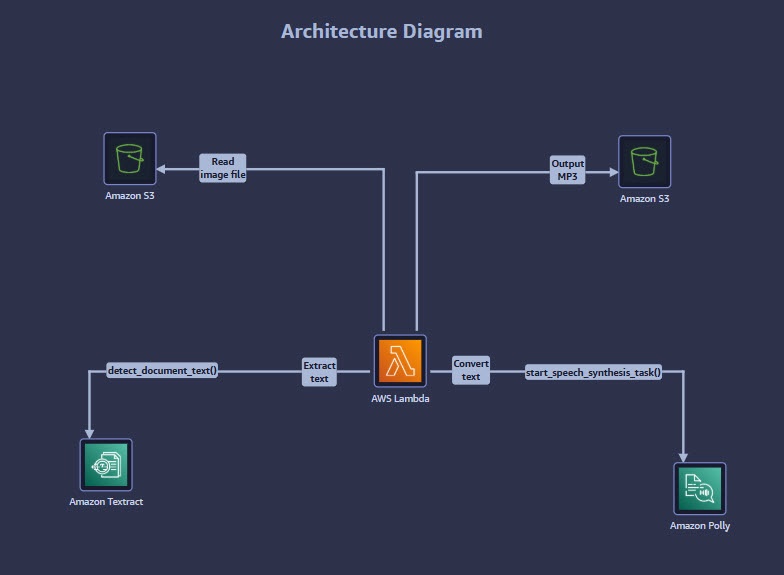
This procedure outlines the steps to extract text from a sample document using Amazon Textract, convert the extracted text into MP3 audio format using Amazon Polly, and use an AWS Lambda function to automate the process. The final step verifies the generated MP3 file in an Amazon Simple Storage Service (Amazon S3) bucket.
- Extract and view raw text from a sample document.
- Convert the extracted text into MP3 audio format.
- Run an AWS Lambda function to convert an image file containing text into an MP3 audio file.
- AWS Textract
- AWS Polly
- AWS S3
- AWS Lambda

Concept: Amazon Textract is a machine learning (ML) service that automatically extracts text, handwriting, layout elements, and data from scanned documents.
- Navigate to the Amazon Textract console.
- In the left navigation pane, click Analyze Document.
- On the Analyze Document page, explore the extracted information by clicking the available tabs.
- Proceed to the next step.

Concept: Amazon Polly uses deep learning technologies to synthesize natural-sounding speech, enabling the conversion of text into audio.
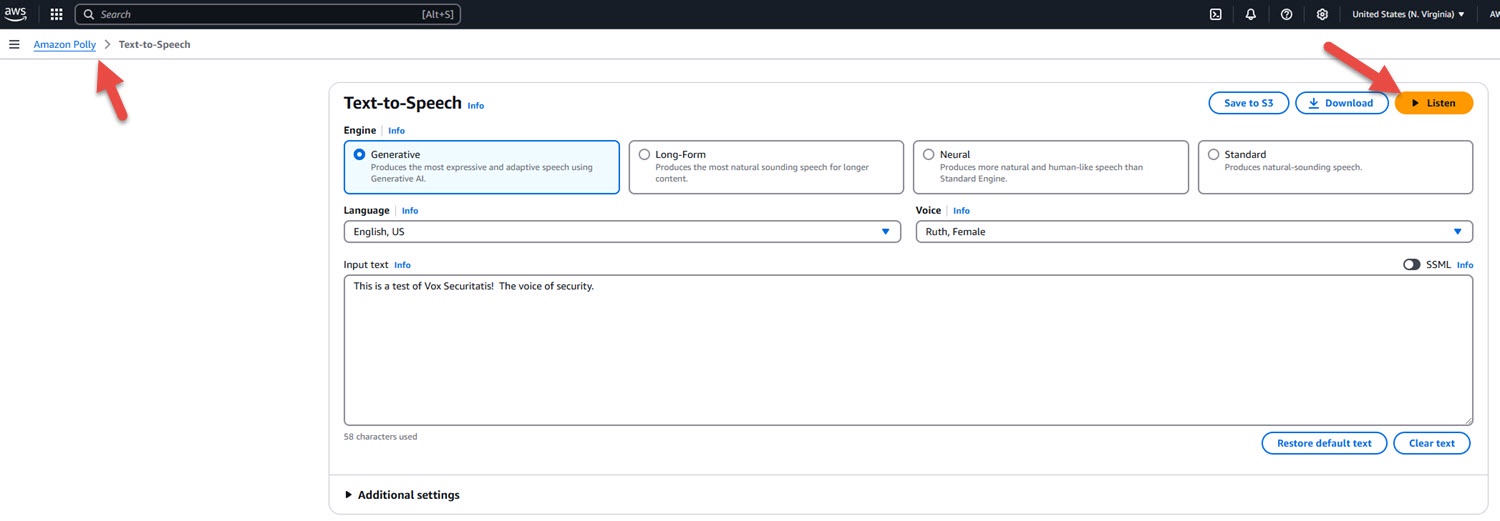
- Navigate to the Amazon Polly console.
- In the left navigation pane, select Text-to-Speech.
- Review the history of completed S3 synthesis tasks under the Text-to-Speech section.
- Click Listen to preview the synthesized audio.
- Proceed to the next step.
Concept: Amazon S3 is an object storage service providing scalability, data availability, security, and performance.
- Navigate to the Amazon S3 console.
- On the General purpose buckets tab, click the S3 bucket name that begins with
labdatabucket-. - Proceed to the next step.

Concept: Amazon S3 allows storage of large volumes of data, with individual objects ranging from 0 bytes to 5 TB.
- In the Objects tab, locate and review the JPEG file.
- Proceed to the next step.

Concept: The AWS Lambda Functions page lists all functions in the current AWS Region. Recently created functions may take some time to appear.
- Navigate to the AWS Lambda console.
- In the left navigation pane, click Functions.
- Under the Functions section, select the function named TextToSpeech.
- Proceed to the next step.
Concept: Use the DetectDocumentText API operation to extract text from documents with Amazon Textract.
- Scroll to the Code source section.
- In the Code tab, review the
lambda_function.pyfile:- Line 4: References an environment variable for the S3 bucket name.
- Lines 12 and 29: Utilize the
detect_document_textandstart_speech_synthesis_taskAPI calls. End user has the ability to modifyVoiceIDandEngineparameters.
- Click the Test tab.
- Proceed to the next step.

Concept: Events serve as inputs to AWS Lambda functions. Up to 10 test events can be created per function.
- In the Event name field, enter:
TextToSpeechTest. - Click Save.
- Proceed to the next step.

Concept: Running a test event synchronously invokes the Lambda function with the provided input.
- Click Test to execute the event.
- Proceed to the next step.

Concept: The start_speech_synthesis_task API call asynchronously converts the extracted text into an MP3 file.
- In the Details section, review the
taskId. - Under Log output, verify the extracted text from the image file.
- Proceed to the next step.

Concept: Amazon Polly provides synthesized speech in formats like MP3 and Ogg Vorbis, suitable for web and mobile applications.
- In the Amazon S3 console, navigate to the
labdatabucketbucket. - Under the Objects tab, select the checkbox next to the generated MP3 file.
- Click Download.
- Open the file with a local audio player to listen to the converted text.
- Process complete.


© 2025 Brock Frary. All rights reserved.