Git commands

If you are into software development, devops, data science etc you should have a great understanding and knowledge of git. Here are few day-to-day git commands tht we use daily.
git config : It is a command in Git that lets you manage configuration settings. These settings control how Git behaves on your system. You can use it to set things like your username, email address, preferred text editor, and even create custom aliases for frequently used commands.
git init: This command is fundamental to using Git for version control. It’s used to create a new Git repository.
git clone: It is the command used to create a copy, or clone, of an existing Git repository.
git add : The git add command is a cornerstone of using Git for version control. It's used to prepare specific files or directories for inclusion in the next commit.
git commit: In Git version control, the git commit command plays a vital role. It's used to capture a snapshot of the currently staged changes in your project and create a permanent record of that state.
git diff: Shows the difference between files in your working directory and the staging area or between commits.
git reset: Moves the HEAD pointer to a specific commit, discarding changes made after that point (use with caution!).
git status: Shows the current state of your working directory, including staged and unstaged changes.
git rm: Removes files from your working directory and stages them for deletion in the next commit.
git log: Shows the commit history of your repository, including commit messages and author information.
git show: Shows detailed information about a specific commit, including its content, parents, and commit message.
git tag: Creates a lightweight reference (tag) to a specific commit for easier identification.
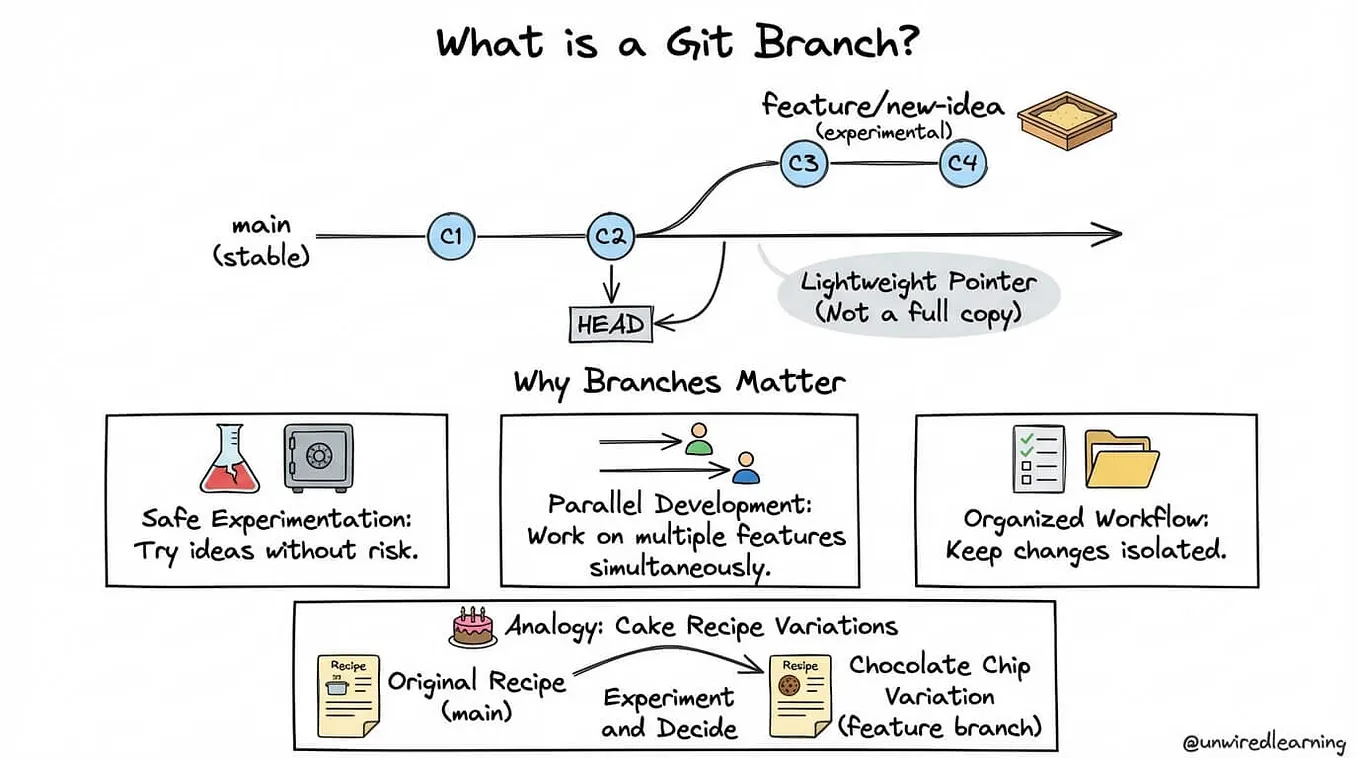
git branch: Lists, creates, deletes, or switches between branches in your repository.
git checkout: Switches to a different branch or detaches HEAD to a specific commit.
git merge: Combines changes from one branch into the current branch, potentially creating a merge commit.
git remote: Manages remote repositories for pushing and pulling changes.
git push: Uploads your local commits to a remote repository.
git pull: Downloads changes from a remote repository and merges them into your local branch.
git stash:Temporarily stores uncommitted changes for later use.
Additional Git commands:
git fetch: Downloads changes from a remote repository without merging them into your local branch.
git mv: Renames a file in your repository and stages the change.
git grep: Searches for a pattern within your codebase.
git blame: Shows who last modified specific lines of code.
git bisect: Helps isolate the commit that introduced a bug.
git cherry-pick: Selectively applies changes from a specific commit to the current branch.
git remote -v: Shows details about configured remote repositories, including URLs.
git submodule: Integrates another Git repository into your project as a submodule.
git rebase: Re-writes your commit history to appear as if it was created on top of another branch.
git reflog: Shows the history of where HEAD has pointed over time.
git revert: Creates a new commit that reverses the changes introduced by another commit.
git describe: Provides a human-readable summary of a commit using tags and commit history.
git clean: Removes untracked files from your working directory.
git remote add: Adds a new remote repository to your local configuration.
git remote rm: Removes a remote repository from your local configuration.
Get AARUSHI TIWARI’s stories in your inbox
Join Medium for free to get updates from this writer.
git remote show: Shows details about a specific remote repository.
git remote rename: Renames a configured remote repository.
git remote prune: Removes references to deleted branches on the remote repository.
Here are some Git best practices that individuals and teams should consider while using Git:
Commit Frequently and Keep Commits Small:
Make frequent, small commits with clear and concise messages.
Each commit should represent a single logical change.
Write Meaningful Commit Messages:
Write descriptive commit messages that explain the purpose of the change.
Follow a consistent and clear commit message format.
Use Branches Effectively:
Create branches for new features, bug fixes, or experiments.
Avoid committing directly to the main/master branch.
Keep Branches Updated:
Regularly merge changes from the main branch into feature branches to avoid conflicts.
Perform Code Reviews:
Use pull requests or merge requests for code reviews before merging changes.
Provide constructive feedback to improve code quality.
Rebase Instead of Merge (Carefully):
Consider using rebase to maintain a linear project history.
Be cautious when rebasing shared branches to avoid disrupting collaboration.
Use Tags for Releases:
Tag releases to mark specific points in your project’s history.
Follow a versioning scheme for tags.
Git Ignore:
Create a .gitignore file to exclude unnecessary files and directories from version control.
Stash Changes Wisely:
Use git stash to temporarily save changes before switching branches or pulling updates.
Understand Git Configurations:
Configure your global and local Git settings.
Be aware of configurations related to line endings, user information, etc.
Document and Share Processes:
Document branching strategies, workflows, and any project-specific Git conventions.
Share this documentation with the team.
Use Git Hooks:
Utilize Git hooks for automating tasks before or after specific Git events.
Keep Repositories Clean:
Regularly delete merged branches.
Remove unnecessary files and folders.
Learn Git Commands:
Familiarize yourself with a variety of Git commands to enhance productivity.
Backup and Protect Repositories:
Regularly backup repositories, especially critical ones.
Implement access controls and authentication to protect sensitive repositories.
Educate Team Members:
Ensure that team members are familiar with Git and its best practices.
Provide training if necessary.
Use Git GUI Tools Wisely:
Git GUI tools can be helpful, but it’s essential to understand the underlying Git commands.