Git: Beyond the Local Realm


So far, our time-traveling filing cabinet is locked in our basement. It is incredibly useful for us, but if our hard drive crashes, everything is gone. Furthermore, nobody else can work with us.
A Remote Repository is simply a copy of your Git database hosted on another computer — usually on a server running on the internet (like GitHub, GitLab, or Bitbucket).
Think of it like synchronizing a local folder with Dropbox or Google Drive, but instead of automatically syncing every typo, you manually control exactly when and what gets sent to the cloud (push), and exactly when you download updates from your collaborators (pull).
Formal Explanation & Mechanics
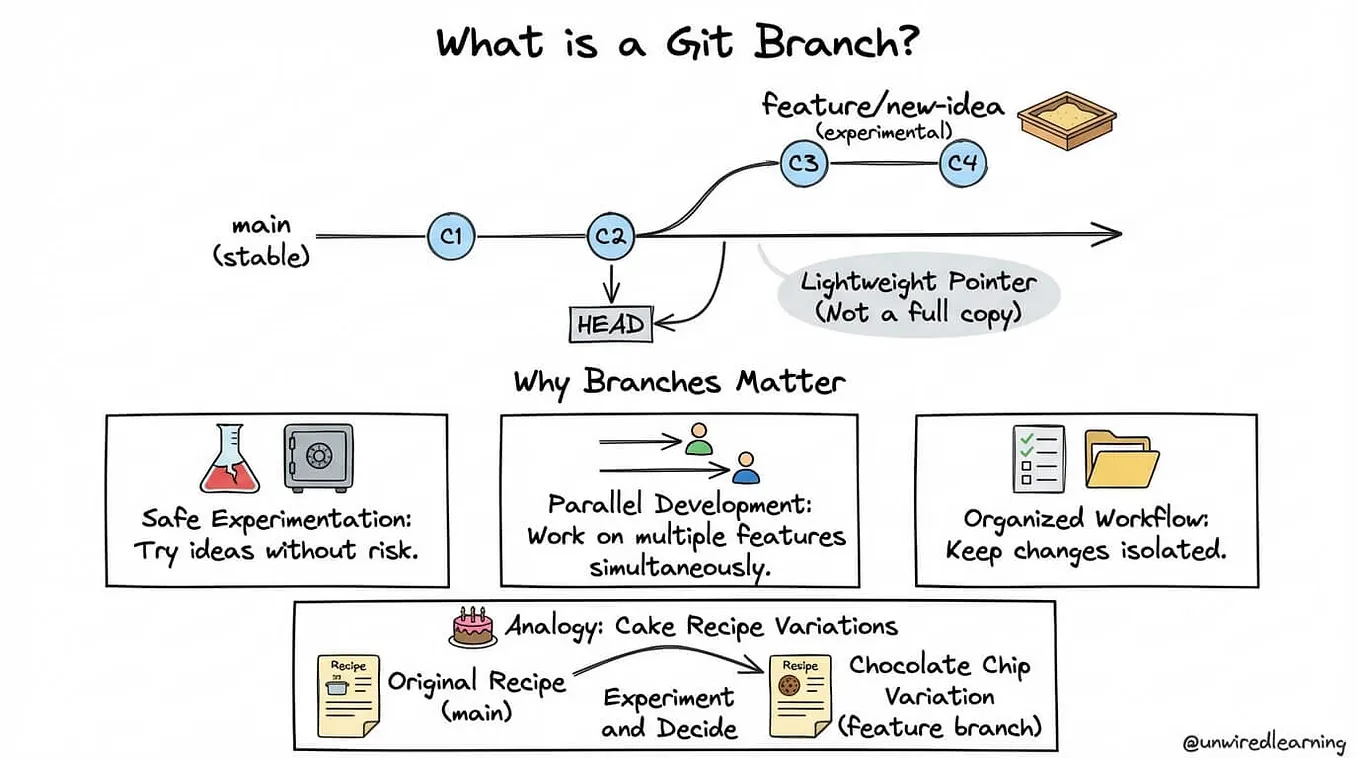
Because Git is distributed, all repositories are fundamentally equal. Your local repository is technically no different from a repository hosted on GitHub. They are just databases of objects and pointers.
When we talk about “Remotes,” we are dealing with networking protocols (usually HTTPS or SSH) to transfer data between these databases.
The Mechanics of Syncing:
- Remote Tracking Branches: When you connect a remote, Git creates special, read-only pointers in your local database. If your remote is named
originand it has amainbranch, Git creates a local pointer calledorigin/main. This pointer acts as a bookmark, remembering exactly where the remote server was the last time you communicated with it. fetch(The Safe Download): This command reaches out to the remote server, downloads any new objects (commits, files) that you don't have, and updates yourorigin/mainbookmark. Crucially,fetchnever touches your Working Directory or your localmainbranch. It only updates the invisible database.pull(The Aggressive Download): This is a macro command. Runninggit pullis exactly the same as runninggit fetchimmediately followed bygit merge. It downloads the data AND forcefully attempts to merge it into your current working files.push(The Upload): This command calculates the difference between your localmainand the remote'smain, uploads the necessary commit objects, and then updates the pointer on the remote server.
Concrete Examples & Code
Let’s simulate connecting a local project to GitHub.
Step 1: Establishing the Connection (git remote): Assume you went to GitHub.com, clicked "New Repository," and it gave you a URL (e.g., https://github.com/AdaLovelace/ai-agent.git).
# We add a remote connection.
# 'origin' is just a standard nickname. You could name it 'cloud' or 'github'.
git remote add origin https://github.com/AdaLovelace/ai-agent.git

# Verify the connection
git remote -v
# Output:
# origin  https://github.com/... (fetch)
# origin  https://github.com/... (push)
Step 2: The Initial Upload (git push -u): We want to send our local main branch to the origin server.
# The -u flag (upstream) links your local 'main' to the remote 'main' permanently.
# You only need it the first time you push a new branch.
git push -u origin main
# Output:
# Enumerating objects...
# To https://github.com/...
#  * [new branch]      main -> main
# Branch 'main' set up to track remote branch 'main' from 'origin'.
(Now, you can just type git push in the future).
Step 3: Downloading Others’ Work (git clone): What if a colleague wants to work on your project? They don't run git init. They run clone. clone does three things: it creates a directory, initializes a repository inside it, and pulls down all the data from the remote URL.
# Your colleague runs this:
git clone https://github.com/TheBoogieman/ai-agent.git
cd ai-agent
Step 4: The Sync Cycle (git fetch and git pull): Imagine your colleague pushes a new commit to the server. Your local machine doesn't automatically know about it.
# 1. The Safe Way: Inspect before merging
git fetch origin
git status
# Output: Your branch is behind 'origin/main' by 1 commit...

# You can look at what they did using diff
git diff main origin/main

# If it looks good, you merge it
git merge origin/main

# 2. The Fast Way (What most people do daily):
git pull origin main
Common Misconceptions & Pitfalls
The “Push Rejected (Non-Fast-Forward)” Error: This is the single most common error beginners face when collaborating. You try to run
git push, and Git yells at you, refusing to upload.Mechanics: This happens when someone else has pushed changes to the remote server since you last synced. The remote server’s
mainbranch has moved forward, and your localmainhas diverged. Git is saying: "If I accept your push right now, I will overwrite your colleague's work."The Solution: You must download their work and integrate it first.
- Run
git pull. (This downloads their work and merges it with yours locally). - Run
git push. (Now you are uploading the combined history, which the server will accept).
Hands-Off Exercises
Note: You have seen how to access hosted repos above. But all of this can also be done on a local system. Here we practice that because it carries over to handling hosted repositories.
Get Mohammed Faham’s stories in your inbox
Join Medium for free to get updates from this writer.
Level 1: The Local “Remote”: Git doesn’t actually care if a remote is on the internet; it just needs a path. We can use a folder on your computer as a “remote server.”
- Open your terminal. Go to a directory outside your current Git project (e.g., your Desktop).
- Create a “server” repository:
mkdir fake_server
cd fake_server
git init --bare
# The --bare flag is crucial. It tells Git to create a repository with
# ONLY the database, and NO Working Directory. Remote servers are always bare
# because nobody types code directly on the server
3. Go back to your actual project repository from Part 4.
4. Add the local server as a remote:
git remote add local_server /path/to/your/desktop/fake_server5. Push your code: git push -u local_server main.
Level 2: The Collaboration Simulation
- Go to a completely different folder (like Documents).
- Clone your “server” repository:
git clone /path/to/your/desktop/fake_server.git colleague_repo
# colleague_repo is the directory into which we clone it
3. Inside colleague_repo, make a change to a file, commit it, and run git push.
4. Go back to your original repository.
5. Run git fetch local_server. Observe the changes.
6. Run git pull local_server main to sync your original repo.
Here’s how I attempted it — try it first :) inefficient_solution
Sources & Recommended Resources
- Source: Chacon, S., & Straub, B. (2014). Pro Git. (Chapter 2.5: Working with Remotes & Chapter 3.5: Remote Branches). git-scm.com/book/en/v2/Git-Basics-Working-with-Remotes
- Resource: GitHub Official Documentation — About Remote Repositories
What’s Next?
We have learned how to share code. But what happens during that git pull if your colleague changed the exact same line of code that you changed while offline?
Git is smart, but it cannot read minds. Next up: We face the crucible of version control in Part 6: Merge Conflicts. We will dissect why they happen, how Git communicates them, and how to resolve them surgically.