
If you want to make your presentation extraordinary with some audio on Google Slides, you have come to the right place. Whether you want to add background music, narrate your slides, or include a sound effect, inserting audio in Google Slides is a breeze. Let's learn how to make your presentation more engaging with sound.

Table of Content
- Why Add Audio to Google Slides
- How to Add Audio in Google Slides
- How to Add Audio to Google Slides from an Android or iPhone
- How to Insert Audio from a URL in Google Slides
- How to Use YouTube Videos with Audio in Google Slides
- Audio Format Options in Google Slides
- How to Mute Audio in Google Slides
- How to Add Background Music in Google Slides
Why Add Audio to Google Slides
Adding audio to your Google Slides presentation can make it more dynamic and engaging. Whether you want to include background music, narration, or sound effects, Google Slides makes it easy for you. Here’s how you can enhance your presentations with audio.
How to Add Audio in Google Slides
Learn how to add audio in Google Slides with our easy step-by-step guide, making your presentations more dynamic and engaging.
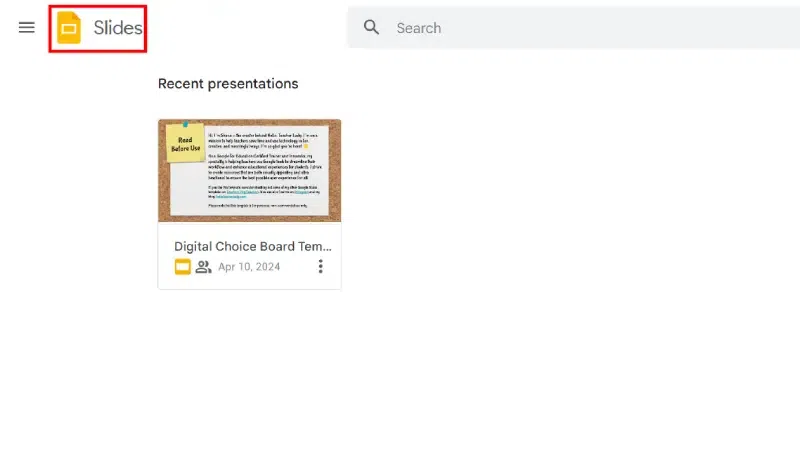
Step 1: Open Google Slides
Open your Google Slides presentation on any web browser or Desktop.
Step 2: Select the Slide
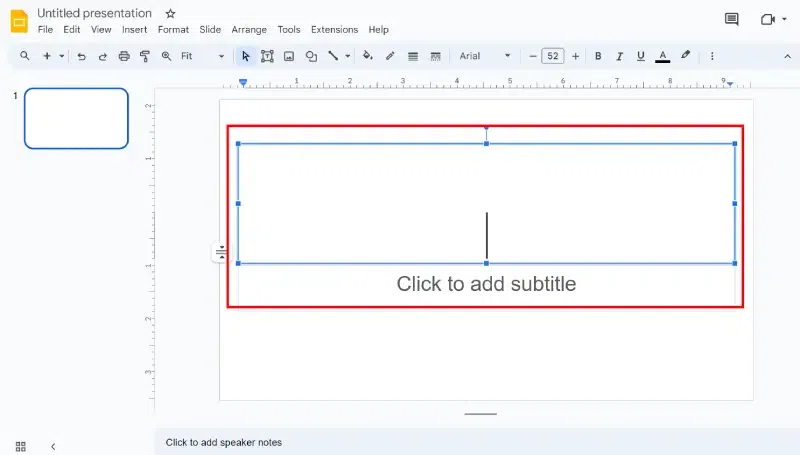
Select the slide where you want to add the audio.
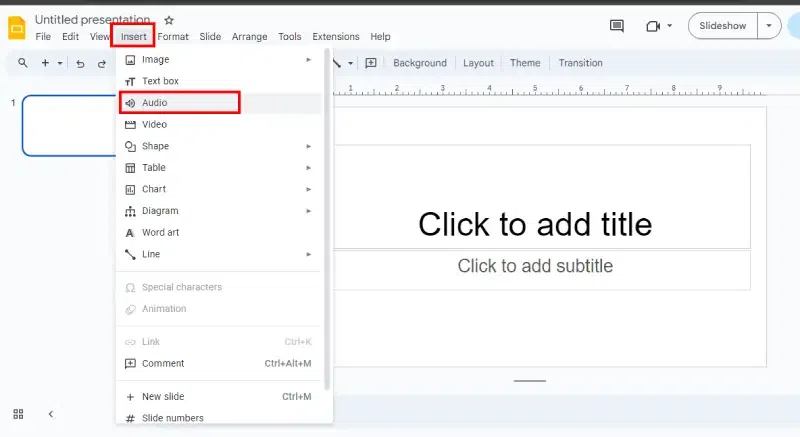
Step 3: Navigate through the 'Insert' menu
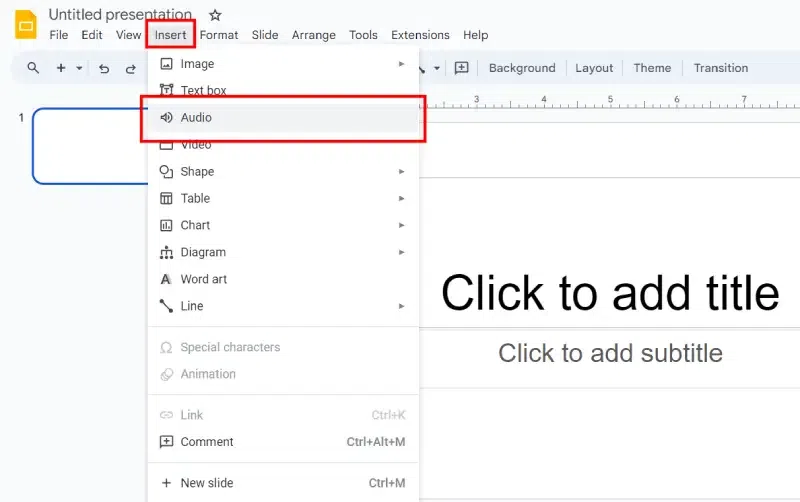
Click on Insert at the top menu in the Google Slides toolbar.
Step 4: Add Audio
Hover over Audio. You'll see two options,
- Audio from Google Drive: Choose this if your audio file is already stored there.
- Audio: This lets you upload an audio file directly from your device.
Step 5: Select the Audio
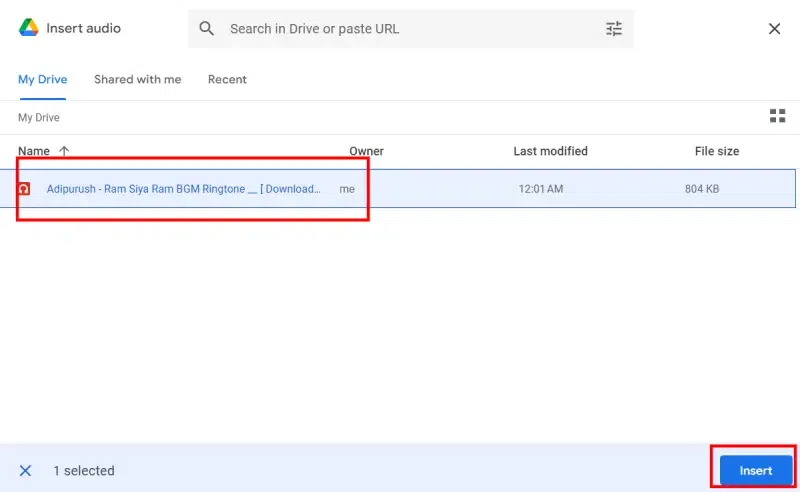
Select your preferred option and choose the audio file you want to add.
Step 6: Adjust the Audio
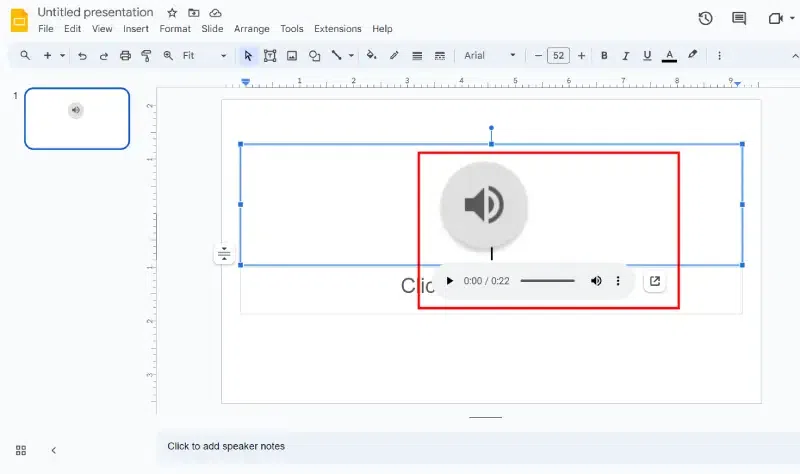
An audio icon will appear on your slide. You can drag it to position it and resize it for better placement.
How to Add Audio to Google Slides from an Android or iPhone
It’s often easier to edit Google Slides using a desktop device, you can also add audio files to your presentations directly using an Android or Apple phone. Here’s how you can do the same,
Step 1: Record your audio
Use a high-quality audio recording app to capture the audio track you want to add to your presentation. Edit your files, and save them to your device.

Step 2: Upload the track you want
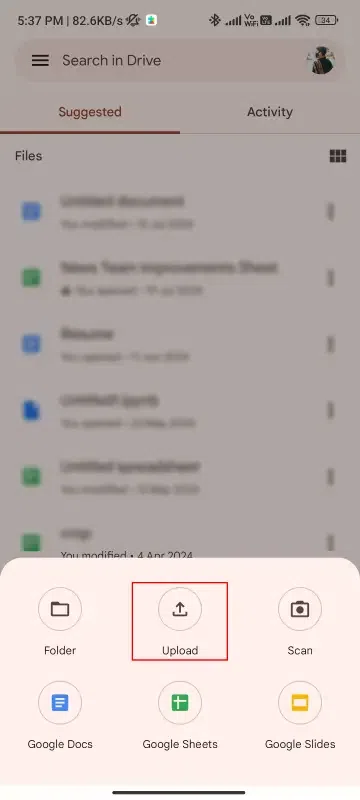
Navigate to your Google account on your phone, and go to your Google Drive. Here, press the +New, and upload relevant audio tracks.
Step 3: Share Permission
Click on your uploaded audio file in your account, and navigate to sharing permissions. Ensure that the audio track is available for Anyone with the link.
Step 4: Open the Slide, Go to Insert tab and Select Audio
Use your device to access your presentation document. Here, choose the slide you want to work on. Then select Insert, then Audio, and upload your audio files as needed.
Step 5: Adjust accordingly
Move your audio icon where you want it to appear in your finished Google Slides presentation. If you want to adjust audio settings, you can access format options, followed by the playback menu.
How to Insert Audio from a URL in Google Slides
Discover how to insert audio from a URL in Google Slides.
Step 1: Find the Audio URL
Obtain the direct URL of the audio file you want to use. Note that this method may require third-party services to convert the audio into a suitable format.
Step 2: Use a Conversion Tool
If the audio URL is not directly compatible, use an online conversion tool to download the audio file and upload it to Google Drive.
Step 3: Insert the Converted Audio
Navigate to Insert > Audio in Google Slides and select the converted audio file from your Google Drive.
How to Use YouTube Videos with Audio in Google Slides
Learn how to use YouTube videos with audio in your Google Slides presentation.
Step 1: Find the YouTube Video
Find the YouTube video you want to include in your presentation.
Step 2: Copy the Video URL
Copy the URL of the YouTube video.
Step 3: Insert the YouTube Video
Navigate to Insert > Video in Google Slides and paste the YouTube URL. The video will be embedded in your slide, and the audio will play along with it.
How to Play Audio in Google Slides
To play audio in your Google Slides, you need to follow few steps. The steps are given below for your reference,
- While editing your slide, hover over the speaker icon and click it to preview the audio.
- In presentation mode, click the speaker button to play the audio or simply hover and click the play button.
Audio Format Options in Google Slides
When adding audio to your Google Slides, you have a few format options. Google Slides supports various audio file formats, including MP3, WAV, AAC, and FLAC. Make sure your audio files are in one of these supported formats to easily integrate them into your presentations. Once you’ve uploaded your audio file to Google Drive, follow these steps to format it to your presentation,
Step 1: Go to Format and Select Customize Your Audio
Customize audio playback options, such as starting to play “On click,” “Automatically,” or “Stop on slide change” by right-clicking the audio icon and selecting "Format options"
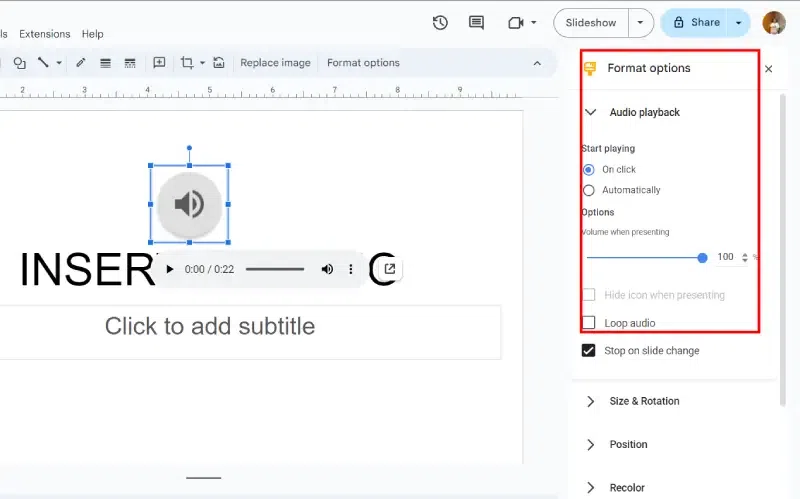
Step 2: Stop on slide change
Uncheck the option that says 'Stop on Slide Changes' in the format option only.
.webp)
How to Mute Audio in Google Slides
Learn how to mute audio in Google Slides to avoid background noise during your presentation.
Step 1: Select the Embedded Audio
Click on the audio icon in your Google Slides presentation.
Step 2: Click on Format Options
In the toolbar, click on Format options to access audio settings.
Step 3: Mute the Audio
Under Audio playback, check the Mute audio option to mute the audio
How to Add Background Music in Google Slides
Enhance your presentation by adding background music in Google Slides.
Step 1: Open Google Slides and Select Slide
Open your presentation and select the slide where you want to add background music.
Step 2: Insert Audio
Navigate to Insert > Audio and choose your audio file from Google Drive or your device.
Step 3: Format Audio Playback
Set the audio to play automatically and loop if needed by adjusting the playback settings.
Conclusion
Adding audio to Google Slides is a powerful tool to enhance your presentations. With a few simple steps, you can insert background music in Google Slides, narration, or sound effects to make your content more engaging and impactful. So, learn Google Slides and start experimenting with audio!