What’s new in WordPress 6.9?

WordPress 6.9 marks the second and final major release of the platform in 2025. Following the mid-April release of WordPress 6.8, this update brings a wide range of enhancements that benefit site owners, designers, developers, and everyday users alike. While there’s no single standout feature, this release is packed with functional improvements that aim to enhance creativity, performance, and workflows.
As expected, WordPress 6.9 delivers a variety of smaller – but meaningful – enhancements. From upgraded tools for developers to a smoother editing experience for site owners, these changes are designed to support more flexible site-building and faster workflows.
However, unlike past major versions, WordPress 6.9 doesn’t launch with a new default theme. Instead, the next theme, Twenty Twenty-Six, is scheduled for release in 2026. While we wait, this update still sets the stage for how WordPress is evolving out of the box.
Keep reading for my full breakdown of what’s changed, what’s improved, and how you can make the most of the new features in WordPress 6.9.
What are the new blocks in WordPress 6.9?
Each of the new blocks in WordPress 6.9 is built to help you streamline workflows, present information more clearly, and create better user experiences – right from the editor.
Accordion block
The Accordion block makes it easy to create collapsible sections, helping users organize content in a clean and interactive way.

The Accordion block is made up of three components:
- Accordion Item – the parent block of accordion content
- Accordion Heading – where you type the clickable title or question
- Accordion Panel – where you can add any other blocks

To use an Accordion block, add it like any other block from the editor. You’ll see two fields: the Accordion Heading, where you type the title or question, and the Accordion Panel, where you insert content.
One standout feature is the flexibility to add any type of block inside the Accordion Panel. For example, you can create a two-column layout with a paragraph and an image. This allows you to go beyond plain text – adding visual elements to surprise and engage your site visitors.
Terms Query block
WordPress 6.9 introduces a powerful new feature: the ability to dynamically display the title, post count, and description for blog posts grouped by category, tag, or any custom WordPress taxonomy.

In this example, I have three categories: Female, Male, and Uncategorized. I’ve configured the block to show the number of posts in each category (the count) and display the description for any category that includes one – in this case, “Female.”
As I begin, the block prompts me to choose one of two variations to display my terms query. These can be adjusted or expanded even after the block is inserted.
I set my taxonomy to Category from the dropdown in the block’s settings panel.

On the front end, the visitors will see a list displaying the category title, number of posts, and category description — all updated dynamically based on the content.
Time to Read and Word Count blocks
Many modern websites display estimated reading times to help readers know what to expect. WordPress now supports this natively with the new Time to Read block.

This block is also transformable into a Word Count block using a toggle, giving you two metric options.
Both features can be displayed independently – you can choose to show only the reading time, or only the word count. Another option is to add both blocks to show both metrics – it all depends on your content strategy.
Math block
WordPress now makes it easy to display complex math formulas using the new Math block. This feature supports both standalone mathematical expressions and inline math notation within regular text.
To use it, simply add the Math block and enter your formula in the provided text field. The block renders your equation cleanly, making it ideal for educational content, technical tutorials, or any content involving calculations.

What are the new block features in WordPress 6.9?
There are a good number of new and improved blocks coming with WordPress 6.9. Some of these blocks were under development for quite some time, never making it into a final release until now.
Collaborate with block Notes
With the introduction of the Notes feature, we get our first look at what editorial collaboration in WordPress will look like. This marks the beginning of Phase 3 – Collaboration of the Gutenberg Project, bringing asynchronous commenting capabilities directly into the block editor.
The Notes feature enables administrators and editors to leave threaded comments – called Notes – on any block, similar to how comments work in Google Docs. These Notes are visible to the entire editorial team, allowing collaborators to reply to or act on feedback directly within the editor.
Here, I start by adding a note to the first paragraph using the option menu for the paragraph as shown in the list view.

Once selected, the right-hand sidebar updates, allowing you to write your comment. For example, you might leave a message like “Change font to Georgia,” which the editorial team can then review and implement. Any note can be edited or deleted at any time.

If I select the image block, the toolbar displays Gravatar icons of team members who have left comments. Clicking these icons opens the Notes sidebar, revealing threaded discussions related to the selected block.
Even if the page contains multiple Notes, the sidebar focuses only on the ones related to the currently selected block – for instance, the image block in this example.

The Notes feature is available for pages, posts, and custom post types. Team members will receive email notifications when a Note is added. Notifications can be turned off via Settings → Discussion by deselecting “Anyone posts a note.”
Hide blocks from view
One of the most requested features over the years is finally here – the ability to hide individual blocks from displaying on the front end of a WordPress site. This addition is particularly useful when experimenting with layouts, testing content, or collaborating with others.
You can hide any block using either the toolbar or the List View. In this example, I’m using the List View to hide the image.

Once hidden, the block will display an eye icon with a slash next to it in the List View, indicating it’s no longer visible on the live site.

After hiding a block, you might wonder whether it leaves a noticeable gap on the front end. To check, preview or view the page live. Hidden blocks do not leave visible empty spaces – the content is simply removed from view.
To make the block visible again, you can either click the eye icon in the toolbar or select Show from the block’s options in the List View.
This initial release introduces the core hiding functionality, but future updates may include advanced options like:
- Conditional logic for block display based on screen size or user device
- Date-based visibility for scheduled content
This new feature opens up more flexible workflows and content experiments, right from the block editor.
Stretchy text blocks
WordPress 6.9 introduces new companion blocks for Headings and Paragraphs, making it easier to create text that adjusts seamlessly across different screen sizes.
In this example, I am starting with a regular Heading and then converting it to a Stretchy Heading block. To do this:
- Start with a standard Heading block.
- Transform it into a Stretchy Heading using the block options.

This version automatically resizes to fit the container, ensuring optimal readability on all devices.
Note that when using stretchy text, the option to manually set font size is removed. Font scaling is handled automatically to maintain responsiveness.
New HTML element for the Button block
In the Advanced settings of the Button block, you now have the option to use a <button> element instead of the default <a> (anchor) tag.
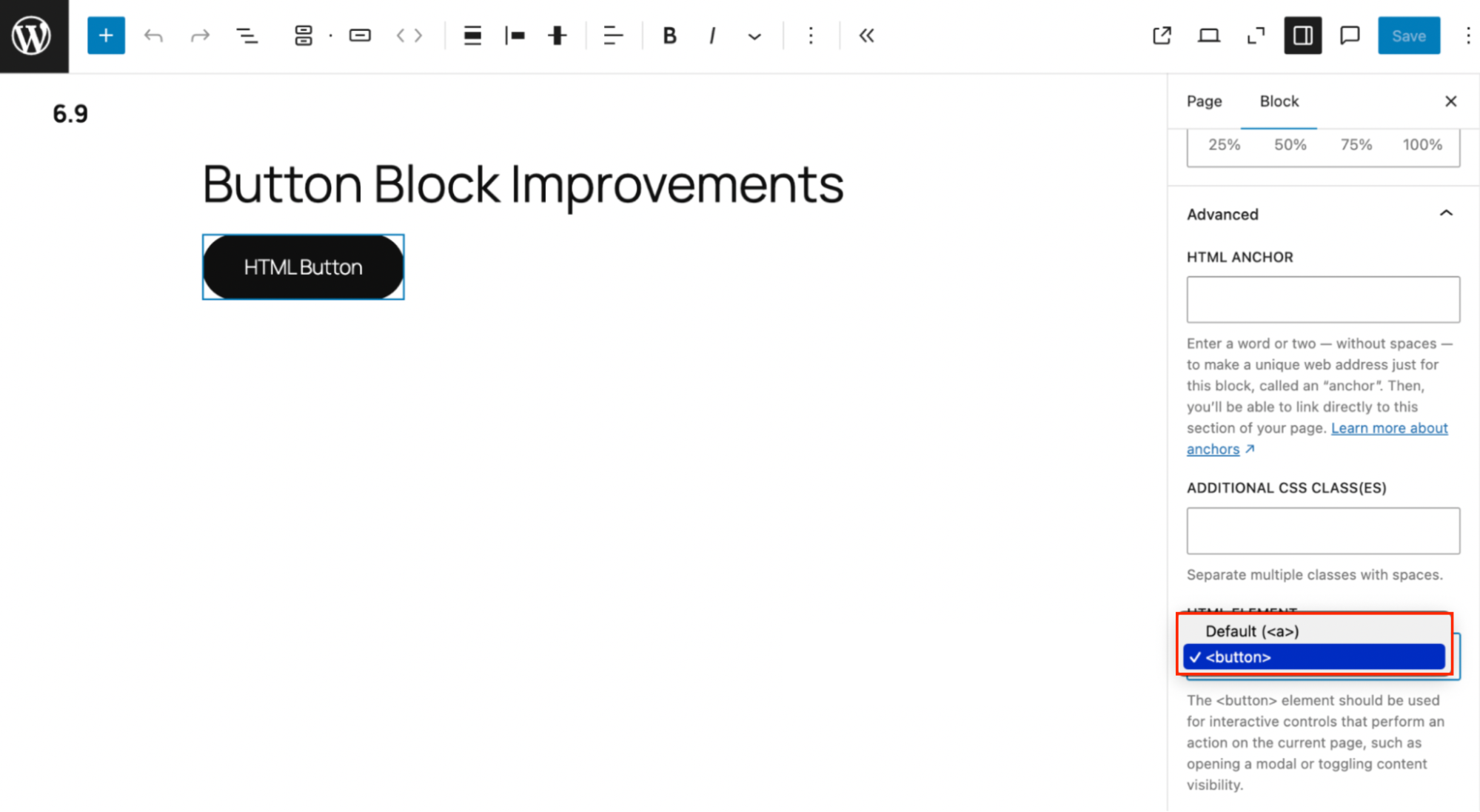
This enhancement addresses a common accessibility issue – using a button as if it were a link. When incorrectly implemented, it can confuse screen readers and disrupt the user experience for those relying on assistive technologies.
By choosing the correct element for the intended interaction, WordPress helps ensure more accessible and semantically accurate websites.
What other changes are coming in WordPress 6.9?
WordPress hasn’t just added new blocks – it also introduced thoughtful enhancements to existing ones, making them even more flexible and user-friendly. These subtle yet impactful updates improve how users design, organize, and interact with content across their sites.
Create draft pages directly from the Navigation block
WordPress 6.9 introduces a convenient new feature: the ability to create a draft page directly from the Navigation block. This is especially helpful when you’re building a site structure and want to include links to pages that don’t yet exist.
To use this feature, select the Plus (+) button, and choose the Create page option in the Navigation drop-down menu.

A pop-up will appear to add the page title. There’s also an option to publish the page immediately, but I always prefer to leave it as a draft to avoid publishing a blank or incomplete page.

Once you create the page, WordPress adds a draft link to your navigation menu. You can then navigate to the Pages section in your WordPress dashboard to open the draft and begin adding content.
Just remember – because the page is still in draft status, it won’t appear in your site’s navigation for visitors until it’s published.
Better accessibility for the Command Palette
Previously limited to block themes, the Command Palette is now available for classic themes as well – and can be used from anywhere within the WordPress Admin.
Just press Cmd+K on macOS or Ctrl+K on Windows to open the Command Palette. From there, you can quickly navigate the dashboard, search for settings, or even initiate actions like creating a new page or post.
For users who rely on keyboard shortcuts, this expanded functionality introduces powerful new ways to speed up workflows and reduce clicks.
If you’re not sure what the Command Palette can do, type in any letter to view a list of available commands starting with that character.
Fine-tune block access in containers
Perfect for design teams and pattern creation, the new Allowed Blocks feature lets you control which blocks are available within specific container blocks – such as Group, Column, or Cover blocks.
To access this setting:
- Select a container block.
- Click the Advanced section in the right sidebar and select Manage allowed blocks.

- Deselect any blocks you want to restrict from use within that container.

This is especially useful for design consistency across reusable templates or team-based site builds.
Notable changes for developers
Here are some of the changes coming to WordPress that are under the hood and not something site builders are likely to see in the user interface.
Abilities API
WordPress 6.9 introduces the Abilities API, a standardized way for WordPress, themes, and plugins to declare what they can do. Rather than relying on custom methods, developers can now speak the same “language” – creating more consistent, secure, and scalable experiences, especially when integrating with AI tools or building collaborative features.
Additional API and developer-focused enhancements
Here’s a quick look at other technical improvements designed to expand developer capabilities:
- Interactivity API – now supports Fetch Priority: low, offering better control over when scripts load.
- Block Bindings API – adds a new filter for determining which block attributes can be dynamically bound. This applies to both core and custom blocks.
- Efficient script enqueueing – WordPress 6.9 removed legacy support code for Internet Explorer conditional scripts and styles.
Wrap up
WordPress 6.9 isn’t just another routine update – it marks a strategic step forward in the platform’s evolution. This release balances practical improvements for everyday users with robust tools for developers, making it a significant milestone in the broader Gutenberg roadmap.
I found that WordPress 6.9 delivers meaningful improvements across three major areas:
- New blocks unlocked – Long-requested blocks like Accordion, Math, Time to Read, and Terms Query are finally available, expanding what you can do visually and functionally – without relying on third-party plugins.
- Smarter, more capable existing blocks – Existing blocks haven’t been left behind. From responsive text handling with Stretchy Headings to new visibility controls and dynamic navigation enhancements, WordPress continues refining the core editing experience.
- Developer-centric enhancements – Behind the scenes, WordPress 6.9 introduces several powerful APIs – like the Abilities API, Interactivity API, and improved script handling – that streamline development, enhance performance, and support scalable, future-proof architecture.
Perhaps most importantly, this release signals the official start of Phase 3: Collaboration. With foundational features like Notes now in place, WordPress is preparing for real-time collaboration, a transformative shift that will make co-editing workflows smoother and more intuitive.
Update your WordPress website to WordPress 6.9 now to experience these new features!

Bud Kraus has been working with WordPress as an in-class and online instructor, site developer, and content creator for over 14 years. He’s a completely reformed web designer who no longer building WP sites and has shifted his focus on creating WordPress content for WordPress Businesses. To him, it’s just another way to teach and have fun working with clients he loves and admires. No matter the project, Bud works with clients the way they want to work and not the other way around. Working as a content creator Bud creates WordPress materials as educational articles or instructional videos for WordPress companies. Follow him on LinkedIn

