
AutoFit in Excel is a feature that automatically adjusts column width and row height to fit cell content. It eliminates the need for manual resizing, improves readability, and keeps your worksheet clean and well-structured.
Excel Autofit Basics
Excel uses default column widths and row heights. When the content is too long, it may spill outside the cell or get truncated. AutoFit helps resize cells automatically so that all content is visible.
Example of Text Spill Out from the Cell:

You can manually adjust column width and row height from Home → Format → Column Width / Row Height.
While resizing (manually or using AutoFit), keep these limits in mind:
- Column width: Maximum 255 units (varies with font size and style)
- Row height: Maximum 409 points (1 point = 1/72 inch or ~0.035 cm)
Row height may also vary slightly based on screen resolution.
Steps to Use the Autofit in Excel
In most cases, Excel automatically adjusts row height when text spans multiple lines, so no changes are needed. However, if the row height is fixed, you can use AutoFit to adjust it.
Method 1: Steps to AutoFit Rows and Columns via the Ribbon
Follow the below steps to use Autofit feature in Excel via the Ribbon:
Step 1: Select the column or columns that you want to change.

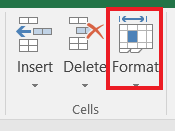
Step 2: On the Home tab, in the Cells group, click Format.
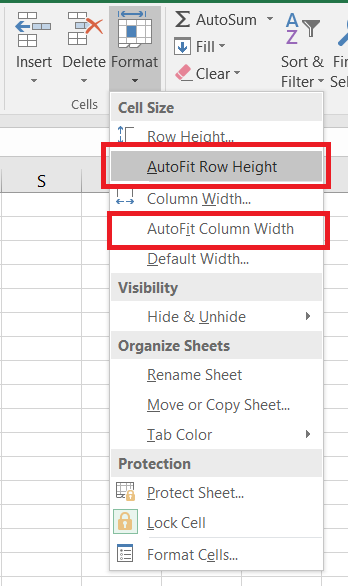
Step 3: Under Cell Size, click AutoFit Column Width to adjust column width. (To adjust row height, click on Autofit Row height)
See the changes (Content is adjusted in the column).
.png)
Note: We can also adjust the Row height to fit the content in the cell by clicking on Autofit Row Height.
Method 2: Steps to AutoFit Rows and Columns Using Double-Click
To Autofit the rows and columns using a mouse follow the below steps:
For Columns:
Step 1:Hover the mouse on the right border of the column heading. A Double- headed arrow will appear.

Step 2: Double-Click to Autofit the selected columns.

Method 3: Steps to AutoFit Rows and Columns Using Shortcut Keys
- AutoFit Column Width: ALT + H + O + I
Steps to Use these Keyboard Shortcuts
- First Select the row/column that you want to autofit.
- Use the keyboard shortcut with the keys in succession.
To fit the cells using a keyboard follow the below steps:
Step 1: Press Alt

Step 2: Press H.

Step 3: Press O.

Step 4: Press I for Autofit Column Width or Press A for Autofit Row Height.
Autofit Alternatives in Excel
There are a couple of alternatives for Autofit in Excel. Some of them are described below:
Wrap Text
It will fit your text in that particular cell. It will increase the row height to fit the text but the column width will remain the same. To use this alternative follow the below steps:
Step 1: Select your cells to wrap.

Step 2: Click on Wrap Text on the Home tab in the Alignment group.

Wrap Text Shortcut: Alt + H + W
Shrink to Fit
To shrink the contents of a cell so that they fit in the current column width follow the below steps:
Step 1: Select desired cells.

Step 2: Click on Format in the Cells group in the Home tab.

Step 3: Click on Format Cells. Below dialog box will appear.

Step 4: Click on Shrink to fit.
Step 5: Verify Changes.

The text size is shrunk to fit the column.
Excel AutoFit Not Working
Sometimes, AutoFit may not work correctly, especially when Wrap Text is enabled. This can cause extra space below the text or cut-off content when printing.
You may try this solution to resolve this problem:
- Step 1: Press Ctrl+ A to select the Entire worksheet.
- Step 2: Increase the width of any column by dragging the right boundary of its column heading. Since the whole sheet is selected, all the columns will be resized.
- Step 3: Double-click any row separator to automatically fit the row height.
- Step 4: Double-click any column separator to automatically fit the column widths.
Benefits of Using AutoFit in Excel
- Efficient formatting: Automatically resizes cells, saving time and effort.
- Consistent display: Maintains a uniform worksheet appearance.
- Better readability: Keeps text fully visible without spilling into other cells.
Steps to Set Column Width Manually Using Ribbon


- Step 1: Select the column or columns you want to adjust.
- Step 2: Go to the Home tab.
- Step 3: In the Cells group, click Format.
- Step 4: Click Column Width from the dropdown menu.
- Step 5: Enter the desired width in the dialog box.
- Step 6: Click OK to apply the changes.
Tip: Use this method when you want a specific column width rather than letting Excel adjust it automatically with AutoFit.