
Columns in Excel are often hidden to reduce clutter and highlight relevant data, making worksheets easier to navigate.
- At times, accessing the complete dataset becomes necessary for editing, reviewing, or analysis.
- Knowing how to quickly reveal hidden columns ensures better visibility, accuracy, and control over your data without disrupting the existing structure.
Steps to Unhide all Columns in Excel Basic Method (Windows and Mac)
Unhiding all columns in Excel on both Windows and Mac is quick and straightforward. Follow these steps to reveal all hidden columns in your workbook.
Step 1: Open the Excel File
Open the Excel file, for which you want to unhide all columns. The Excel file you are applying these to, should have certain hidden columns for you to understand the steps better. Try to Use these steps on Excel sheets with hidden columns.

Step 2: Select the Whole Sheet
Use Ctrl + A (For Windows) or Command + A (For Mac) or click on the triangle on the upper left corner of the sheet. Through this step you have access to the entire spreadsheet, thus allowing you to unhide, hide every column.

Step 3: Right-Click on the Sheet and Select Unhide
Right click on this selection, and from the search menu bar search "Unhide”, and choose from the dropdown.

This feature returns the complete dataset without customization, enabling full-data analysis and predictions while preserving data integrity and consistency. It provides a standard structure, which can later be customized as needed and is useful for identifying and debugging inconsistencies.
Steps to Unhide All Columns in Excel Using the Format Tool
You can Unhide all columns in Excel using the format tab. Follow the below steps to unhide all columns in Excel:
Step 1: Open the Excel File with Hidden Columns
Open the excel file with hidden column. Here in the given excel sheet, A is the hidden column.

Step 2: Select the Columns Adjacent to the Hidden Column
Choose the columns on the left and the right of the hidden column. Like in the given case, B should be chosen as A is the missing column.

Step 3: Go to the Home Tab, Click on Format Tab and Choose Unhide Columns
Go to the Home tab, towards the cells group, in the Format button, click "Hide and Unhide" options, and unhide columns.

Step 4: Preview the unhidden columns for clarity
Now You can see the Unhidden Column.

This approach provides access only to the data needed for a task, enabling focused analysis. It also allows hiding sensitive information, making it ideal for controlling data visibility and maintaining confidentiality.
Steps to Unhide All Columns by Setting the Column Width
Adjusting column width is one of the simplest ways to unhide columns in Excel. Follow the below steps to Unhide all Columns in Excel at once
Step 1: Open the Excel Sheet
Open the Existing MS Excel Sheet

Step 2: Slide over the column edges and drag to increase the width.
Move the cursor to the left and drag to increase the width of the hidden column
Step 3: Hidden columns will appear
Now you can see the Hidden Column providing access to critical data.

The first column often contains unique identifiers, so unhiding it helps prevent misinterpretation. This simple method can be used to unhide any column, not just the first.
Steps to Unhide Columns in Excel Using Keyboard Shortcut
Use the Keyboard shortcut key to Unhide columns in Excel or Follow the steps to Unhide columns in Excel without mouse:
Step 1: Open Microsoft Spreadsheet
Open existing MS Excel Sheet

Step 2: Select All Cells
Select all Cells using Ctrl + A (For Windows) or Command + A (For Mac) or You can Click on the Small Triangle icon to select all cells in the sheet.

Step 3: Press Alt + H + O + U + L to Unhide all Columns
To unhide the columns using Alt+H+O+U+L. Although this is trickier than any other method we have discussed, it’s also a method which you can try.

Steps to Unhide all Columns Automatically with VBA Macro
Use VBA to automate the process of unhiding all hidden columns in Excel.
In the below sheet, Columns A,C,E,G are hidden.
.webp)
Follow the below steps to unhide the columns using VBA:
Step 1: Go to the Developer Tab and Click on Visual Basic
Go to the Developer tab and Click on Visual Basic option
.webp)
Step 2: Go to Insert and Click Module
Go to Insert and Select Module, This will open the VBA Editor
.webp)
Step 3: Write the below code in Module Editor Window
Sub Unhide_Columns_in_Excel()
Columns.EntireColumn.Hidden = False
End Sub
.webp)
Step 4: Click on Run Module
To Run the module, Click on Run Module Option
.webp)
Step 5: Preview all the Hidden Columns
You can now see all the Hidden Columns in the sheet.
.webp)
Steps to Show All Hidden Columns in Excel
We can show all the hidden columns in Excel using Go To Special feature.
Step 1: Open the Excel Sheet with Hidden Columns in it and Click on Go to Special
Open the excel sheet and access the Home tab. In the Find & select section of Home tab, click on the ‘Go to special’ .

Step 2: In the go to special dialog box, choose visible cells only
The dialog box can help you select cells with certain properties, like comments, constants, formulae, blanks or objects. For the purpose of this article, we’ll stick to visible cells only.

Step 3: Preview the Hidden Columns
All hidden columns are now visible.

This approach is ideal for large datasets and reduces errors through precise customization. The Go To Special feature helps clean, analyze, validate, format, and locate specific cells, making it efficient for unhiding columns with targeted properties.
Steps to Check the Number of Hidden Columns in a Workbook
To check for hidden columns in an entire workbook, use the Document Inspector instead of the Go To Special option. Follow the below steps to check how many hidden columns are there:
Step 1: Open Excel File with Hidden Columns
Open your existing Excel File with hidden columns in it.
Step 2: Go to File Tab and Select Inspect Workbook
Click on the File menu in the top left corner and Select Inspect Workbook

Step 3: Make Sure the Hidden Rows and Columns Option is Checked in the Dialog Box
In the Document Inspector window, ensure the Hidden Rows and Columns option is selected, then click Inspect.

Step 4: View Results
Once the inspection is complete, you’ll see the results showing hidden rows and columns.

Alternative Method to Check the Hidden Column in Excel
Using this methods, you can quickly identify and count all hidden columns in your workbook for better data management.
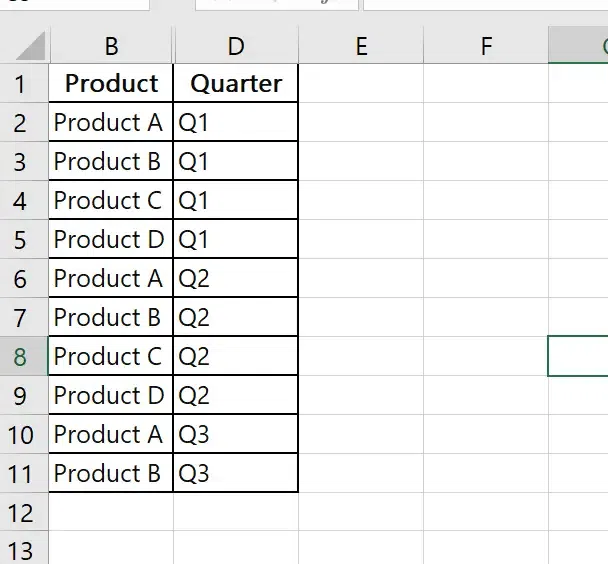
Step 1: Look at the Column Letters
Hidden columns will appear as skipped letters (e.g., Only B and D columns are visible that means A and C are hidden).

Also Read: