
The Analysis ToolPak is a built-in add-in in Microsoft Excel that provides advanced statistical and data analysis tools. It helps users perform tasks like regression, correlation, ANOVA, and other statistical calculations without using complex formulas. However, the Analysis ToolPak is not enabled by default, so it must be installed first.
Tools Available in Excel's Analysis Toolpak
Here's a complete list of the 19 statistical tools provided by the Analysis Toolpak:
| S. No | Tool Name | Function Description |
|---|---|---|
| 1 | Anova: Single Factor | Compares means across multiple groups using one factor |
| 2 | Anova: Two-Factor with Replication | Analyzes variance with two factors and multiple samples |
| 3 | Anova: Two-Factor Without Replication | Analyzes variance with two factors but without replication |
| 4 | Correlation | Measures the relationship between two variables |
| 5 | Covariance | Shows how two variables vary together |
| 6 | Descriptive Statistics | Summarizes data (mean, median, mode, std. deviation, etc.) |
| 7 | Exponential Smoothing | Forecasts trends by smoothing out short-term fluctuations |
| 8 | F-Test Two-Sample for Variances | Tests if two datasets have equal variances |
| 9 | Fourier Analysis | Performs frequency analysis of time-series data |
| 10 | Histogram | Creates a frequency distribution chart |
| 11 | Moving Average | Shows trends by averaging data over a period |
| 12 | Random Number Generation | Generates random data from selected distributions |
| 13 | Rank and Percentile | Ranks values and assigns percentiles |
| 14 | Regression | Examines relationship between variables using linear regression |
| 15 | Sampling | Selects a subset from a larger dataset |
| 16 | t-Test: Paired Two Sample for Means | Compares means of the same group before and after treatment |
| 17 | t-Test: Two-Sample Assuming Equal Variances | Compares means of two independent groups (equal variance) |
| 18 | t-Test: Two-Sample Assuming Unequal Variances | Compares means of two independent groups (unequal variance) |
| 19 | Z-Test: Two Samples for Means | Compares means of two groups with known population variances |
But to use these tools, we need to install the Analysis Toolpak in our Microsoft Excel. Now we are going to learn how can we install it depending on whether you are using Excel or Mac.
How to Install Analysis Toolpak in Excel on macOS
Step 1: In the ribbons present on the top of the Excel window, click on the Developer tab.

Step 2: In the Developer tab, locate the option "Excel Add-ins" and click on it to open the Add-ins dialog box.
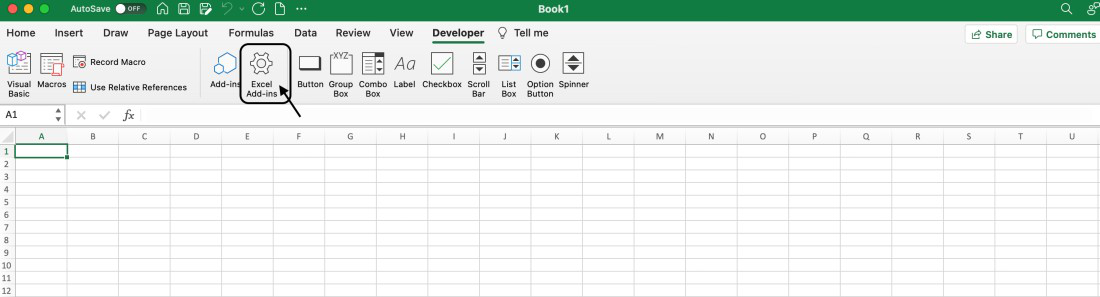
Step 3: In the Add-ins dialog box, we can see the available add-in options. If the Analysis ToolPak option checkbox is not ticked, click on the checkbox to make it green and then click the OK button.

Step 4: Now, go to the top ribbon and select the Data tab. In the Data tab, the Data Analysis option will become visible.

Step 5: On clicking the Data Analysis option, we can see the Analysis Tools dialog box which contains all the functional tool options.

A video displaying each of the above steps is also attached below.
How to Install Analysis Toolpak in Excel on Windows
Step 1: In the ribbons present on the top of the Excel window, click on the File button.
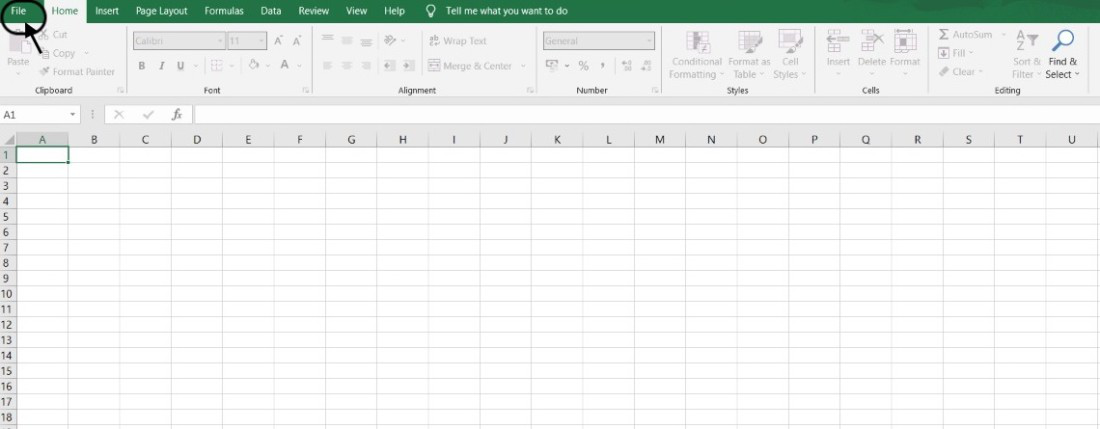
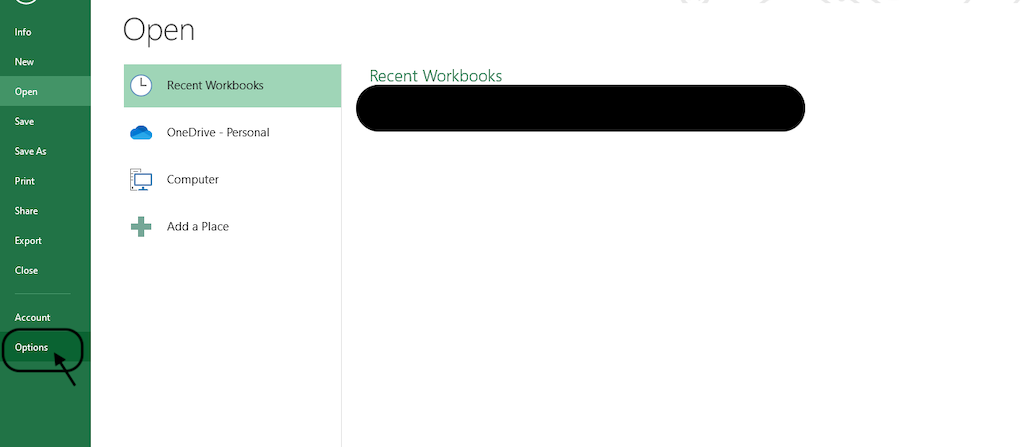
Step 2: A new window will appear, from the left-hand side of the window, look out for the "Options" button and click on it to open it.
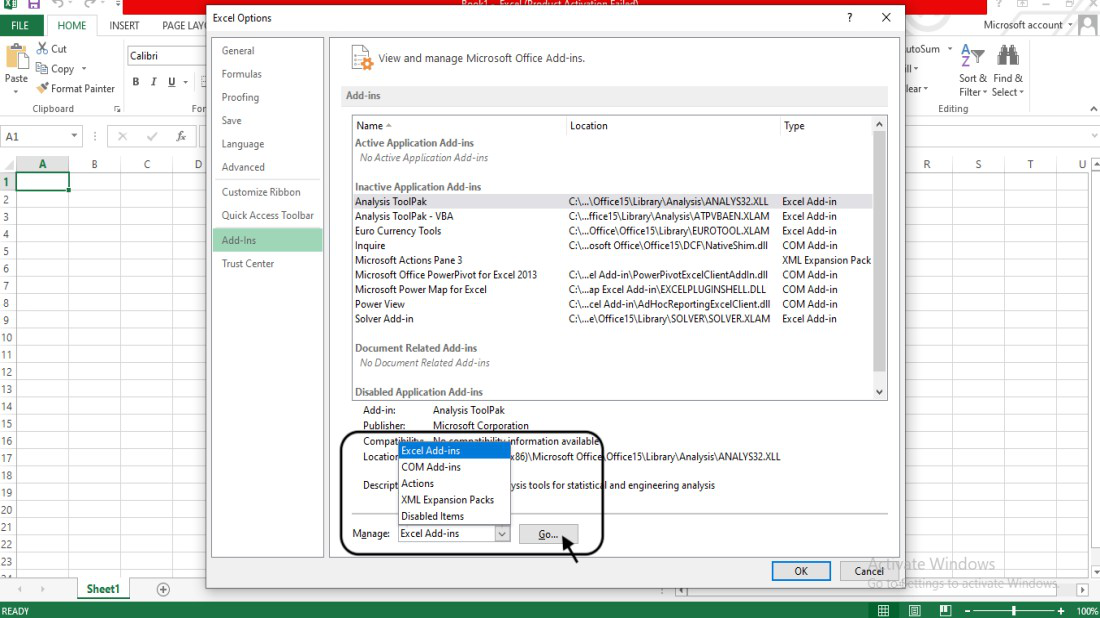
Step 3: A dialog box named "Excel options" will appear on the screen. From the left-hand side of the box, locate the "Add-ins" option and click on it.
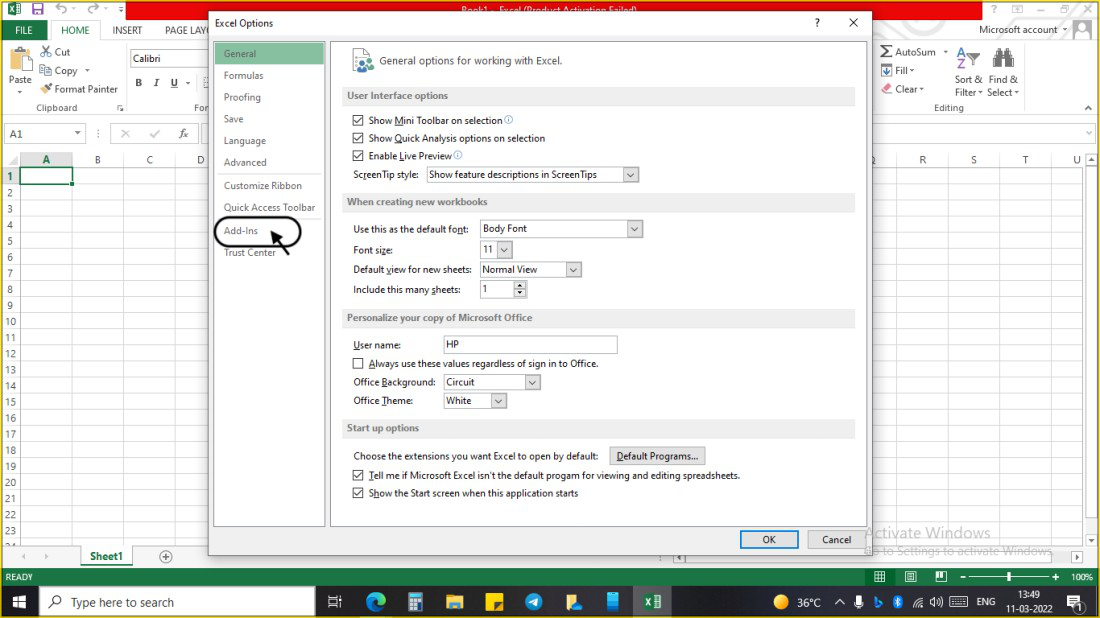
Step 4: Under the "Manage" option, select "Excel Add-ins" from the drop-down menu and click on the Go button to open the Add-ins dialog box.
Step 5: In the Add-ins dialog box, we can see the available add-in options. If the Analysis ToolPak option checkbox is not ticked, click on the checkbox to make it green and then click the OK button.
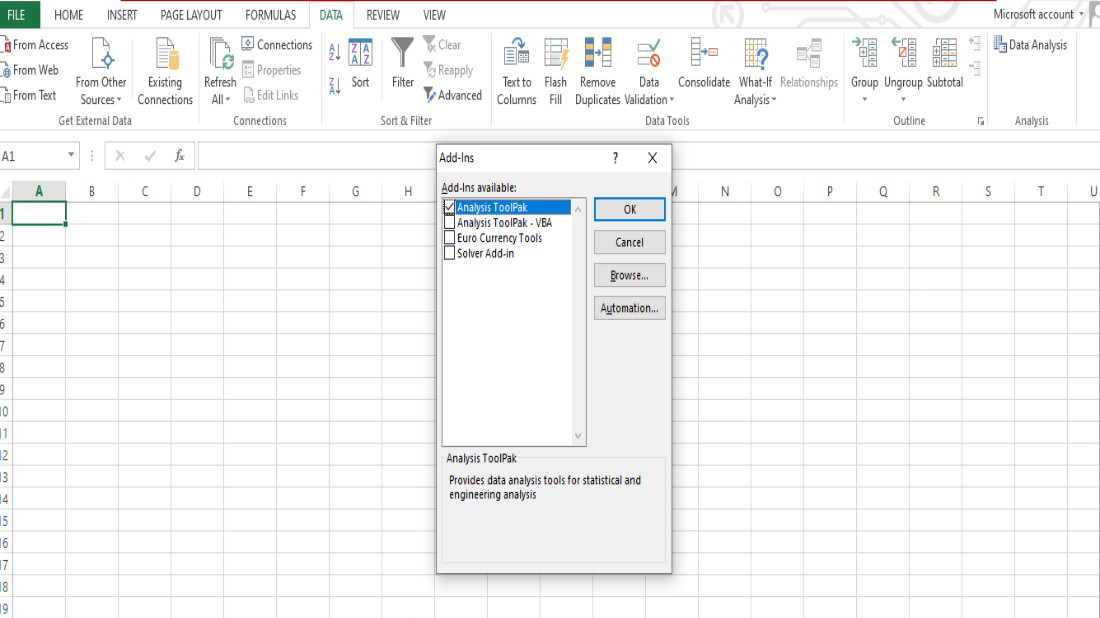
Step 6: Now, go to the top ribbon and select the Data tab. In the Data tab, the Data Analysis option will become visible.

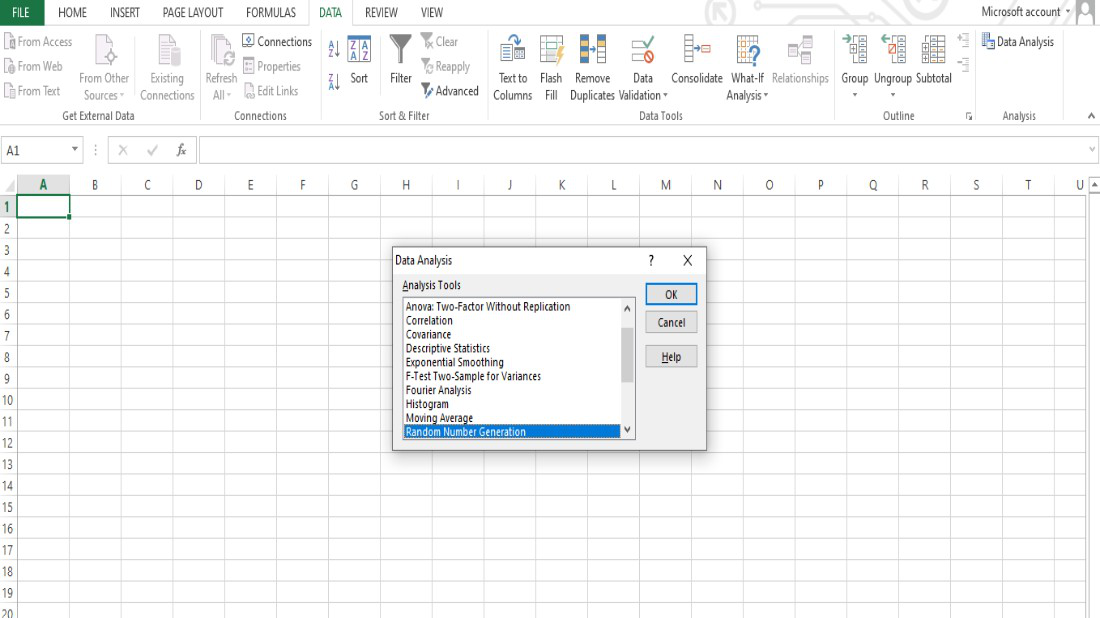
Step 7: On clicking the Data Analysis option, we can see the Analysis Tools dialog box which contains all the functional tool options.
Note: Sometimes, an installation prompt is shown to the user that says the Analysis ToolPak is not currently installed on your system, click Yes to install it. In such cases, the user should accept the request to install the Analysis Toolpak.