
Bivariate data is data which have two variable dependencies. The data can be either Quantitative or Qualitative. The value of one variable changes accordingly with the value of the second variable. The Quantitative bivariate data can be represented in the form of a scatter plot, and Qualitative variable data can be represented in the form of a frequency distribution table.
A correlation can exist in bivariate data; the correlation value ranges from -1 to 1.
What are Scatter Plots?
Scatter plots are graphs that represent the relation between two variables. It is simply said as plotting points, on the X and Y axis. They are very useful for data analysis or regression analysis. The independent attributes are plotted on X-axis, while dependent attributes are plotted on Y-axis.
For example, you are given a scatter plot of Study Hours and Marks(100).

What is Linear Regression?
Linear Regression is a machine learning model, which is used to predict the future values of a dependent variable, with respect to the best-fit line. The best-fit line is the line that passes through the data points, such that they have the minimum distance error sum from all the points. This is also called a trend line. Excel one-click functionality, to display the equation of the trend line, which is achieved from the machine learning linear regression algorithm.

How to Plot Bivariate Data using Scatter Plot - Steps?
Now, we will learn how to create a scatter plot and add a trend line, which will help us analyze the bivariate data in a better way. Lets begin with the help of an example.
For example, Arushi is the class teacher of the tenth (X)th class, she collected data from her students, how many hours they use to study in a day, and added the marks achieved corresponding to that student, her task is to analyze this bivariate data in excel, by plotting it in a scatter plot.
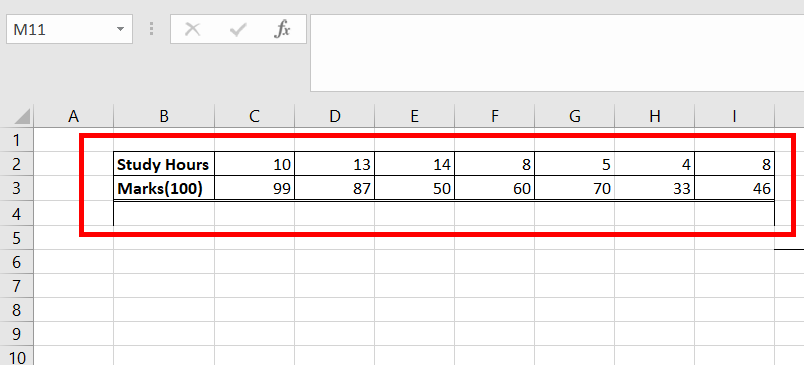
Step 1: Access the Insert Tab
Select the data you entered, and go to the Insert Tab. After selecting Insert Tab you have to add a scatter chart.
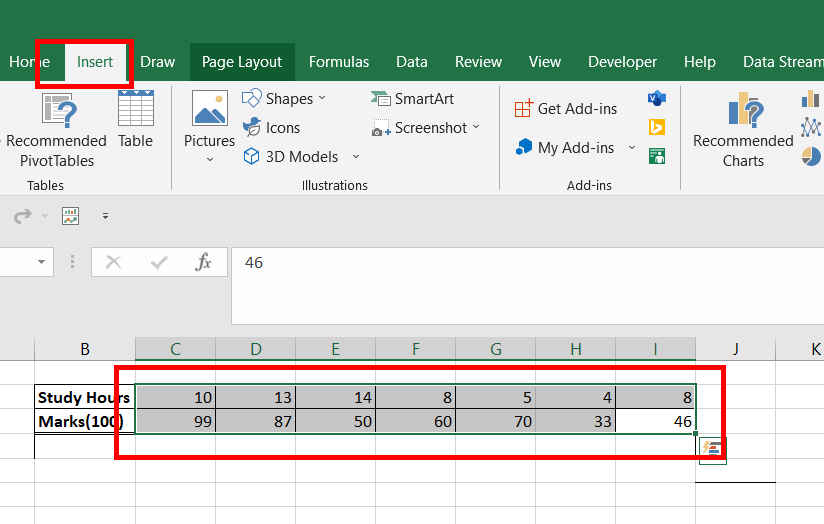
Step 2: Select the Scatter Chart
Find the Charts section, and under the section go to the scatter chart and select it.

Step 3: Chart is Successfully Created
As you click on Scatter charts option, a chart is created, between Study Hours (X-axis) and Marks Scored (Y-axis).
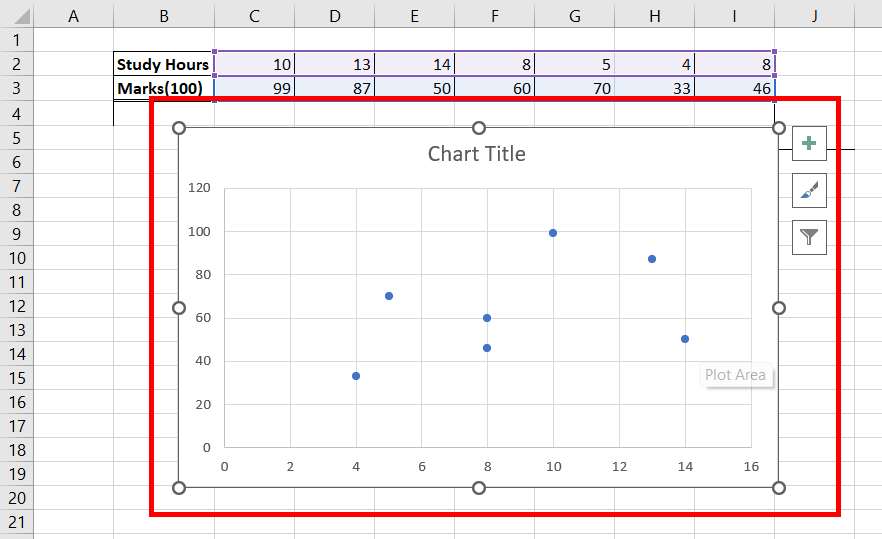
Step 4: Adding Custom Title
Add a custom title to the prepared chart i.e. Study Hours Vs Marks(100) by double clicking on the Tilte Box.

Step 5: Add Titles to X and Y Axis
Select the chart, click on the plus(+) button, and check the box Axis Titles. This adds the name of the X-Axis and Y-Axis.
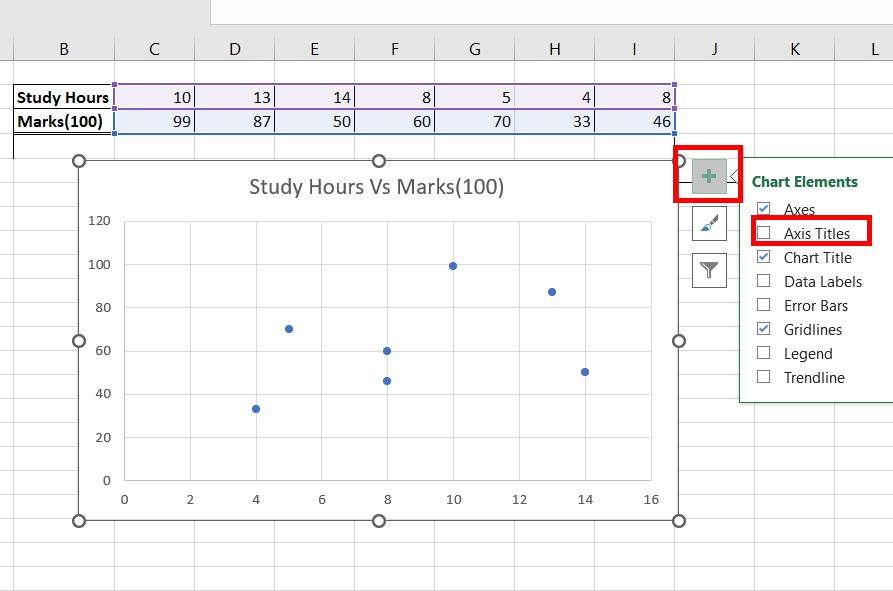
Step 6: Preview Titles Added to X and Y axis
The Axis titles, box is added, with the default name as Axis Title.

Step 7: Edit the Titles of X and Y Axis
On the X and Y axis, select the Axis Title, and change the name to Study Hours and Marks(100) respectively.

Step 8: Select X Axis
Select the X-Axis chart area, and right-click on it. A drop-down appears, select the format axis.
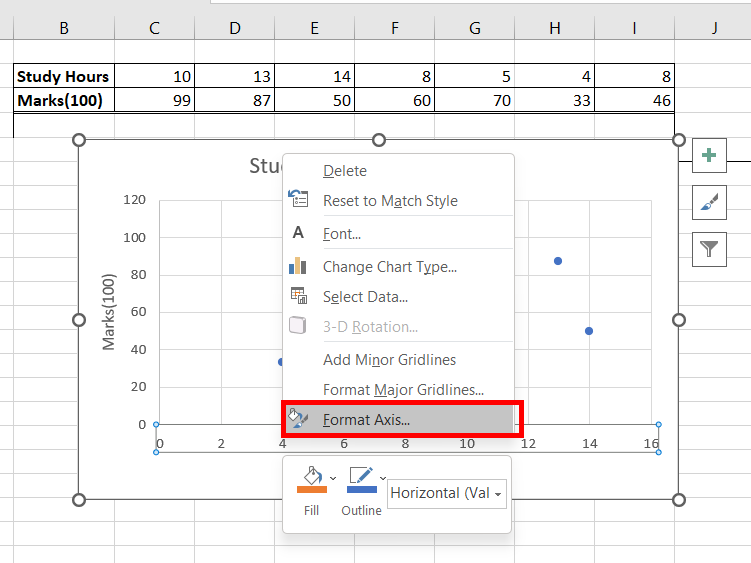
Step 9: Go to Format Axis
A Format Axis, dialogue box appears, at the right-most side of your screen. Under the Axis Options, the default value of minimum is 0. We can see our data starts after value 4. To have better visualization, we could change the minimum value from 0 to 3. This totally depends on the user, one can provide any value as the minimum value.
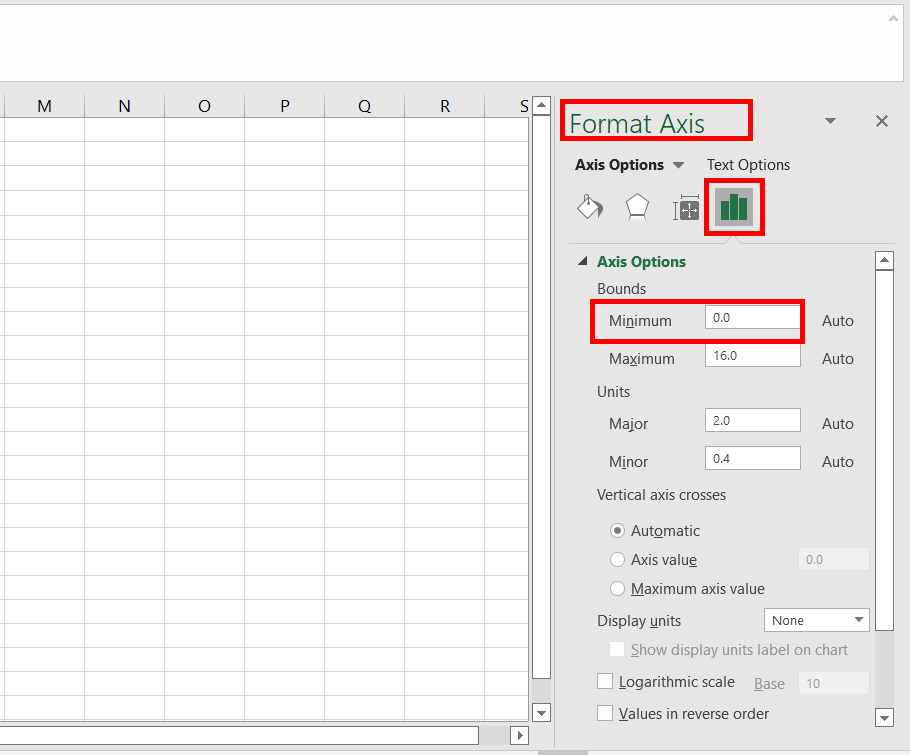
Step 10: Change Axis Value
Change the minimum value from 0 to 3. Press Enter.
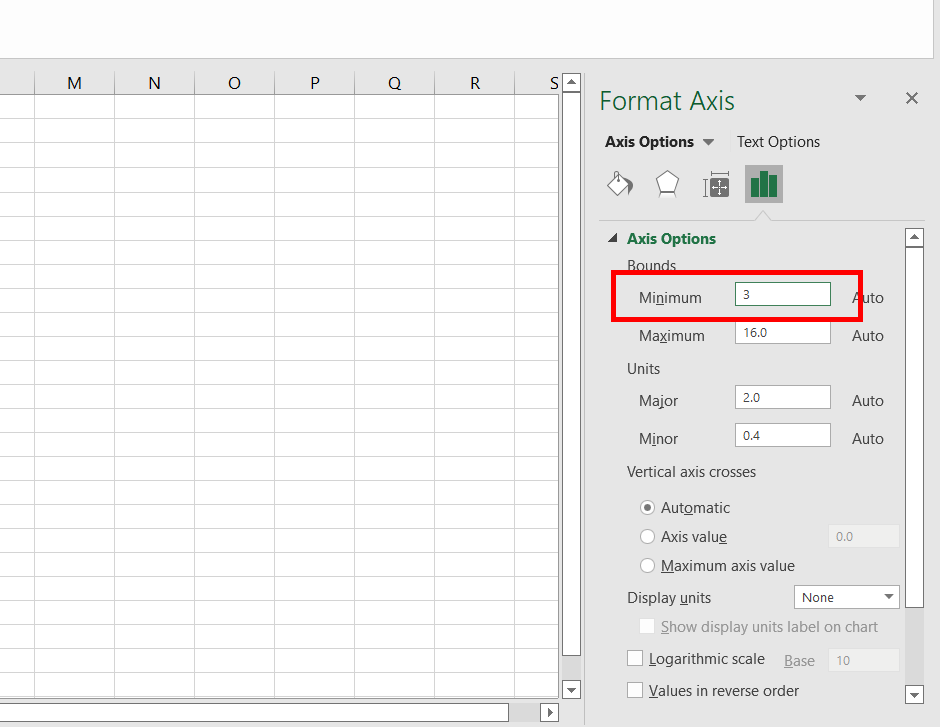
Step 11: Preview Changed X Axis Value
Now, you can observe, our X-axis starts from value 3.

Step 12: Select Format Axis For Y Axis
Repeat the same for Y-axis. Select the Y-axis chart area, and right-click on it. A drop-down appears, select the format axis.

Step 13: Check Minimum Value and Change It
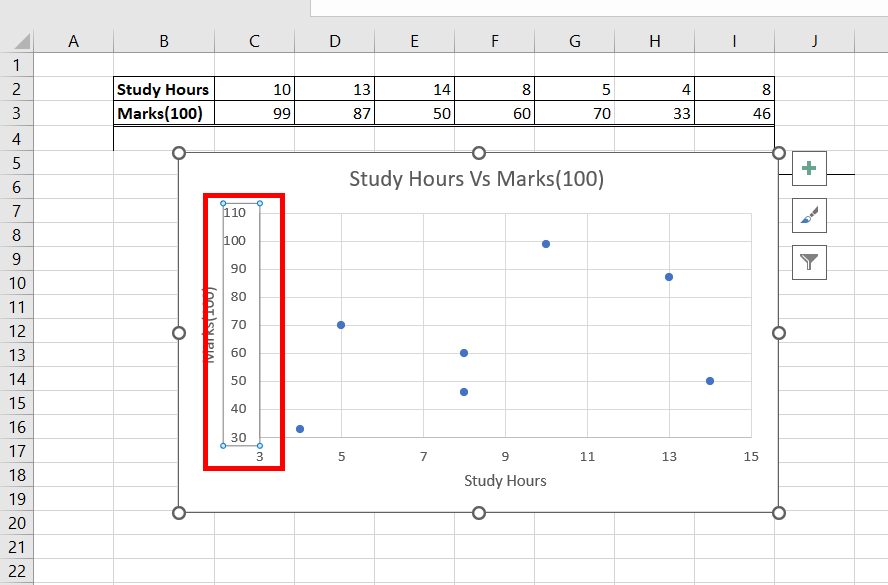
A Format Axis, a dialogue box appears, at the right-most side of your screen. Under the Axis Options, the default value of minimum is 0. We can see our data starts after value 40. To have better visualization, we could change the minimum value from 0 to 30. This totally depends on the user, one can provide any value as the minimum value. Press Enter.
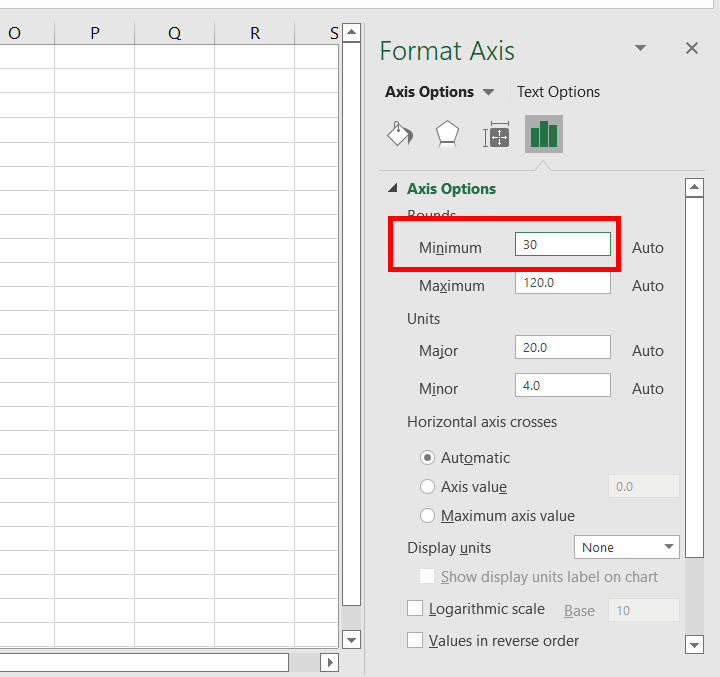
Step 14: Preview Changed Value
Now, you observe, our Y-axis starts from value 30.
Step 15: Add Trendline
Now, the only work left is to add a trend line, and an equation of the best-fit line, which is part of our linear regression. Select the data points, and right-click on them. Select Add Trendline. This adds the trend line to your chart.

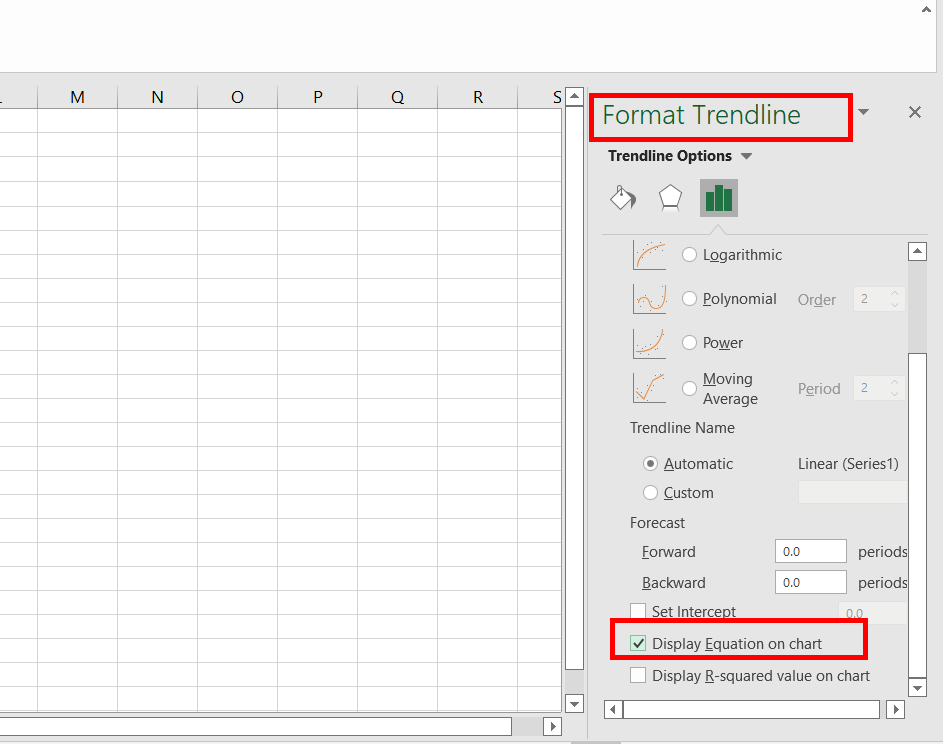
Step 16: Go to Format Trendline and Select Display Eaquation On Chart
Also, a Format Trendline dialogue box appears, at the right-most side of your screen. Under the Trendline Options, check the box, Display equation on the chart.
Step 17: Preview Added Trendline
A Trend line and its equation is added to your chart.

Step 18: Use CORREL Function
Our Bivariate data is plotted, efficiently for analytical purposes. The only work left is to add the correlation value between the two variables.
Note: Use =CORREL(C2:I2, C3:I3) function, to add a correlation between the variables. Press Enter.

Step 19: Value is Positive
The correlation value is 0.396 i.e. positive, which signifies that as the study hours increase, the marks of students also increase.
