
The If-Else-If statement in VBA allows you to execute different code blocks based on conditions, enabling decision-making in your programs. For example, we can check which department has the highest salary or validate user inputs in Excel. This article explains the If-Else-If structure with a practical example.
1. Setting Up VBA
To write VBA code, enable the Developer tab and create a module:
- In the Microsoft Excel tabs, select the Developer Tab. Initially, the Developer Tab may not be available.

The Developer Tab can be enabled easily by a two-step process :
- Right-click on any of the existing tabs at the top of the Excel window.
- Now select Customize the Ribbon from the pop-down menu.

- In the Excel Options Box, check the box Developer to enable it and click on OK.

- Now, the Developer Tab is visible.

Now click on the Visual Basic option in the Developer tab and make a new module to write the program using the Select Case statement.
Developer -> Visual Basic -> Tools -> Macros
- Now create a Macro and give any suitable name.

- This will open the Editor window where can write the code.

2. IF ELSE IF Statement
The syntax is :
If condition1/expression1 Then
Code Block 1
Else If condition2/expression2 Then
   Code Block 2
Else
    Code Block 3
End If
Explanation:
- condition1, condition2: Logical expressions (e.g., x > y, a = b) that evaluate to TRUE or FALSE.
- If condition1 is TRUE, Code Block 1 runs, and the program exits the structure.
- If condition1 is FALSE, condition2 in ElseIf is checked. If TRUE, Code Block 2 runs.
- If all conditions are FALSE, the Else block (optional) runs.
- Logical operators like And (both conditions TRUE) or Or (at least one TRUE) can combine conditions.
Flow Diagram :

Example: Finding the Maximum Salary
This example compares salaries of HR, Finance, and IT departments to find the highest.
Code:
Sub FindMaxSalary()
    ' Declare variables
39;     Dim HR_Sal As Double, Fin_Sal As Double, IT_Sal As Double
    ' Get user input with error handling
    On Error Resume Next
    HR_Sal = InputBox("Enter HR department salary:")
    If Err.Number <> 0 Or HR_Sal < 0 Then
        MsgBox "Invalid HR salary"
        Exit Sub
    End If
    Fin_Sal = InputBox("Enter Finance department salary:")
    If Err.Number <> 0 Or Fin_Sal < 0 Then
        MsgBox "Invalid Finance salary"
        Exit Sub
    End If
    IT_Sal = InputBox("Enter IT department salary:")
    If Err.Number <> 0 Or IT_Sal < 0 Then
        MsgBox "Invalid IT salary"
        Exit Sub
    End If
    On Error GoTo 0
    ' Compare salaries
    If HR_Sal > Fin_Sal And HR_Sal > IT_Sal Then
        MsgBox "HR department has maximum salary: " & HR_Sal
    ElseIf Fin_Sal > HR_Sal And Fin_Sal > IT_Sal Then
        MsgBox "Finance department has maximum salary: " & Fin_Sal
    ElseIf IT_Sal > HR_Sal And IT_Sal > Fin_Sal Then
        MsgBox "IT department has maximum salary: " & IT_Sal
    Else
        MsgBox "Multiple departments have the same maximum salary"
    End If
End Sub
Explanation:
- Variables (HR_Sal, Fin_Sal, IT_Sal) store user inputs as Double to handle large salaries.
- Error handling checks for invalid (non-numeric) or negative inputs.
- The If-Else-If structure compares salaries, with an Else block for ties.
Sample Outputs:
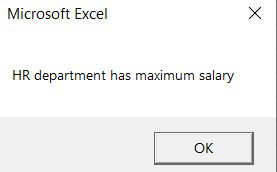
Case 1 :
Inputs by the user are :


The output is :
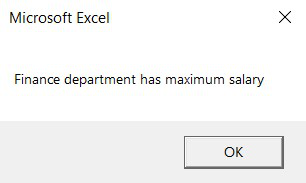
Case 2 :
Inputs by the user are :

The output is :
Case 3 :
Inputs by the user are :

The output is :
