
Subtraction in Excel allows quick calculations across numbers, cells, dates, times, percentages, matrices, and even text. While Excel doesn’t have a dedicated subtract function, you can use the minus sign (-) or functions like SUM and SUBSTITUTE to perform subtraction efficiently for both simple and advanced tasks.
Steps to Subtract in Excel
Excel does not have a built-in subtract function. To subtract two numbers:
Formula
=number1-number2
To enter the formula in your worksheet, do the following:
Step 1: Type (=) sign in cell
Type the equal sign (=) in the cell.

Step 2: Type formula like Value1-Value2
Type the first number, then the minus sign, and after that second number.

Step 3: Press the enter button
Press the Enter key to apply the formula.

Steps to Subtract Cells in Excel
Learn to subtract values in different cells with a few simple steps
Step 1: Type the equals sign (=)
Start your formula in the cell where you want to output the difference by typing the equals sign (=).
Step 2: Click on the cell containing a number
Select the cell containing the minuend by clicking on it.
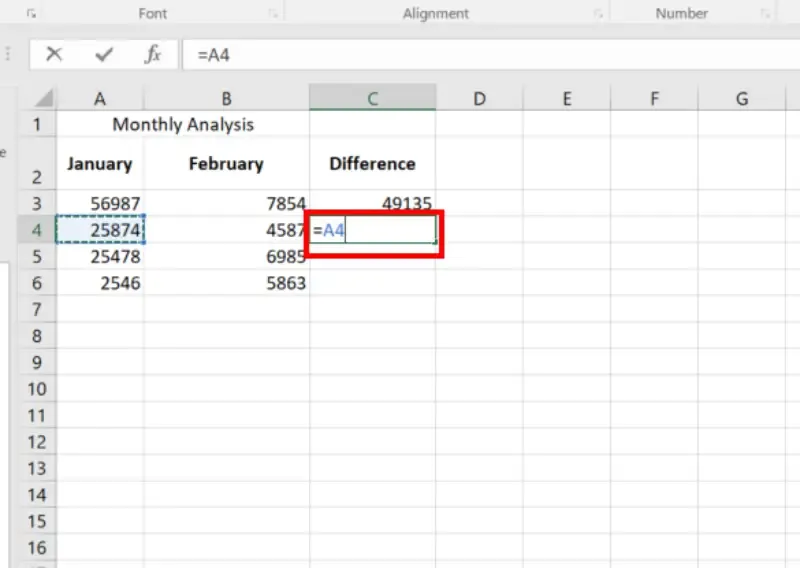
Step 3: Type a minus sign (-).
Insert the negative sign (-) after the quantity you want to subtract.

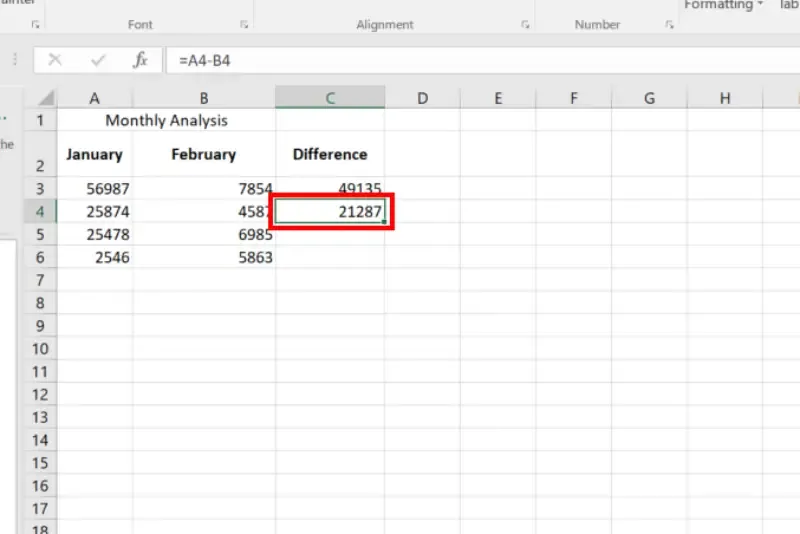
Step 4: Choose the cell with the number to subtract
Click on the cell containing the number to be subtracted to include it in the calculation.

Step 5: Press the Enter to Apply
Press the Enter key to complete your formula
Steps to Subtract Multiple Cells in Excel
You may use three methods to subtract multiple cells from the same cell.
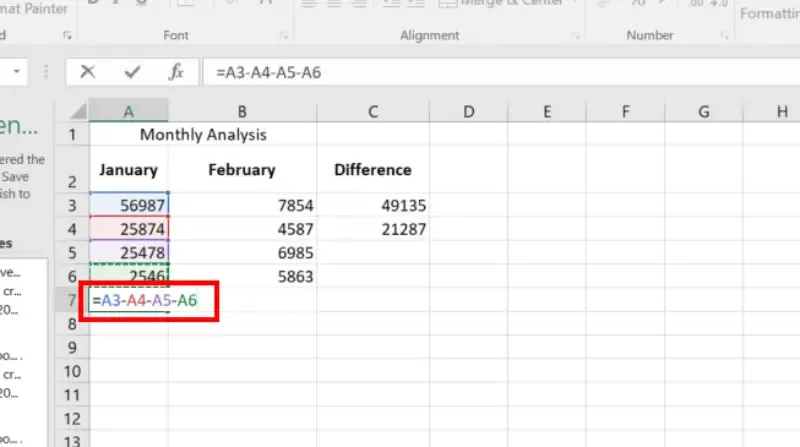
Method 1: Minus sign
To subtract the values in cells A2 through A5 from the value in A1, follow these steps:
=A1-A2-A3-A4-A5
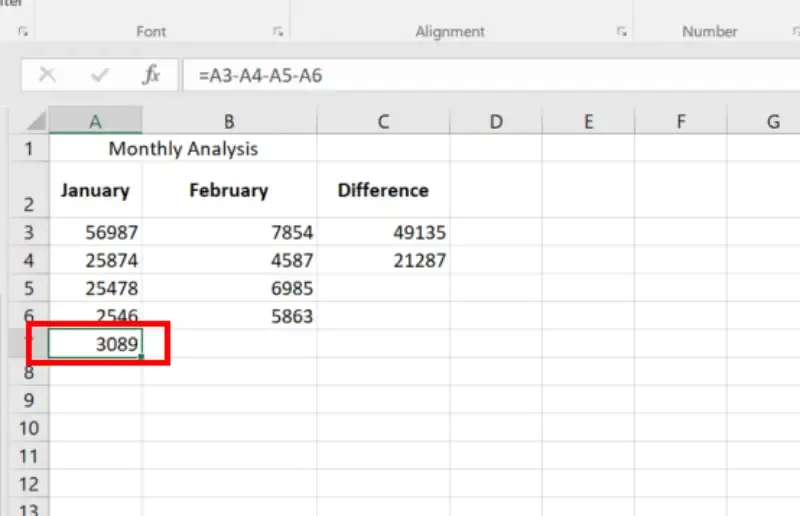
Preview Result
You have successfully subtracted multiple cells from one cell in Excel using the minus function.
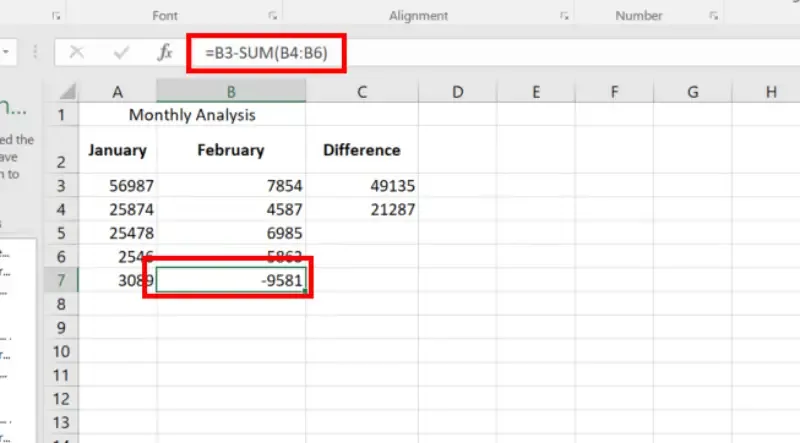
Method 2: Using the SUM Function
Use the result function to add the subtrahends (A2:A5), then deduct the result from the minuend (A1) to make your calculation more compact.
=A3-SUM(A2:A5)

Preview Result
You have successfully subtracted multiple cells from one cell in Excel using the SUM function.
Steps to Subtract two Columns in Excel
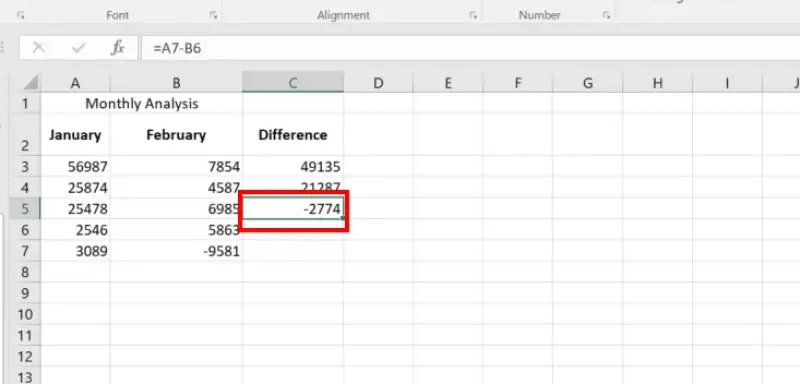
Follow these simple steps to subtract one column from another row-by-row:
Step 1: Enter the Subtraction Formula
- In the first cell of the results column, type the subtraction formula for the topmost cell and press enter.
=A7-B6

Step 2: Press Enter
Press Enter to Preview Result
Steps To Subtract a Value From an Entire Column
Follow these simple steps to subtract a specific value in a cell from all cells in a column:
Step 1: Select the number to subtract
To subtract a number, you must first choose that number.
.webp)
Step 2: Select the Cell Destination
Select the cell to display the results, such as cell C2.
.webp)
Step 3: Enter =A3-$B$3 in cell C3.
Type =A3-$B$3 in cell.
This formula subtracts the number in cell B3 from the number in cell A3.
.webp)
You have successfully Subtracted a Value from an Entire Column in Excel.
Steps to Subtract Percentages in Excel
Excel makes it simple to subtract two percentages. Following are detailed steps for using each way to subtract percentages in Excel:
Method 1: Direct Subtraction
Step 1: Enter the Formula
Type the formula like =A% - B%
In the desired cell, type the formula to subtract one percentage from another directly.
.webp)
Step 2: Press Enter
Press the Enter key to execute the formula and obtain the result. Check the cell to ensure the direct subtraction is reflected in the result.
.webp)
Method 2: Subtract the Percentage of different Cells
Step 1: Enter the Percentage value in the cell
Enter the percentage value in separate cells to subtract.
.webp)
Step 2: Type =A3-B3
Use the minus sign to subtract the percentages in a new cell.
.webp)
Step 3: Confirm subtraction
Check the cell to make sure the subtraction was done correctly.
.webp)
Method 3: Subtracting Percentage from a Number
Step 1: Separate the number and percentage to subtract.
Separate the total amount to be subtracted from the total in two separate cells, for example, A2 and B2.
.webp)
Step 2: Apply Formula =A3 * (1 - B3)
Cut the number by the specified percentage in a new cell using the formula =A3 * (1 - B3) OR you can type the cell number containing values like
====--
.webp)
Step 3: Check the Result
Verify the cell to see if the given percentage has been subtracted from the number.
.webp)
Method 4: Using Absolute Reference for Percentage
Step 1: Enter a number (A3) and a percentage (B3).
Put the % in cell B3 and the number into cell A3.
.webp)
Step 2: Enter the formula =A3 * (1 - $B$3)
Enter formula =A3 * (1 - $B$3) in a new cell
This guarantees that the percentage is an absolute reference.
.webp)
Step 3: Press enter and check the result
After entering the formula press Enter for result.
.webp)
Steps To Subtract Two Dates in Excel
The easy way to subtract dates in Excel is to enter them in cells and subtract one cell from the other:
Step 1: Enter the two Dates in Different Cells
Enter the dates to subtract in separate cells, for example, A1 and B1.

Step 2: Select the Cell Destination
Choose the cell where you want the result to appear.

Step 3: Type =B2-A2 in cell and Press Enter.
After selecting the cell type =B1-A1. Change real cell references for B1 and A1. The formula executed by pressing the Enter key. Excel calculates and displays the Difference in the selected cell.

You have successfully learned to subtract Dates in Excel.
Steps To Subtract Times in Excel
The formula for subtracting time in Excel is simple:
=End_time - Start_time
Step 1: Find the Cells with the Times to Subtract.
Select the cells containing the time value.
[1].webp)
Step 2: Select a Cell Where you Want the Result to Appear.
Select the cell destination where you want the result to appear.
.webp)
Step 3: Type =A3 -B3 and Press Enter
Type =A3 -B3 into the cell that you chose. Substitute the given cell references for the first and second times into Time1.
.webp)
You have successfully learned to Subtract Time in Excel.
Steps To Subtract Matrices in Excel
You want to take matched numbers from each table of two sets set up like tables. Here's how to do it in Excel.
Step 1: Select Empty Cells Matching Table Size
Click on a group of empty cells that match the size of your tables.
.webp)
Step 2: Type =A3:D5 - F3:I5
In the selected cells, type this formula: =A3:D5 - F3:I5
Step 3: Press Ctrl + Shift and then Enter
Press Ctrl + Shift + Enter to complete the procedure. Curly braces around the formula will indicate it's an array formula.
.webp)
You have successfully learned to do Matrix Subtraction in Excel.
Steps to Subtract a Text String in Excel
Subtracting text from one cell to another is a very common work. This has many potential applications, including data extraction and text comparison calculations.
Follow these steps:
Step 1: Open Microsoft Excel
Open the Microsoft Excel in your computer.
Step 2: Select the Cells with Text
To subtract text from a cell, first find the cell containing the text. Press Ctrl again; choose another cell with the text you wish to remove.
.webp)
Step 3: Use =SUBSTITUTE(A2, B2, "").
Copy the textual content from Cell B and place it at the quit of what you want Use the SUBSTITUTE technique.
.webp)
Step 4: Press Enter, Check the Result
Press Enter and look at the answer when you finish the SUBSTITUTE Formula.
.webp)